Kairo3D
NewPixal3D is live
Free · Runs in your browser

Reduce STL File Size — Free Online STL Reducer

Drop a heavy mesh to reduce STL file size without wrecking its shape. Pick how many triangles to keep, see the original and the reduced model side by side with their wireframes, and download a lighter STL or 3MF. Nothing is uploaded.

Drop an STL file to reduce

STL, OBJ, 3MF, PLY, GLB, FBX or STEP up to 200 MB. The first reduction (25%) starts as soon as the file opens.

Runs in your browser — your files are never uploaded.
  • Nothing uploaded
  • No sign-in
  • Keeps the shape
  • Wireframe compare
  • STL + 3MF out

What a lighter STL buys you

Binary STL stores every triangle in exactly 50 bytes, so the triangle count is the file size.

  • 50 bytesper triangle in a binary STL
  • 2–100%of the triangles you can keep
  • 0uploads — the mesh never leaves your device
  • 2outputs: binary STL and 3MF

How to reduce STL file size in four steps

From a 50 MB scan to a file your slicer, printer farm or email client accepts.

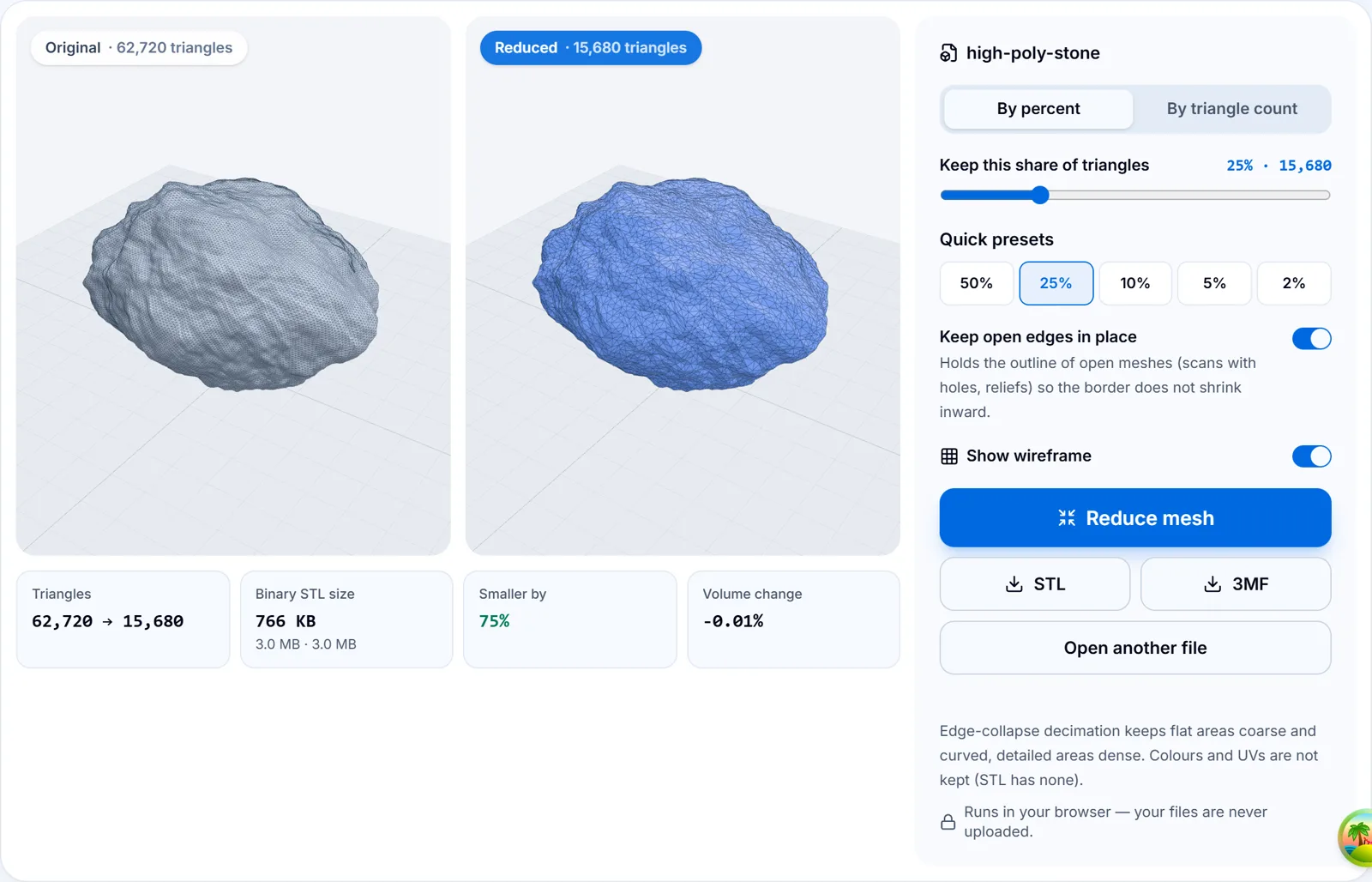
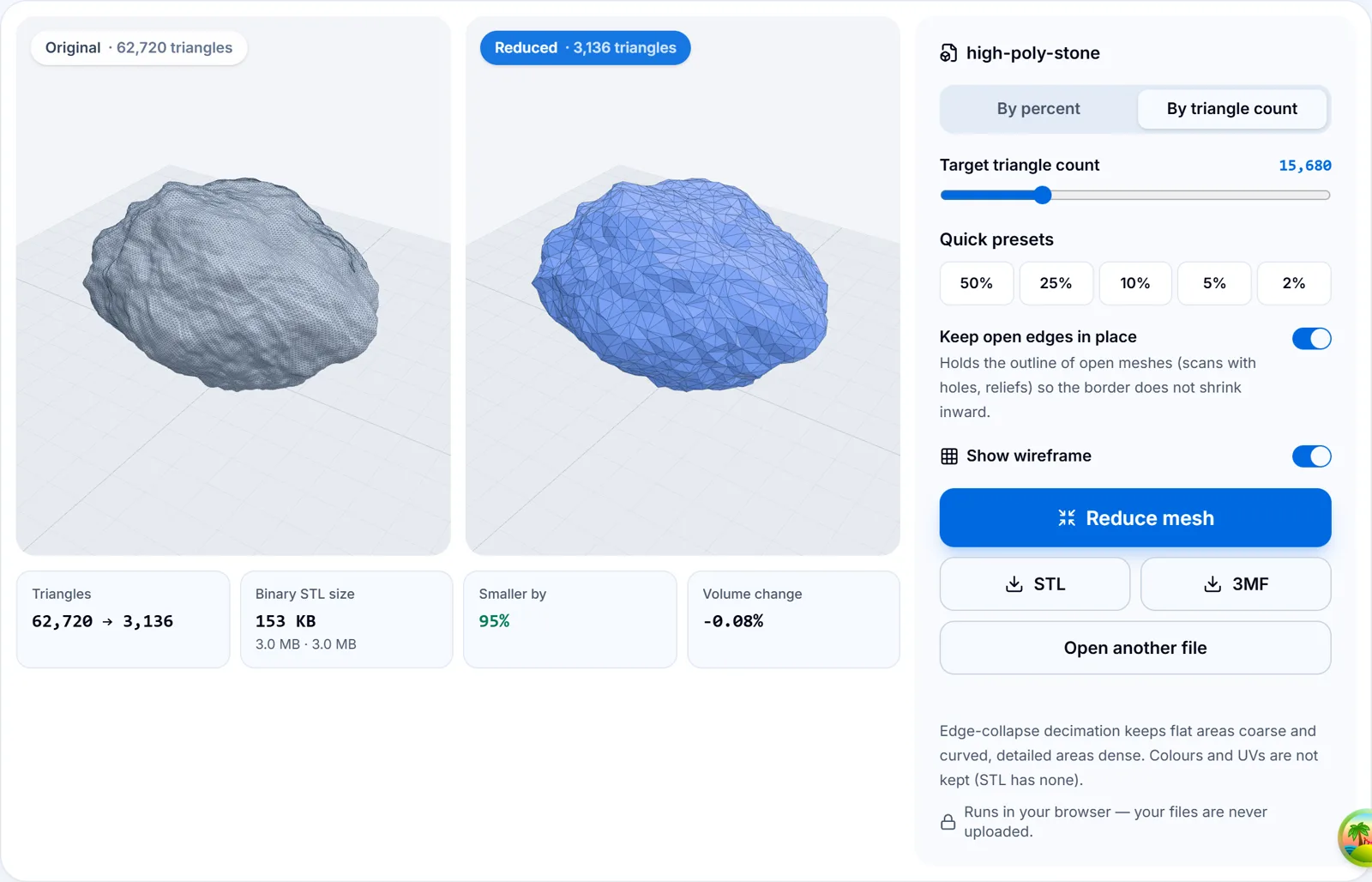
Kairo3D STL reducer with a scanned stone shown twice: the dense original wireframe on the left and the reduced mesh in blue on the right, with triangle and file-size stats below
  1. Open the heavy file

    Drop an STL (or OBJ, 3MF, PLY, GLB, FBX, STEP). It is read and measured on your computer, and a first 25% reduction runs straight away.

  2. Choose a target

    Drag the percent slider, type an exact triangle count, or tap a preset: 50, 25, 10, 5 or 2 percent. The reduction re-runs when you let go.

  3. Compare the wireframes

    The original and the reduced mesh turn together. Switch the wireframe on to see where triangles were removed and where detail was kept.

  4. Download STL or 3MF

    Check the new size, the saving and the volume change, then save a binary STL or a 3MF ready for any slicer.

Demo

Watch a 62,720-triangle scan shrink to a fraction

A real screen recording of the tool on the sample stone, no edits.

  1. 1Load the sample0:00The high-poly stone opens and the first 25% reduction finishes in about a second.
  2. 2Move the slider0:04Dragging down to 5% re-runs the decimation; the progress bar shows the worker at work.
  3. 3Toggle the wireframe0:09The wireframe reveals big triangles on smooth faces and small ones kept on ridges.
  4. 4Download0:14The file size tile drops from megabytes to kilobytes and the STL is saved.
How it works

How the STL reducer decides which triangles go

Quadric error metric decimation (Garland & Heckbert, 1997) — the same family of methods used by mesh tools in CAD and game pipelines.

  • Fewer, larger triangles

    A flat or gently curved region needs only a few triangles to describe it. Decimation merges many small ones into a few large ones there.

  • Detail stays where it matters

    Each collapse is ranked by how far it would move the surface. Cheap collapses on flat areas go first; sharp edges and fine relief are kept the longest.

  • One edge collapse at a time

    Two vertices joined by an edge merge into one, placed at the point that best fits the original planes around them. Two triangles disappear per collapse.

  • Size falls in a straight line

    Binary STL is 84 bytes plus 50 bytes per triangle, so keeping 10% of the triangles gives a file about one tenth the size.

Every collapse is checked before it is applied: it is skipped if a neighbouring face would flip, collapse to a needle, or the surface would pinch into a non-manifold edge.

Before / after

Same stone, a fraction of the triangles

Wireframe views of the sample before and after reduction, from the same angle.

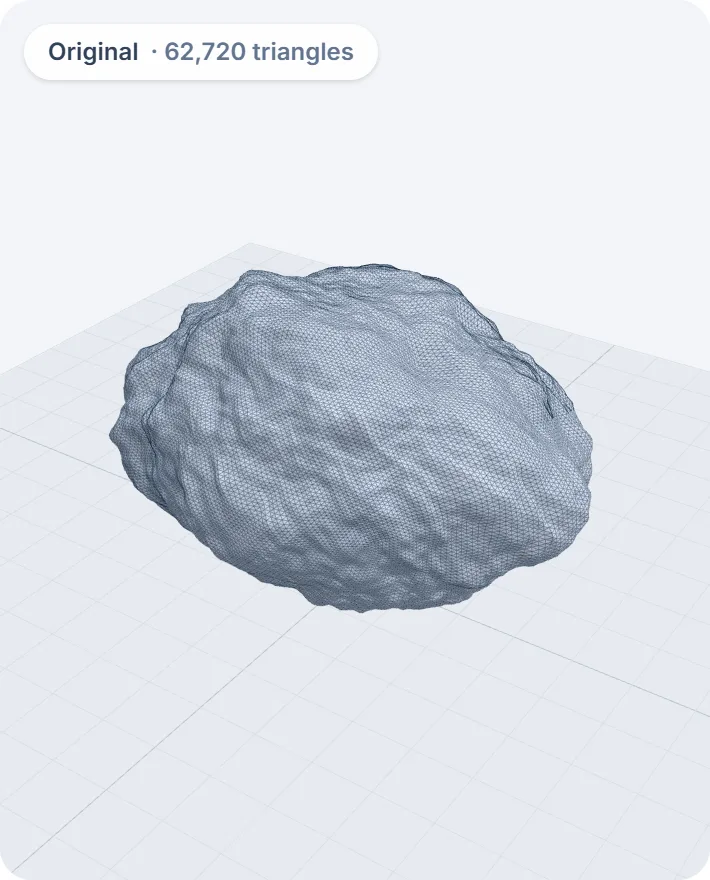
Dense wireframe of a high-poly scanned stone with tens of thousands of tiny, evenly sized trianglesOriginal
The scan-like original: 62,720 evenly sized triangles, about 3 MB as binary STL. The wireframe is so dense it reads as solid grey.
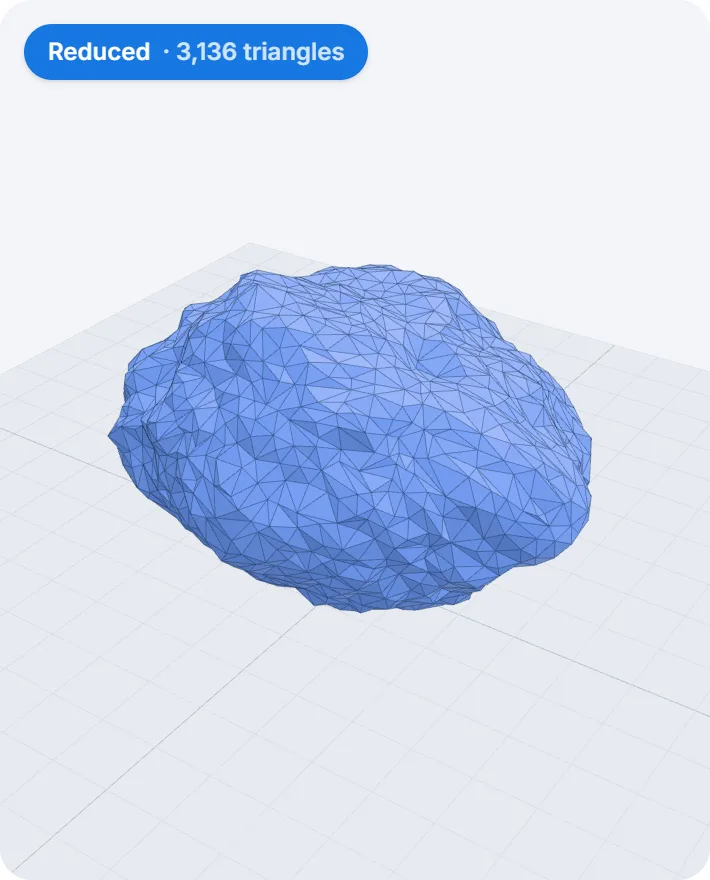
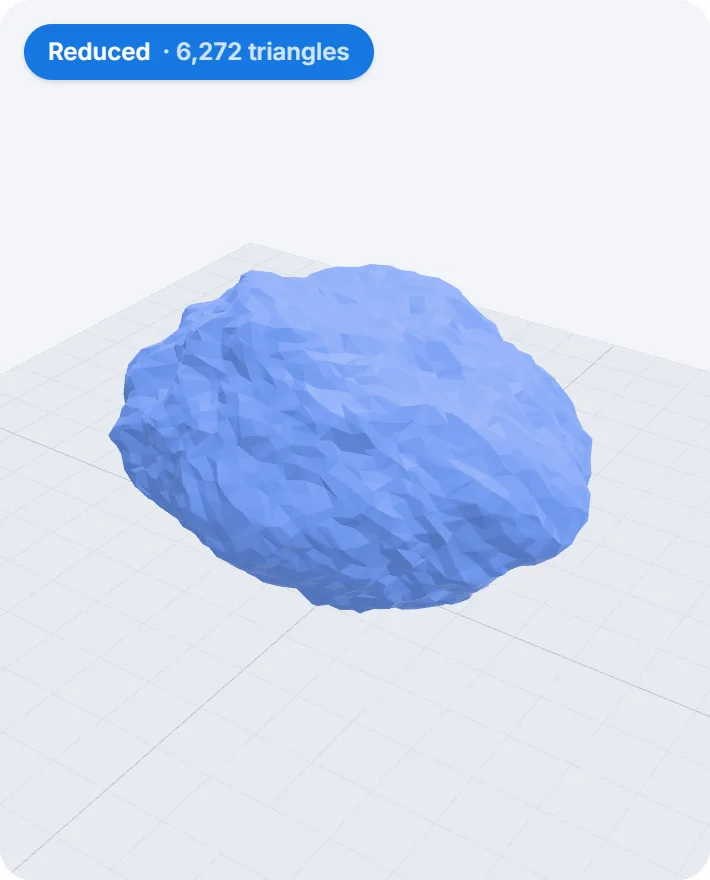
The same stone after decimation, with a visibly sparser wireframe of larger triangles that still follows the bumps and ridgesReduced
After reduction the outline, bumps and ridges are still there, built from far fewer triangles that are larger on the smooth areas.
Reference examples

Where heavy meshes come from

Scans, sculpts and research models are the usual reasons to reduce STL file size before printing.

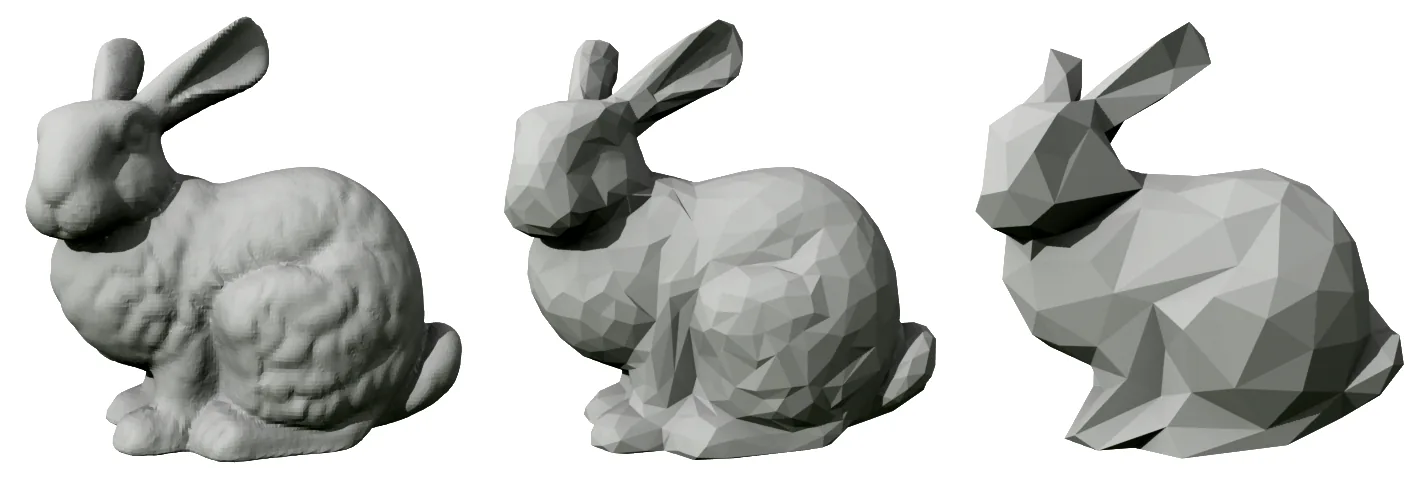
  • Three renders of the Stanford bunny mesh, from detailed on the left to coarse low-poly on the right
    Reference example

    Three levels of the same bunny

    The Stanford bunny simplified with quadric error metrics: the silhouette survives long after most triangles are gone.

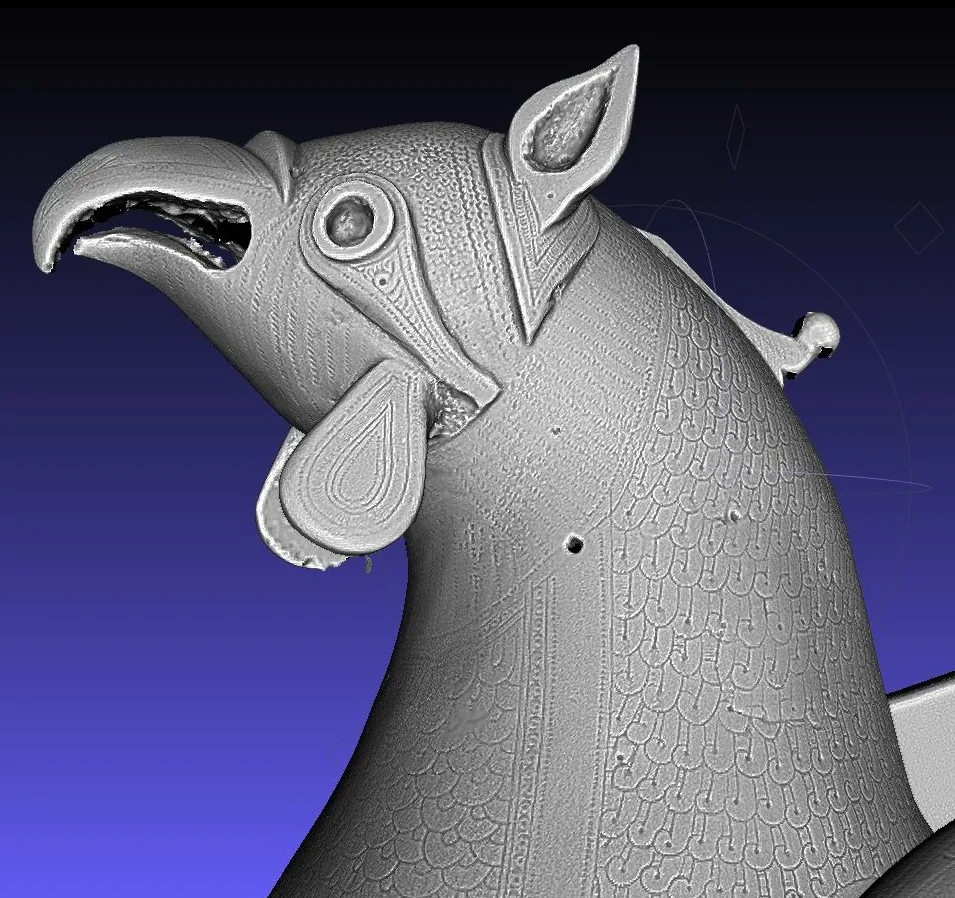
  • Grey render of a high-detail 3D scan of the bronze Pisa Griffin statue with very fine surface detail
    Reference example

    Museum scans are huge

    A high-resolution scan of a bronze statue captures every pit in the surface — and millions of triangles with it.

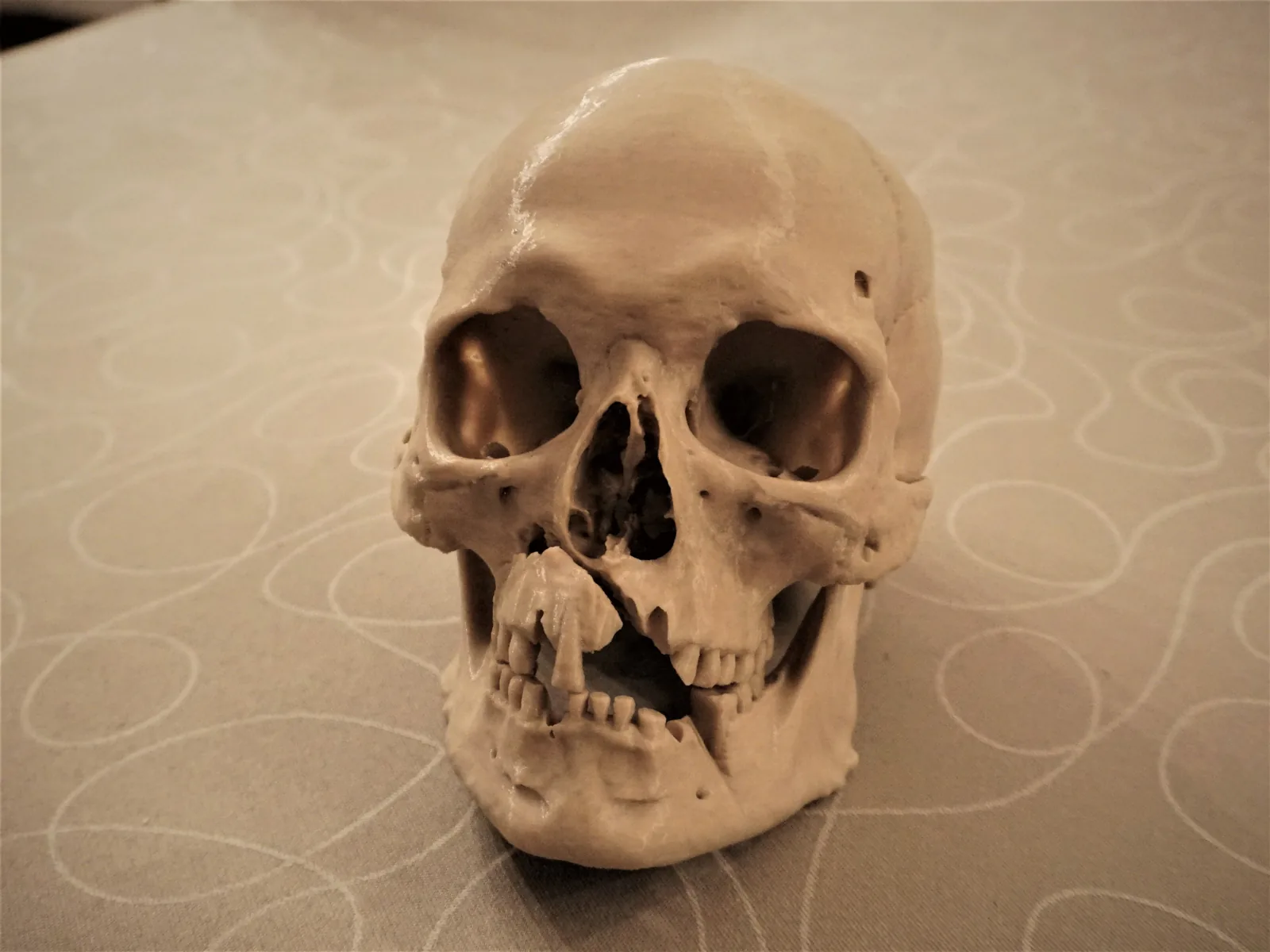
  • 3D-printed replica of a human skull made from a museum scan, standing on a table
    Reference example

    Printing a scanned object

    A skull replica printed from a museum scan. Prints like this rarely need the full scan resolution.

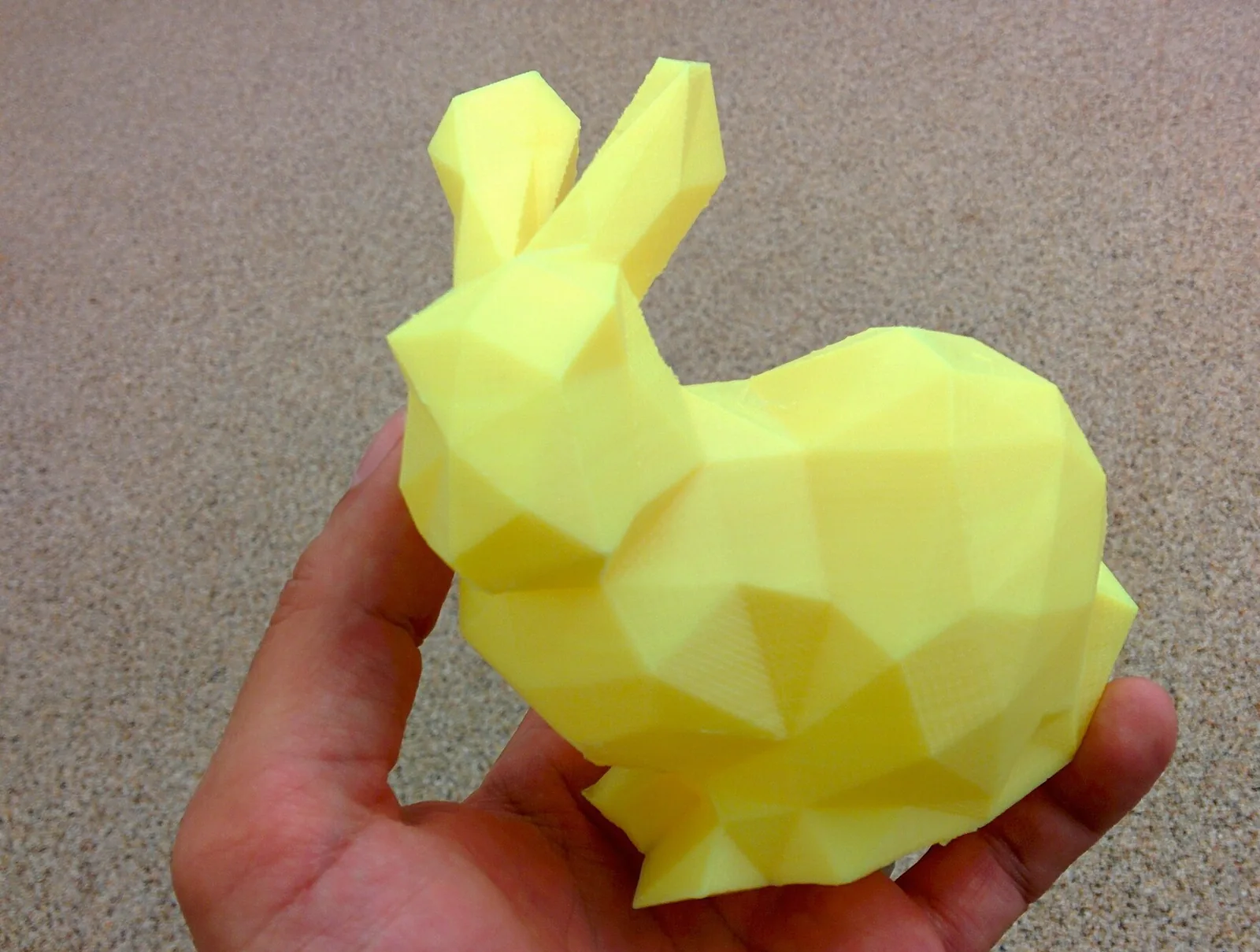
  • A hand holding a yellow low-poly 3D-printed bunny
    Reference example

    Low poly on purpose

    Pushed far enough, decimation becomes a style: a bunny with a few hundred faces, printed in yellow PLA.

Photos: Stanford bunny QEM levels — Trevorgoodchild, public domain (Wikimedia Commons); Pisa Griffin scan — ALoopingIcon, CC BY-SA 3.0 (Wikimedia Commons); scanned skull print — suit, CC BY (Printables); low-poly bunny — Creative Tools, CC BY 2.0 (Wikimedia Commons); bunny wireframe — G1malitm, CC BY-SA 4.0 (Wikimedia Commons); laser scanning — Formlabs blog.

Built to cut size, not shape

Everything you need to decimate STL files for printing, sharing or a web viewer.

  • STL reducer in triangle-count mode with the target slider and the stats tiles for triangles, file size, saving and volume change

    Percent or exact triangle target

    Choose a share of the triangles or a precise count, for example to stay under a marketplace or printer-farm limit.

  • Quadric error edge collapse

    Each merged vertex moves to the point that best fits the original planes, so curves stay round and edges stay crisp.

  • Yellow bunny model with its triangle mesh wireframe shown on a purple background
    Reference example

    Side-by-side wireframe

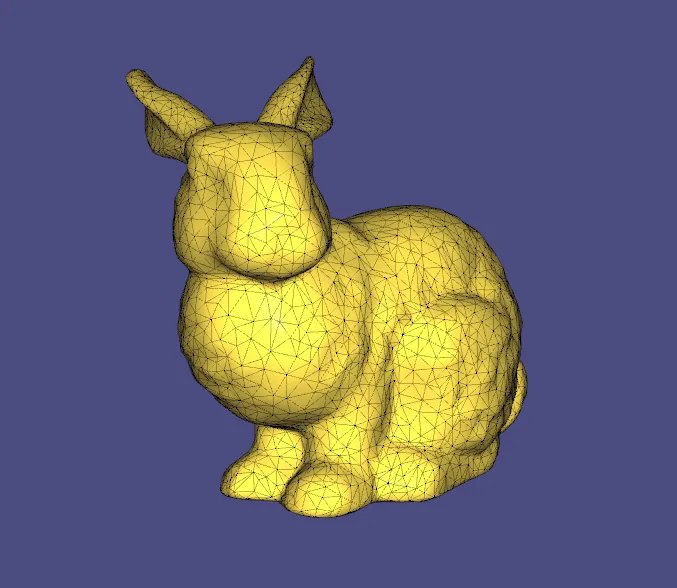
    The original and the reduced mesh move together, with an optional wireframe overlay to show exactly what changed.

  • A red laser line scanning a clay handgrip on a turntable scanner
    Reference example

    Made for scans

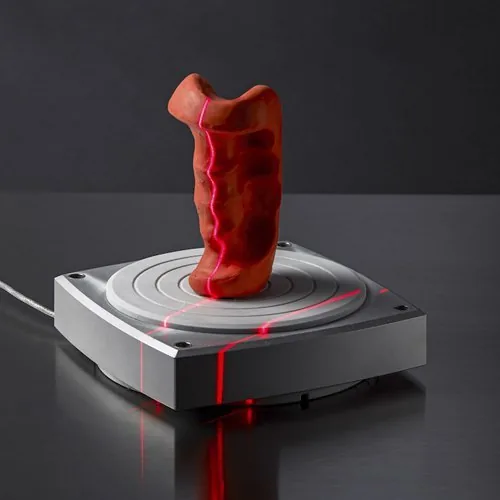
    Photogrammetry and laser scans are dense everywhere. The reducer thins out the flat areas first and keeps the texture of the surface.

  • STL reducer after a 3MF download, showing the reduced stone and the saved-file confirmation

    STL and 3MF downloads

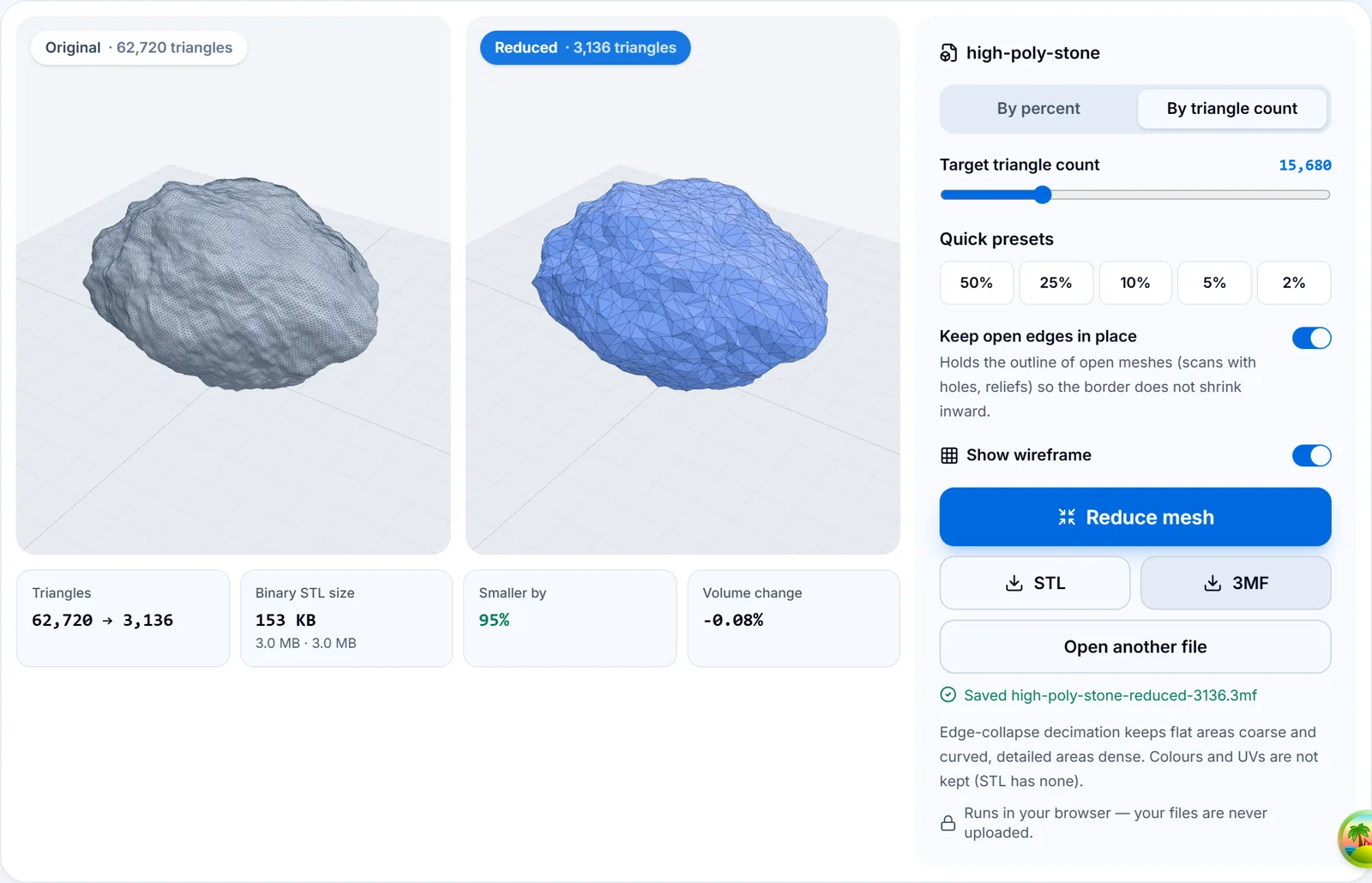
    Save a binary STL, or a 3MF in millimetres that Bambu Studio, PrusaSlicer, OrcaSlicer and Cura open directly.

  • Size and volume at a glance

    Tiles show triangles before and after, the new binary STL size, the percentage saved and how much the volume moved.

Guide

When and how far to reduce an STL

Practical advice for scans, AI-generated models and downloads that are too heavy to slice, share or upload.

Why is my STL file so large?

An STL has no curves, only flat triangles, and a binary STL spends 50 bytes on every one of them. A one-million-triangle file is therefore about 48 MB before anything else is counted. Photogrammetry and structured-light scans, sculpts from ZBrush or Blender, and many AI-generated models come out with an even density of triangles everywhere, including on flat or hidden faces where they add nothing.

An STL file too large to handle causes real problems: slicers become sluggish or crash, printer farms and marketplaces reject uploads above their limits, and email or chat attachments fail. When you reduce STL file size by decimation, you remove triangles where the surface is simple and keep them where it bends, which is why a large cut is often invisible on the print.
Binary STL size grows in a straight line with the triangle count: 1M triangles ≈ 48.8 MB, 100k ≈ 4.9 MB.

How much can you cut before a print shows it?

An FDM printer lays down lines about 0.4 mm wide in layers of 0.1–0.3 mm, so facets much smaller than that are not reproduced anyway. For a figurine or a scan around 50–100 mm tall, 100,000–200,000 triangles usually holds all the detail a nozzle can print; many files reach that at 10–25% of their original count. Resin printers resolve finer detail, so keep more triangles for miniatures printed in resin.

Work downwards: start at 50%, look at the wireframe and the shaded view, then try 25% and 10%. Watch the volume-change tile too: a fraction of a percent is normal, but several percent means thin parts or sharp details are being eaten, and it is time to step back up. For a quick preview or a web viewer you can go much lower than for a print.

Grey render of the reduced scanned stone downloaded from the STL reducer, with its surface bumps and ridges intact
Our sample stone after reduction, rendered from the downloaded STL: the bumps and ridges survive a large cut.

Decimate, remesh or repair — which do you need?

Decimation keeps the existing surface and only removes vertices, which makes it the right tool to reduce polygon count STL files without changing their look. It does not make the triangles even, does not fill holes and does not fix self-intersections. If the slicer complains about holes or non-manifold edges, run the file through STL repair first and reduce it afterwards.

Remeshing rebuilds the whole surface with new, evenly sized triangles, which is useful for sculpting or animation but loses sharp edges unless they are tagged. For 3D printing, sharing and archiving, decimating STL files is usually enough. The reducer also offers to keep open edges in place, so scans with holes and flat reliefs keep their border while the inside is simplified.

The same outline at 100%, 40% and 18% of its triangles: detail fades gradually, not all at once.
Capabilities

What the STL reducer can and cannot do

An honest list, so you know when to reach for another tool.

TaskSupportedNotes
Reduce triangle count by percent1–100%, presets 50 / 25 / 10 / 5 / 2
Reduce to an exact triangle countLands at or just under the target
Keep sharp edges and fine reliefQuadric error ranks every collapse
Keep the border of open meshesOptional "keep open edges" fence
Read OBJ, 3MF, PLY, GLB, FBX, STEPConverted to triangles first
Download STL and 3MFBinary STL, 3MF in millimetres
Keep colours, textures, UVsSTL has none; use GLB tools for textured models
Fill holes or fix non-manifold edgesUse STL Repair first
Even remeshing / quad retopologyDecimation keeps the original surface
Upload to a serverEverything runs locally in a Web Worker

Very low targets (a few hundred triangles) turn curved parts into visible facets. If the reducer stops above your target, the remaining edges could not be collapsed without breaking the surface.

STL reducer FAQ

Questions people ask when an STL file is too large.

No model yet? Make one from a photo

Turn a single image into a printable STL with AI, then bring it back here to reduce STL file size before slicing.

Create an STL from an image