Online 3D Viewer
Drop any 3D file to view it
STL, OBJ, GLB, glTF, 3MF, PLY, FBX, STEP, IGES, DAE, 3DS, USDZ — up to 200 MB
- Nothing uploaded
- No sign-in
- 12 formats in one viewer
- Size, area and volume
The online 3D viewer at a glance
What one viewer covers, and what happens to your file.
Triangles for slicers, millimetres, Z-up
3D software & games
Meshes with materials, Y-up, often textured
Web & AR
PBR materials in one file, metres
CAD & scans
Exact solids or dense colored meshes
12 formats
Mesh, scene, CAD and print formats in one drop zone. The file type is recognised from its extension, or from its first bytes when the extension is missing.
mm · cm² · cm³
Bounding box, surface area and enclosed volume, with a unit switch for mm, cm, m and inches — enough to tell whether a part fits your printer.
0 uploads
Everything is parsed in the tab with three.js; STEP and IGES use an OpenCascade WebAssembly reader that loads only when you open a CAD file.
How to view a 3D file online
Three steps. No account, no plugin, works on Windows, macOS, Linux, Android and iPad.
Drop the file
Drag any supported 3D file onto the viewer or click “Open file”. The model appears in a few seconds, centred and lit, with its triangle count.
Look and measure
Drag to orbit, scroll to zoom, right-drag to pan. Turn on wireframe to see the mesh, switch to a dark background, and read the size, area and volume — change the unit if the file was made in centimetres or inches.
Save a view or go further
Download a PNG of the current view. Need a different format or more detail? Jump to the matching converter or the dedicated viewer for that format from the list below the tool.
What the general viewer shows — and where the dedicated viewers go further
This page opens everything for a quick look. Each format also has its own viewer with the extras that format needs.
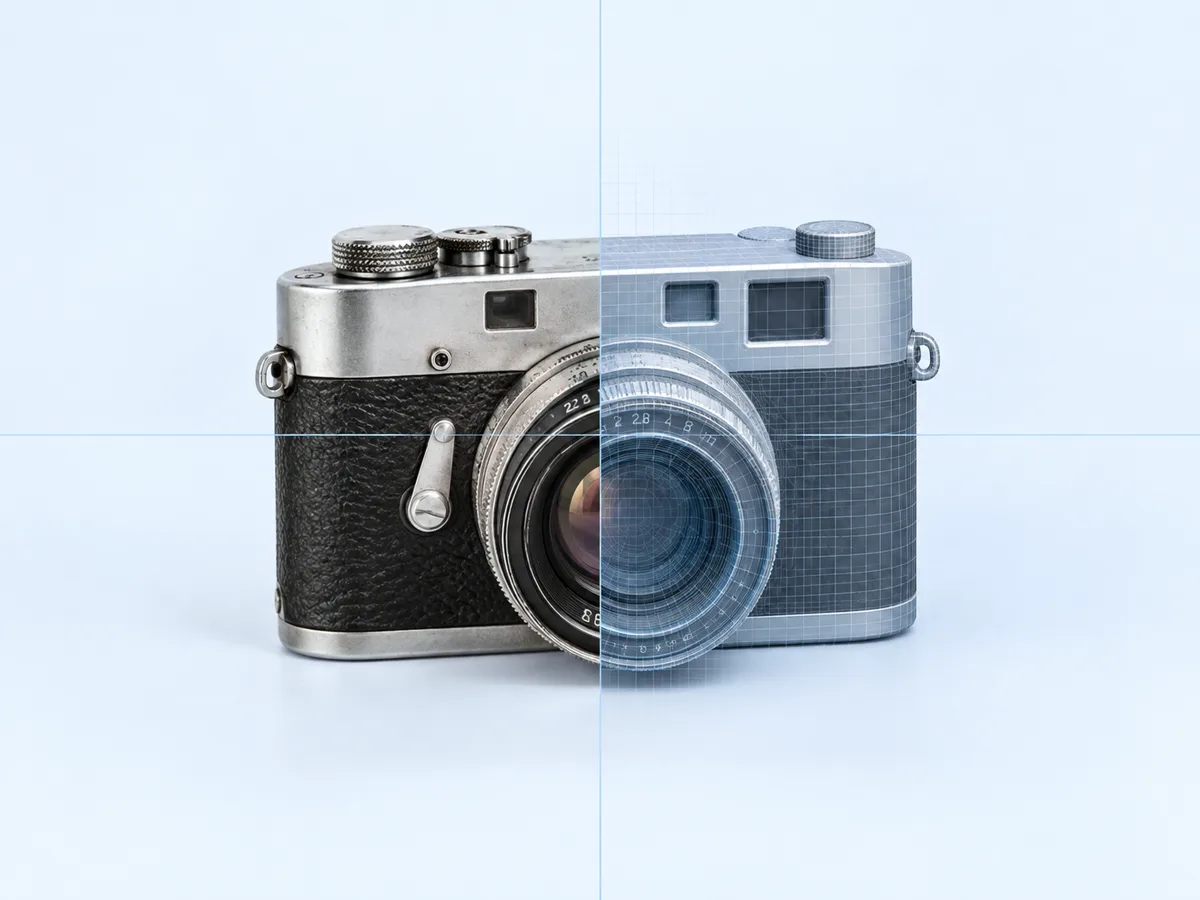
Shaded view with materials
Wireframe: the mesh itself
| What the general viewer shows — and where the dedicated viewers go further | Online 3D viewer | Dedicated viewer |
|---|---|---|
| Open, orbit, zoom, screenshot | Yes | Yes |
| Size, surface area, volume | Yes | Yes |
| Textures and colors | Yes | Yes |
| glTF with separate .bin / textures | No | glTF viewer |
| Animation playback, scene tree | No | glTF viewer |
| G-code toolpaths by layer | No | G-code viewer |
| CAD mesh quality presets | No | STEP viewer |
G-code is not a 3D model but printer instructions, so it has its own viewer that draws the toolpaths layer by layer.
Which 3D format should you send?
A viewer opens anything; the person receiving your file may not. Pick by what happens next.
For printing: 3MF, then STL
3MF declares millimetres, is compressed and can carry colors and settings; every current slicer reads it. STL is still the safest choice for older software and print services. Neither keeps textures — FDM printers cannot print them anyway.
For the web, AR and sharing: GLB
GLB holds geometry, PBR materials, textures and animations in one file that browsers, Android AR, PowerPoint and game engines open. For iPhone AR Quick Look, convert the GLB to USDZ.
For editing: the native or exchange format
Hand a CAD engineer STEP, an animator FBX or glTF, a sculptor OBJ. Converting a CAD solid to STL or OBJ turns exact surfaces into triangles for good, so keep the original next to any converted copy.
| Format | Units | Colors / textures | Animation | Best for |
|---|---|---|---|---|
| STL | none (mm assumed) | no | no | Printing, every slicer |
| 3MF | declared (mm) | colors | no | Printing, modern slicers |
| OBJ | none | via .mtl + images | no | Sculpting, exchange |
| PLY | none | vertex colors | no | Scans |
| GLB / glTF | metres | PBR textures | yes | Web, AR, engines |
| USDZ | declared | PBR textures | yes | iPhone / Vision Pro AR |
| FBX / DAE / 3DS | declared (FBX, DAE) | textures | FBX, DAE | Game and DCC pipelines |
| STEP / IGES | declared (mm) | face colors | no | CAD, manufacturing |
The kind of files people open
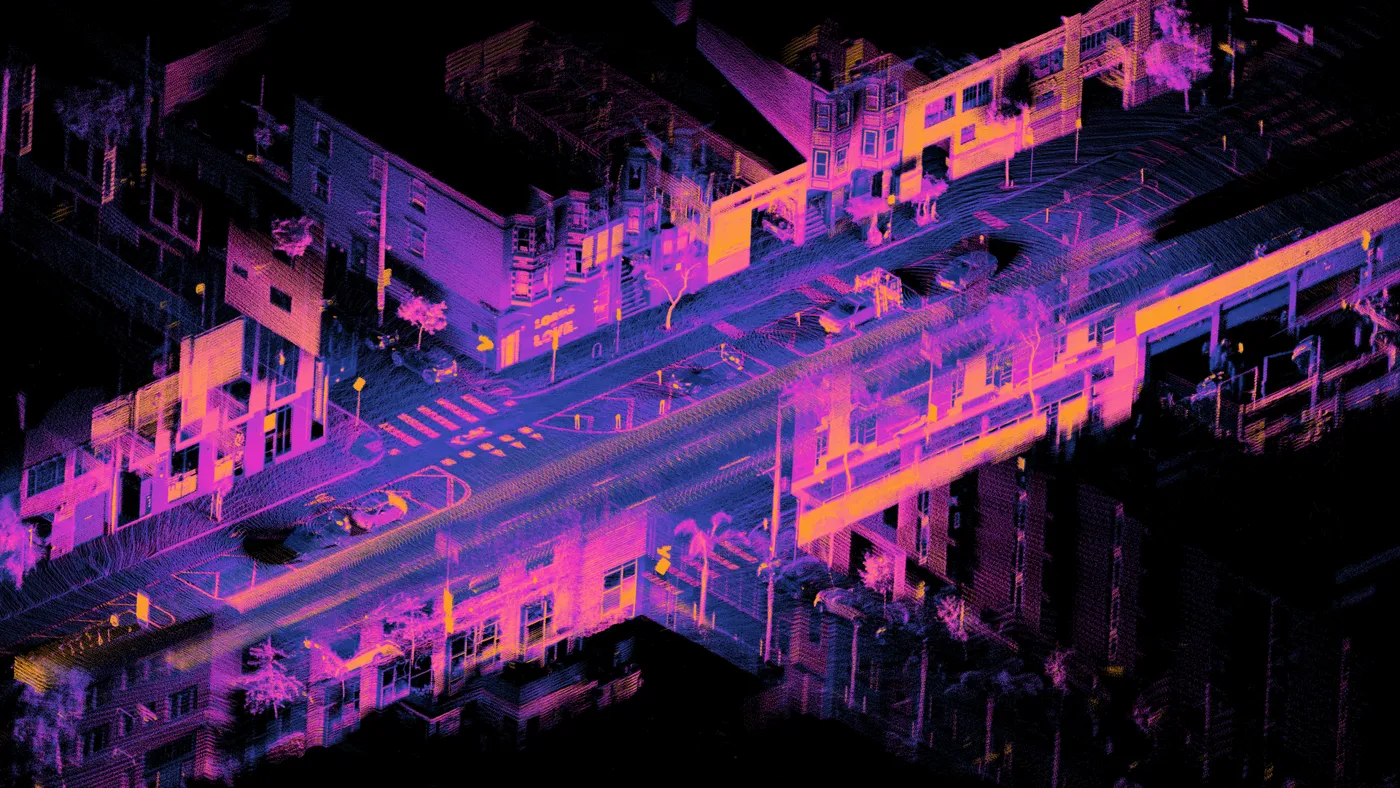
From museum scans to street-scale LiDAR: public examples of 3D data the viewer is built for.
 Reference example
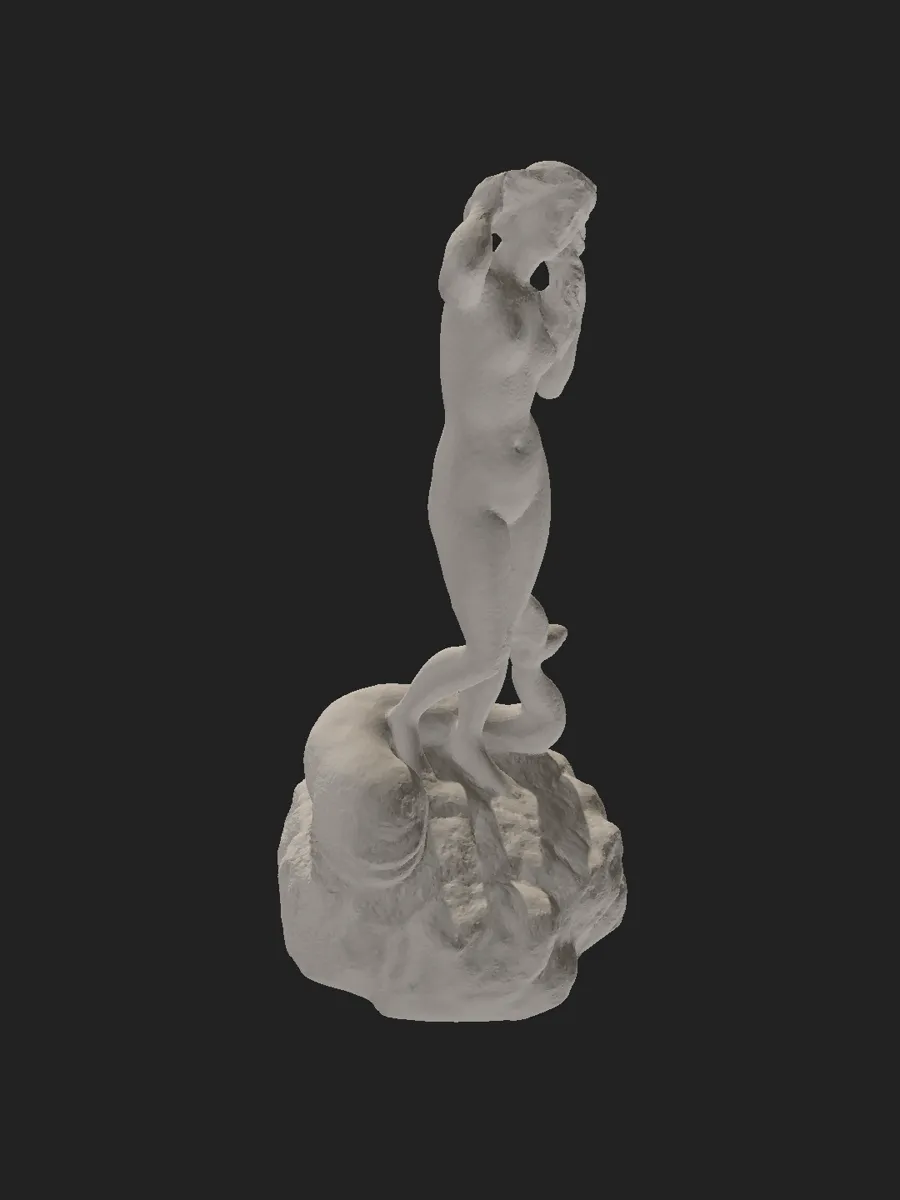
Photogrammetry statueAn STL scan of a statue of Aphrodite: hundreds of thousands of triangles, no texture. 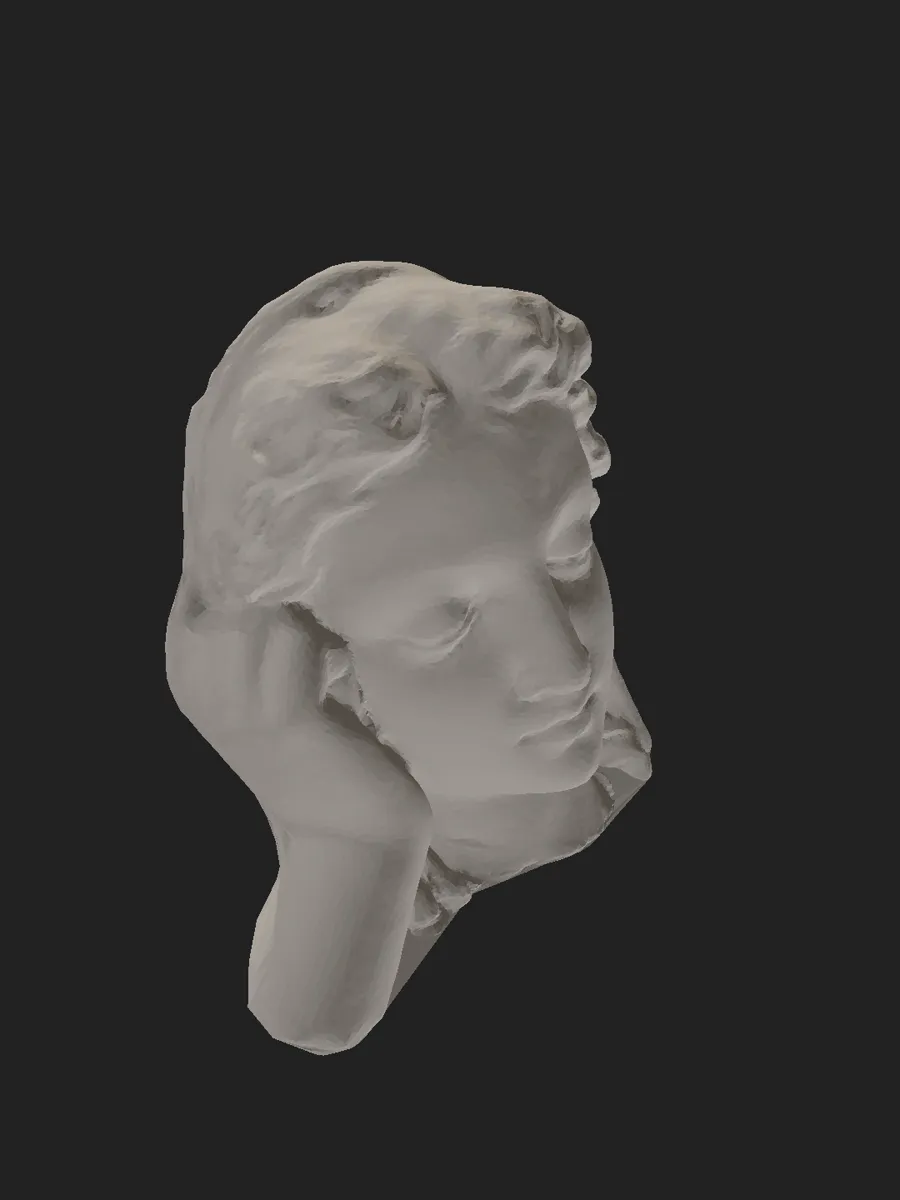 Reference example
Marble headA scanned marble head — a typical file to measure before printing a replica. 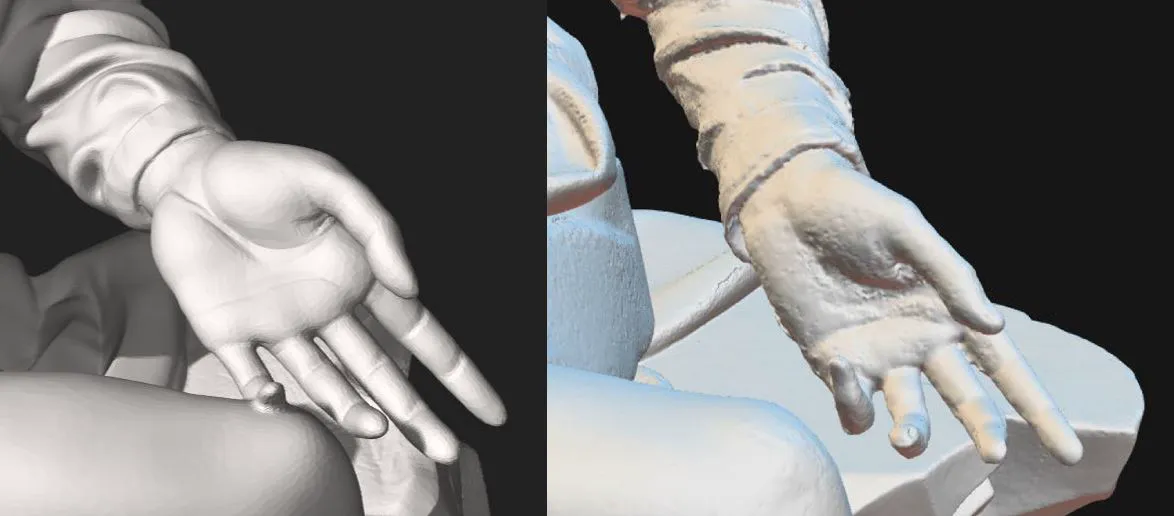 Reference example
Scan versus photoA Pietà photographed and reconstructed: how close a mesh gets to the original.
Renders from Wikimedia Commons (CC BY-SA 4.0 / CC BY 4.0). Not made with Kairo3D.
Dedicated viewers for every format
Each one adds what its format needs — animation for glTF, layers for G-code, mesh quality for CAD.
- .stl
STL viewer
Open STL, 3MF, OBJ or GLB and measure size, area and volume.
- .3mf
3MF viewer
Open a 3MF project in your browser and check its size before printing.
- .obj
OBJ viewer
Preview an OBJ file online, spin it and measure it, no install.
- .glb
GLB viewer
Open GLB and glTF files with their textures, then measure them.
- .gltf.glb
glTF Viewer
Inspect .gltf and .glb scenes, materials and animations online.
- .ply
PLY viewer
View PLY meshes from scanners and photogrammetry right in the browser.
- .fbx
FBX Viewer
Open FBX files in the browser, no install.
- .dae
DAE Viewer
View Collada .dae models with textures right in the browser.
- .step.stp
STEP Viewer
Open and measure STEP / STP files online.
- .iges.igs
IGES Viewer
Open IGES / IGS CAD files online, no CAD software needed.
- .usdz
USDZ to GLB
Convert Apple AR Quick Look USDZ files to GLB.
- .gcode
G-code Viewer
Preview toolpaths layer by layer in the browser.
Models made with Kairo3D
Every model from our generators downloads as GLB, STL, OBJ or 3MF — and opens here.
An online 3D viewer that covers the whole workflow
From the file a client emails you to the part you are about to print.
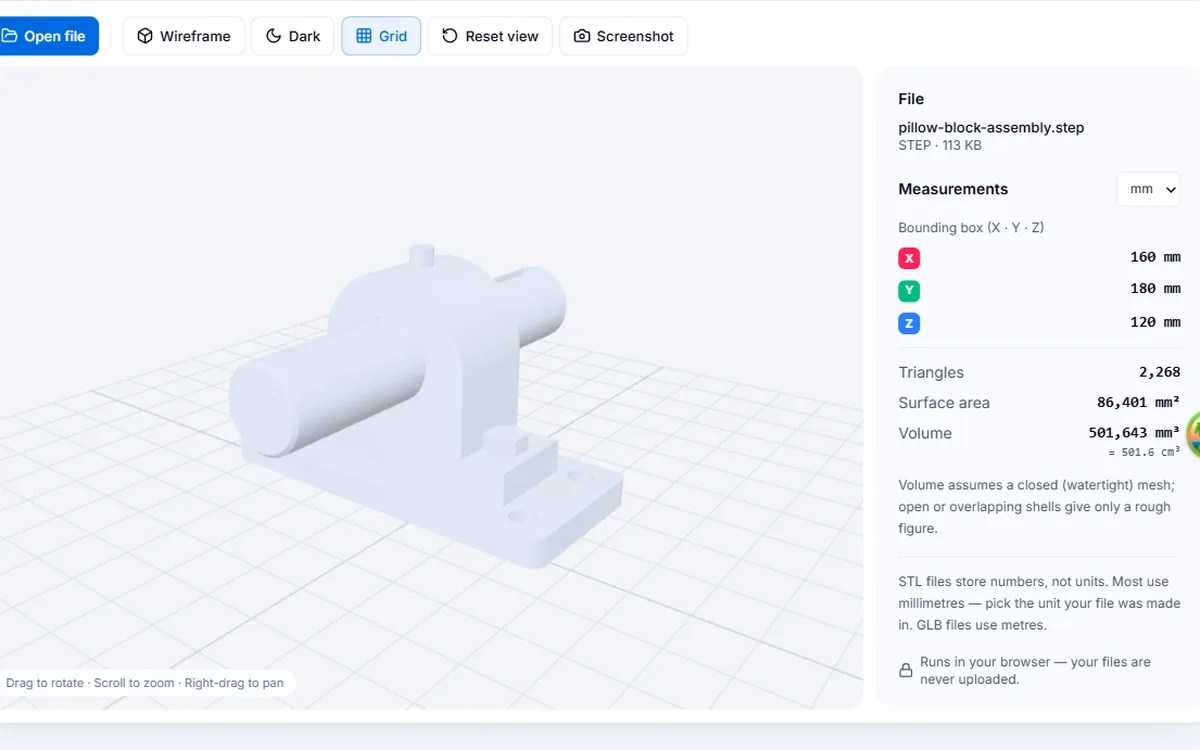
CAD files without CAD
STEP and IGES open without a SolidWorks or Fusion licence. Assemblies are tessellated into triangles and measured in millimetres.
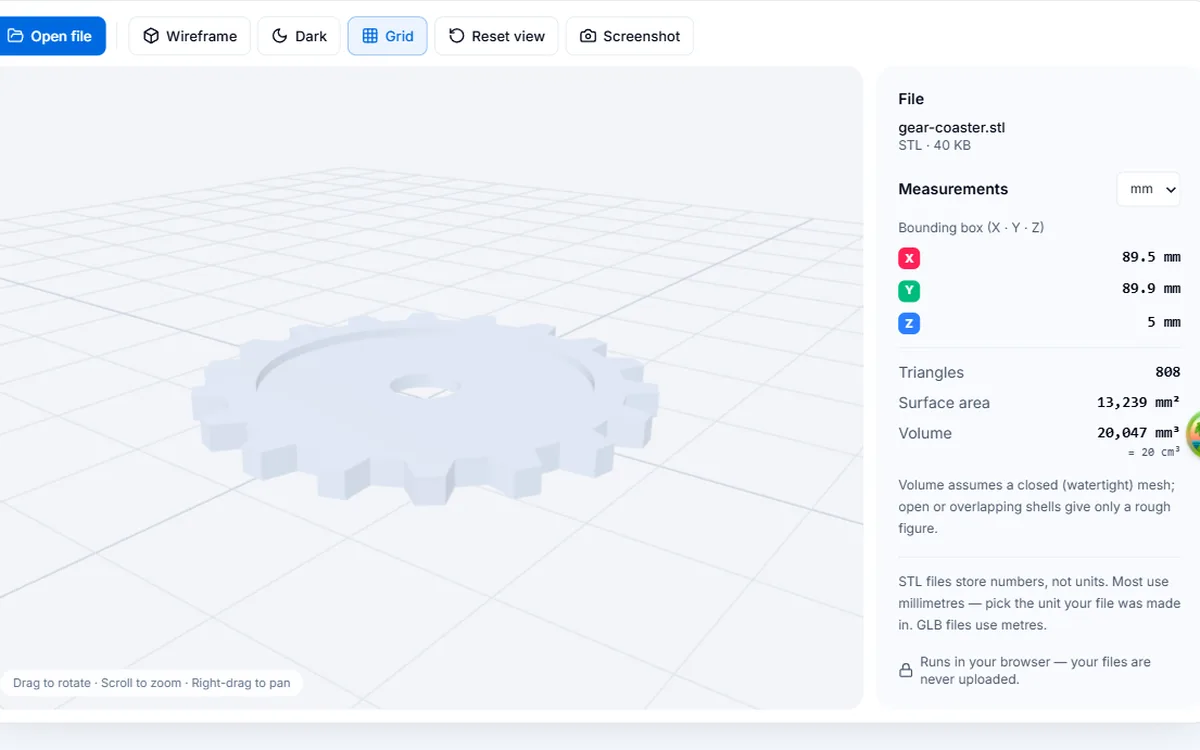
Print files with real size
STL and 3MF show their bounding box in millimetres plus the enclosed volume — a first check before you slice, quote or order a print.
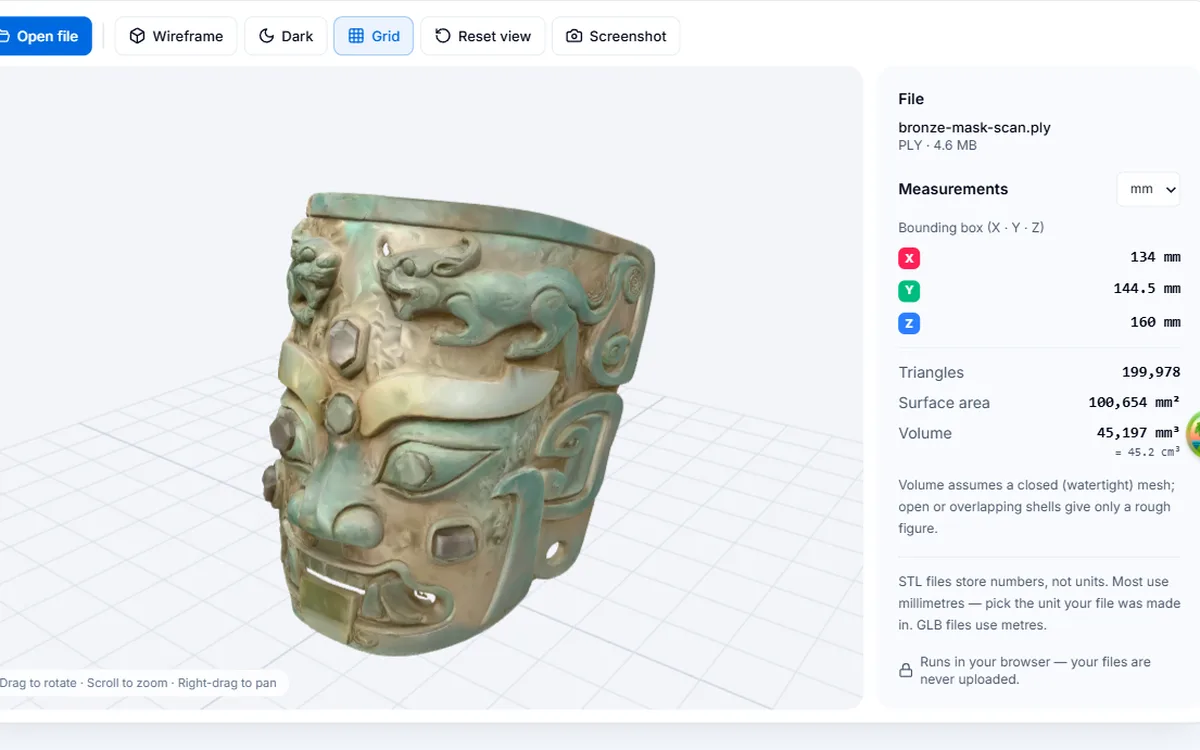
Scans and point-heavy meshes
PLY scans with vertex colors and dense photogrammetry meshes open with their colors; the wireframe shows how dense they are.
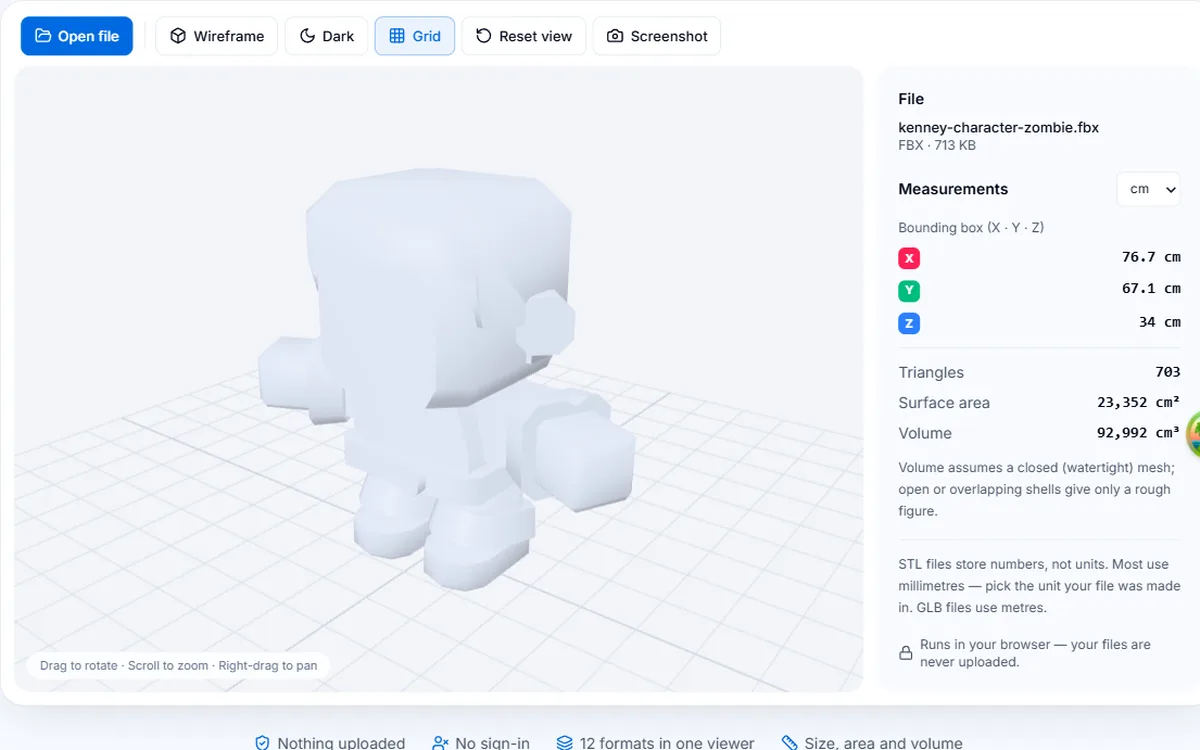
Game and animation formats
FBX, DAE and 3DS characters and props open with their textures where the file embeds them; units from the file header are respected.
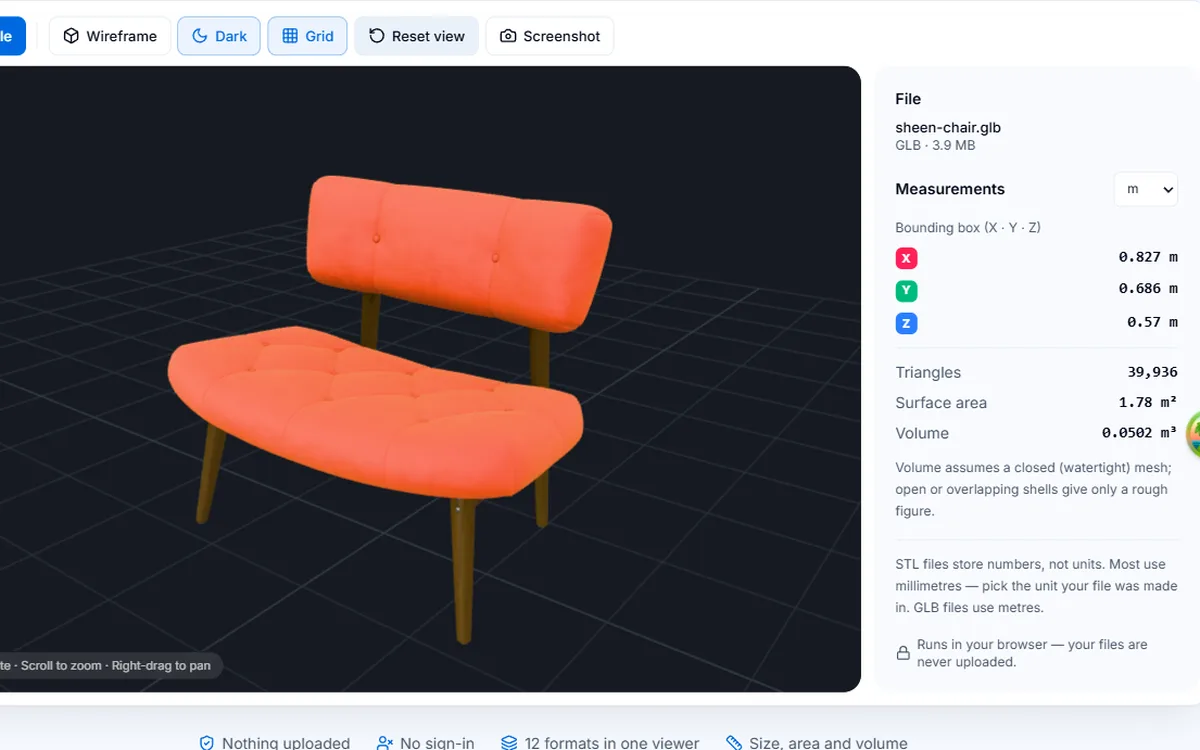
Web and AR formats
GLB, single-file glTF and USDZ (the iPhone AR format) open with PBR materials — check a product model before it goes on a page.
Screenshots in one click
Save the current view as a PNG for a ticket, a quote or a chat message — no screen-capture tool needed.
Online 3D viewer FAQ
Formats, privacy, size limits and what to use when.
More ways to work with your 3D files
View, convert, or make a model from scratch.
glTF to GLB
Pack a .gltf with its .bin and textures into one GLB file.
OBJ to 3MF
Convert OBJ models to 3MF for Bambu Studio and PrusaSlicer.
PLY to OBJ
Convert PLY scans and meshes to OBJ, keeping vertex colors.
STEP to STL
Convert STEP / STP CAD files to STL for printing.
STL Dimensions
Get the size, volume and area of an STL file.
GLB to STL converter
Turn a GLB or glTF into a slicer-ready STL, with nothing uploaded.
Make the model, not just view it
Turn a photo or a sketch into a 3D model with Kairo3D, then download it as GLB, STL, OBJ or 3MF.