Kairo3D
NewPixal3D is live
Free · Runs in your browser

Resize STL Files Online — Scale to the Exact Size

Resize STL models by percentage or to exact millimetre dimensions, fix a file that was exported in inches or metres, and see straight away whether the result fits your printer bed. Nothing is uploaded.

Drop an STL file to resize

STL, OBJ, 3MF, PLY or GLB up to 200 MB. You can set the size as soon as it opens.

Runs in your browser — your files are never uploaded.
  • Nothing uploaded
  • No sign-in
  • Percent or exact mm
  • Inches ↔ mm
  • Printer bed check

Resize STL files without opening CAD

Everything runs on your computer. The numbers below describe what the tool does, not marketing claims.

  • 4File units read: mm, cm, inches, metres
  • 2Ways to scale: percent or exact mm per axis
  • 7Printer beds to check the fit against
  • 0Uploads — the file never leaves the browser

How to resize an STL file

Four steps from a wrong-size download to a part that prints at the size you need.

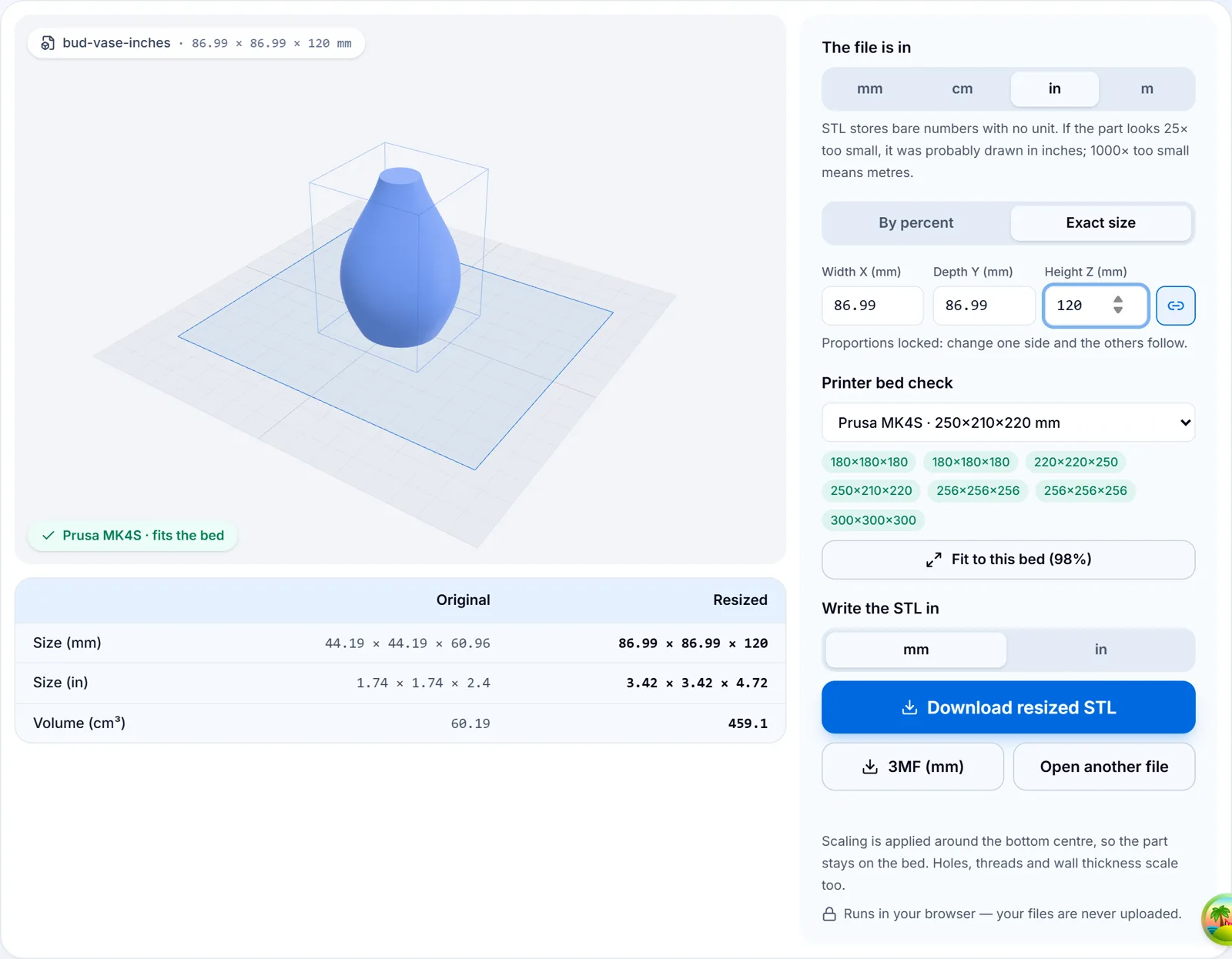
The resize STL tool with a vase loaded, the exact-size fields and the printer bed outline
  1. Open the STL

    Drop the file on the tool or pick it from your computer. OBJ, 3MF, PLY and GLB open too. The current size appears in millimetres and inches.

  2. Tell it the file unit

    If the size looks wrong, the file was probably saved in inches, centimetres or metres. Pick the right unit and the true size is shown in mm.

  3. Scale by percent or type the size

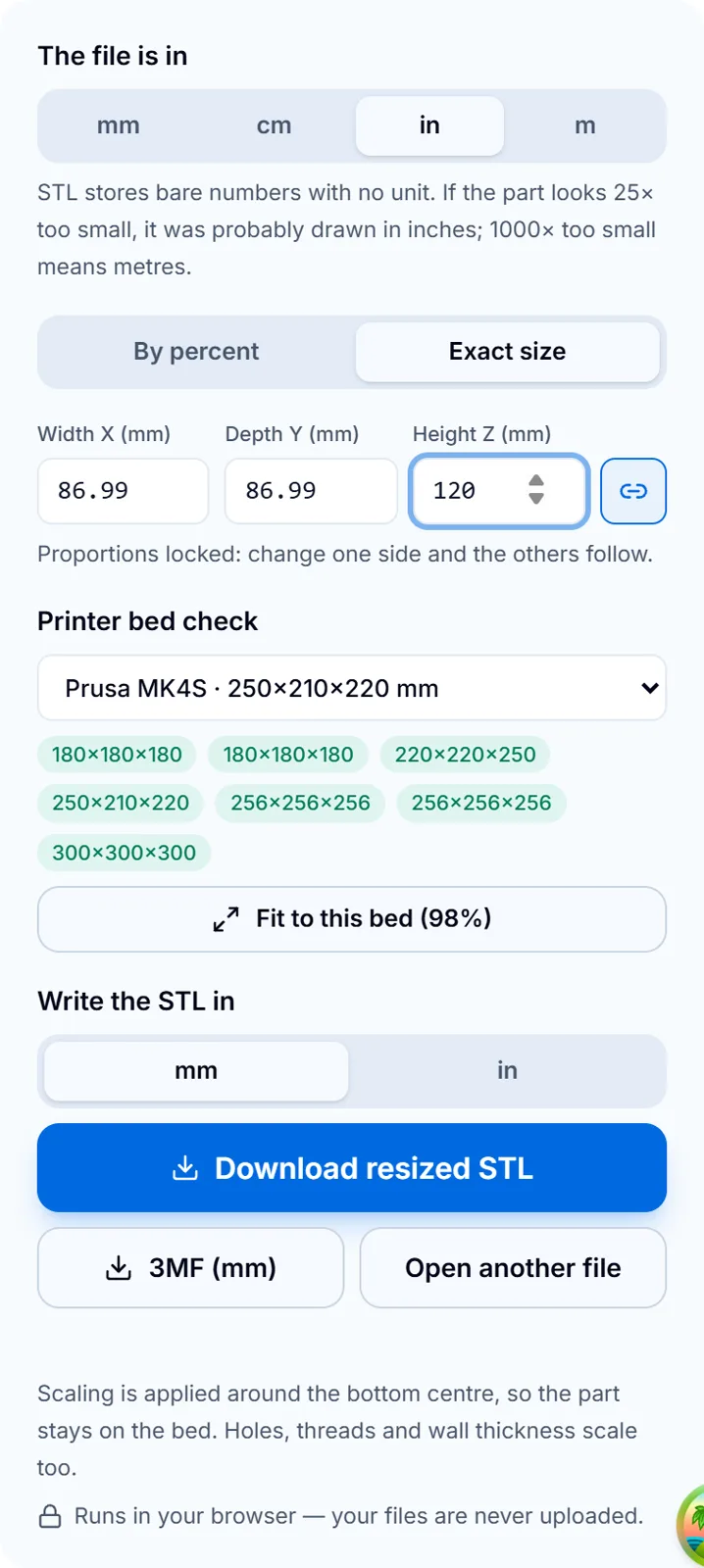
    Use a percentage, one of the presets, or type the width, depth or height you need. With proportions locked the other two sides follow.

  4. Check the bed and download

    Choose your printer to see whether the part fits, use Fit to bed if it does not, then download an STL in mm or inches, or a 3MF.

Demo

Watch an STL go from inches to millimetres

A real recording of the tool: the inch-based sample vase is opened, read as inches, set to an exact height and saved.

  1. 1Load the sample0:00The bud vase opens. It was modelled in inches, so it is only 2.4 units tall.
  2. 2Switch the file unit0:04Reading the file as inches turns 2.4 units into about 61 mm, the size the designer meant.
  3. 3Type an exact size0:08A new height is typed in millimetres; width and depth follow because proportions are locked.
  4. 4Download0:13The bed check is green, so the resized STL is downloaded in millimetres, ready for the slicer.
How scaling works

What happens when you scale an STL

An STL is a list of triangle corners. Scaling multiplies every coordinate, so a few simple rules decide the result.

  • Uniform or per-axis scale

    Locked proportions multiply X, Y and Z by the same factor, so the shape is kept. Unlocked, each axis gets its own factor and the part is stretched.

  • Units are only a convention

    An STL that says 2.4 can mean 2.4 mm or 2.4 inches. Slicers assume mm, so an inch file looks 25.4 times too small until it is converted.

  • Volume grows with the cube

    Doubling every side makes eight times the volume. Material, weight and print time follow the volume, not the length.

  • Bed size is the hard limit

    A part must fit the printer in X, Y and Z. The check also tries the part turned 90° on the bed before it calls a part too big.

The tool always writes millimetre 3MF files; STL can be written in millimetres or inches.

Before and after

From a file in inches to a printable size

The same sample vase, first read in its own units, then converted and scaled for a printer bed.

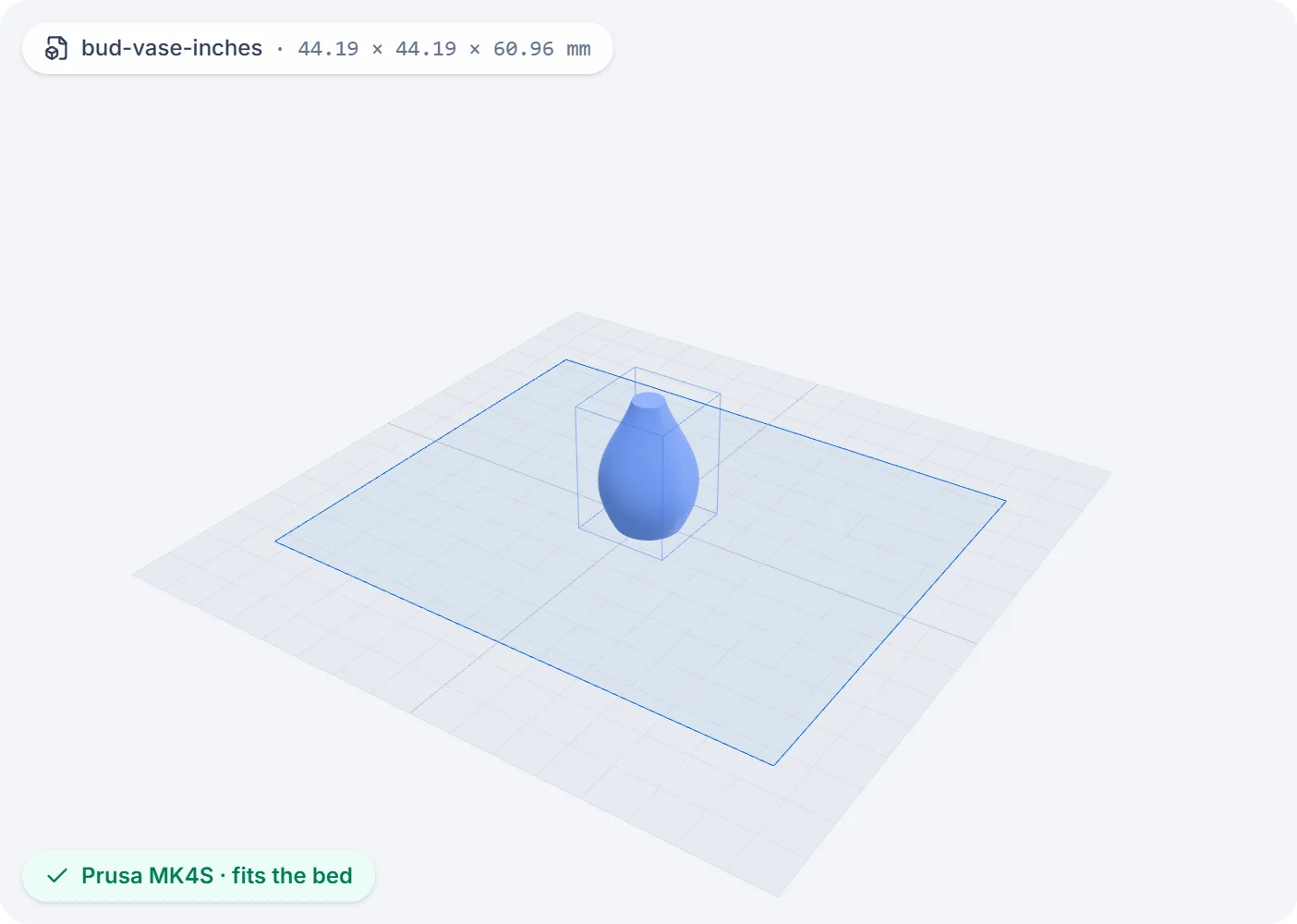
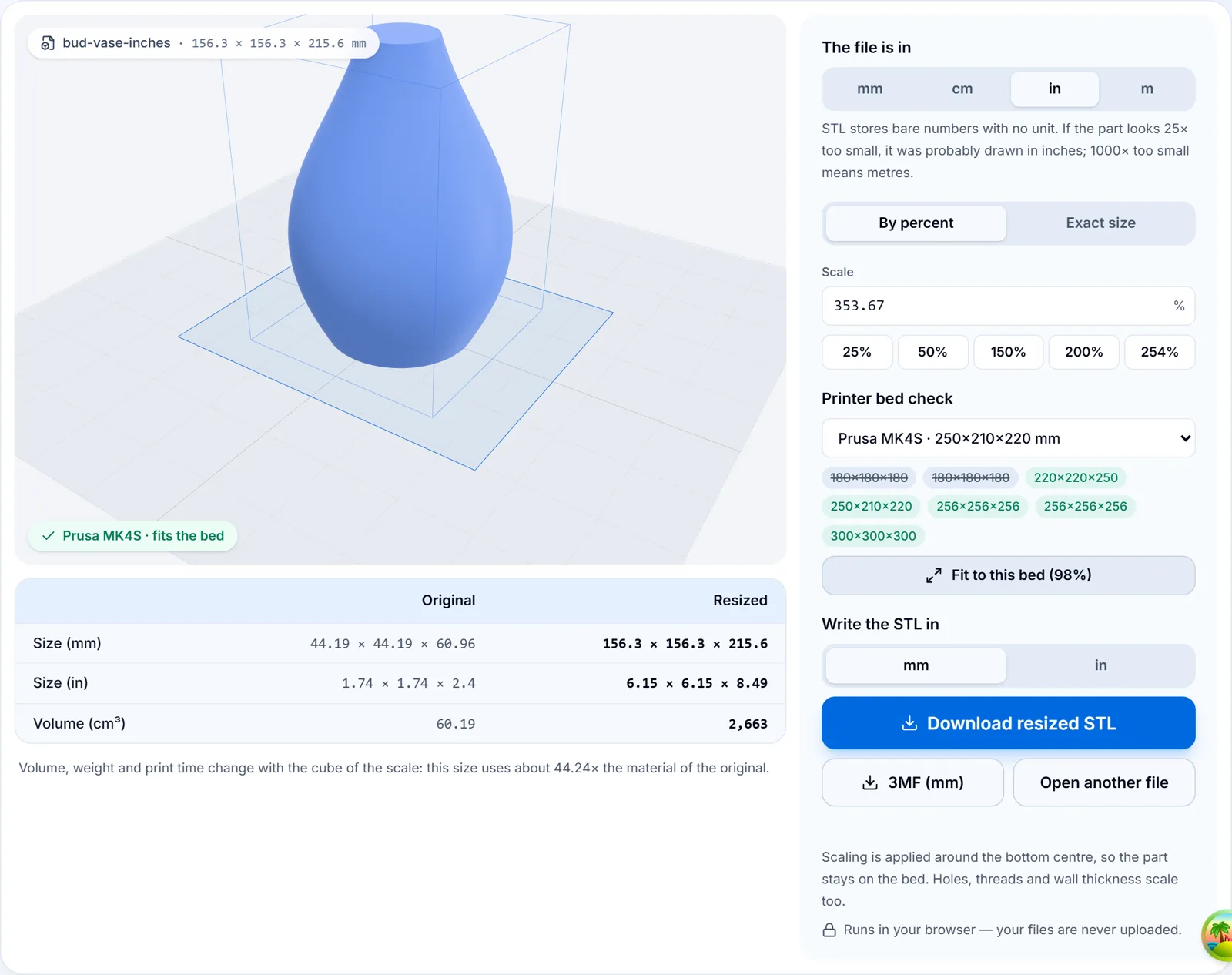
Resize STL tool showing the sample vase opened with its original inch-based sizeAs opened
The vase as it comes out of the file: its numbers are inches, so the size table and the bed preview start from the inch values.
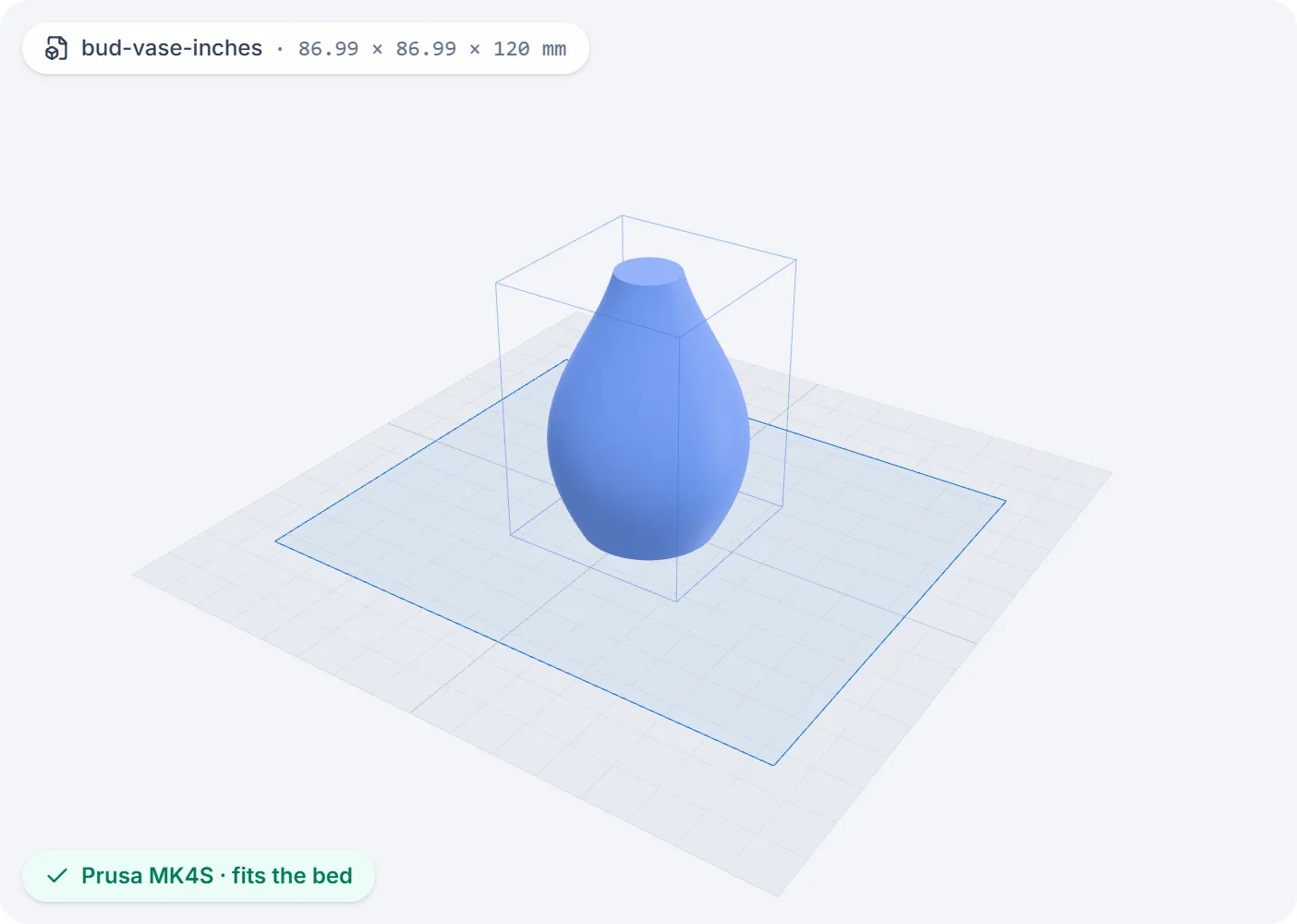
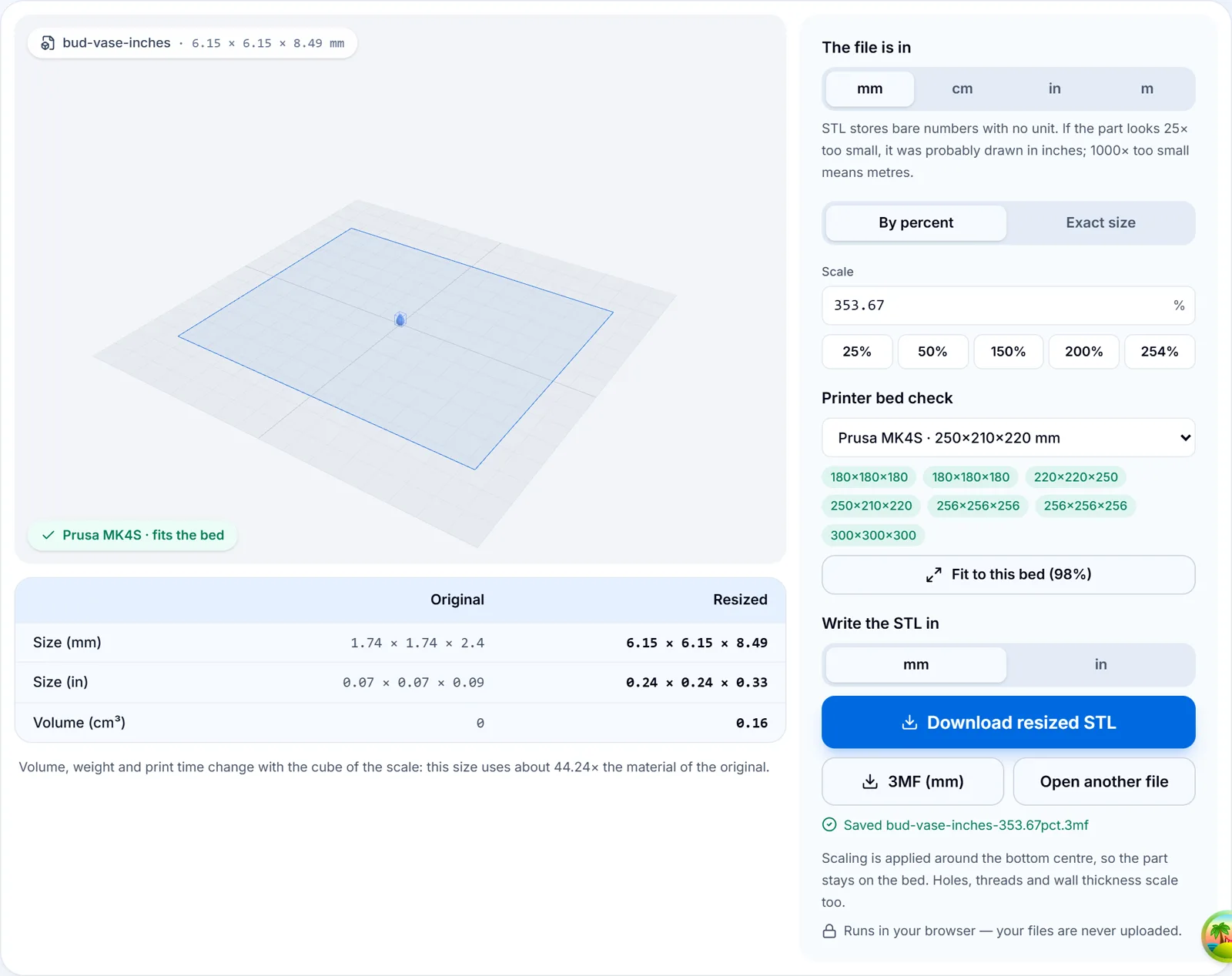
Resize STL tool showing the vase scaled to millimetres with a green bed checkResized
After choosing the unit and a new size: the dimensions are in millimetres and the bed check shows the part fits.
Size in practice

One model, many sizes

Real prints that show why the size of an STL matters as much as its shape.

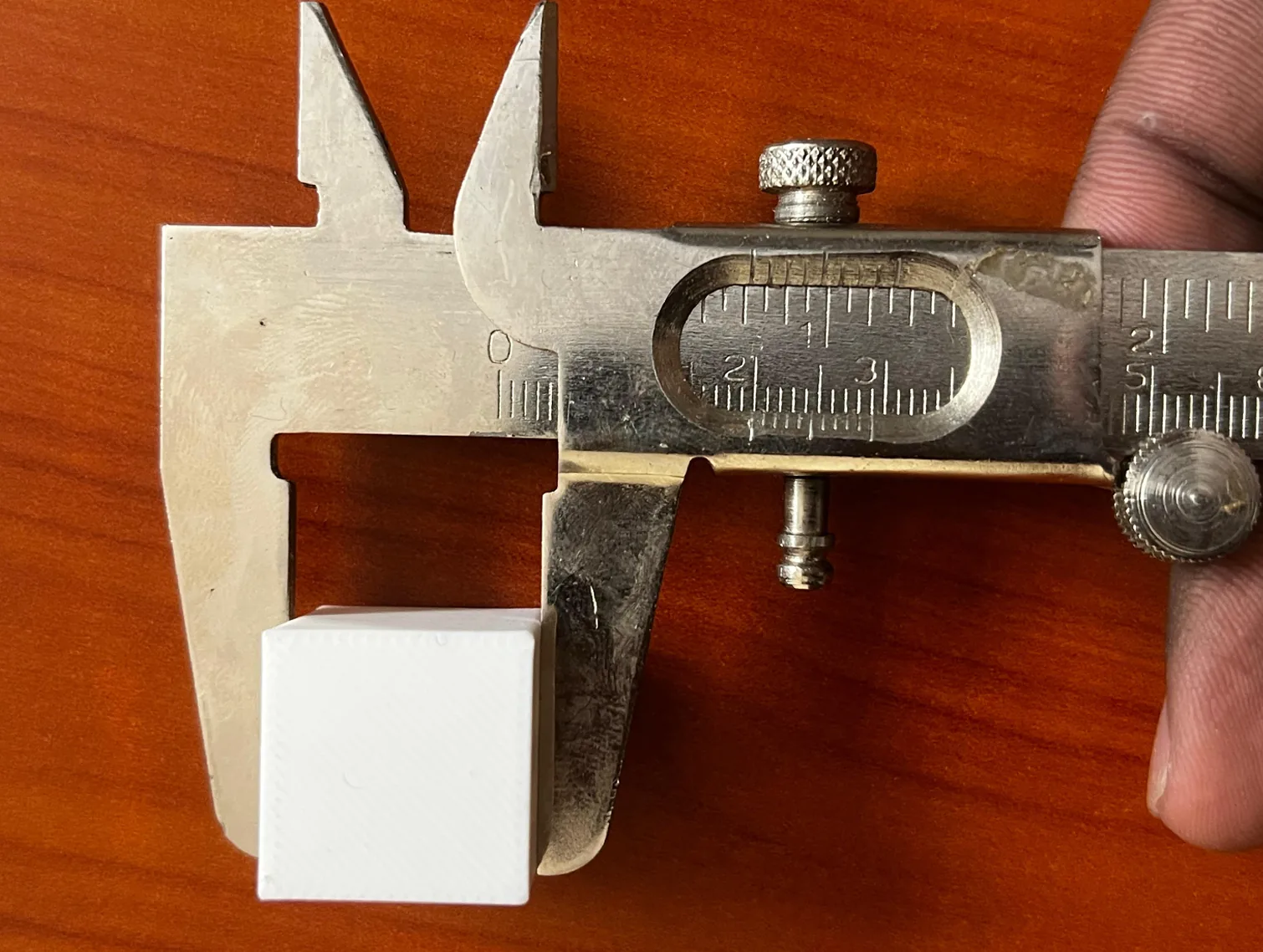
  • A vernier caliper measuring a small white 3D-printed calibration cube
    Reference example

    Measure the print, then scale

    Print a small test, measure it with calipers and compare with the intended size. The difference tells you the percentage to apply.

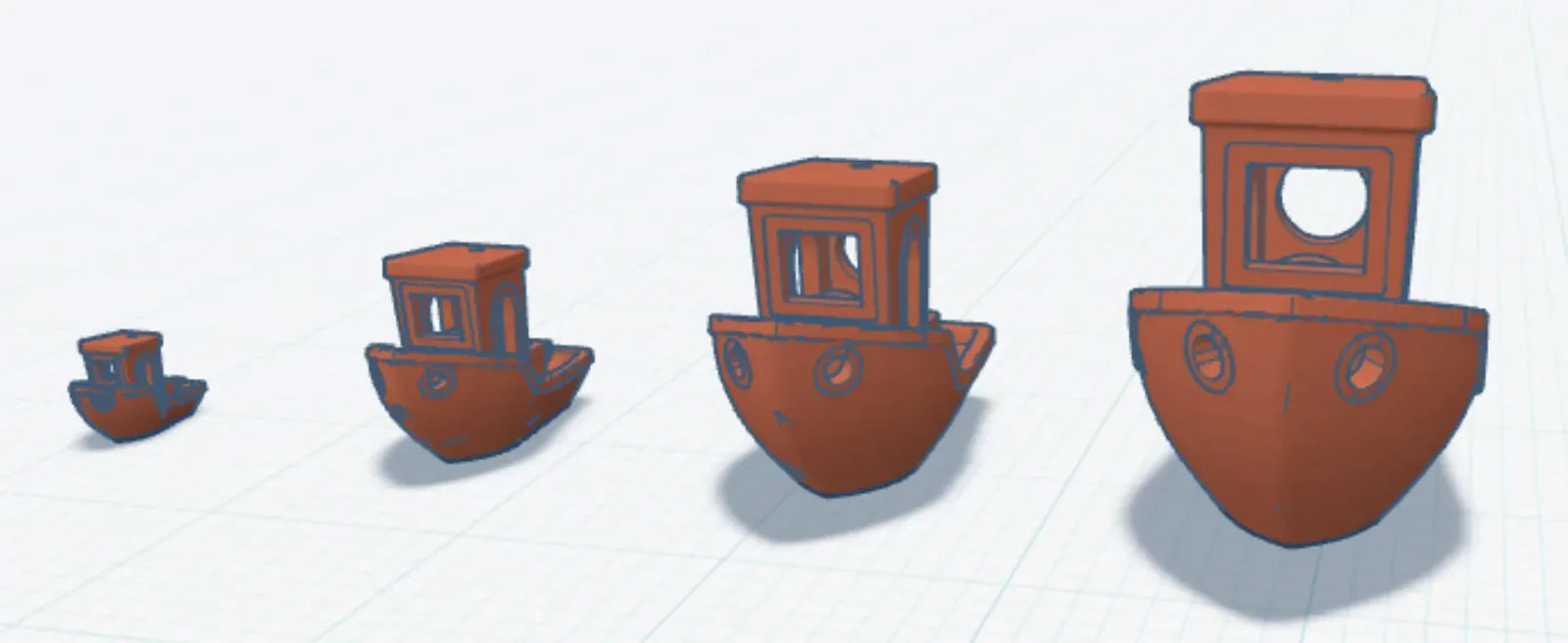
  • The same small boat model rendered side by side at four scales from 25% to 100%
    Reference example

    Quick test sizes

    Printing a model at 25%, 50% and 75% first is a cheap way to check details and fit before committing to the full size.

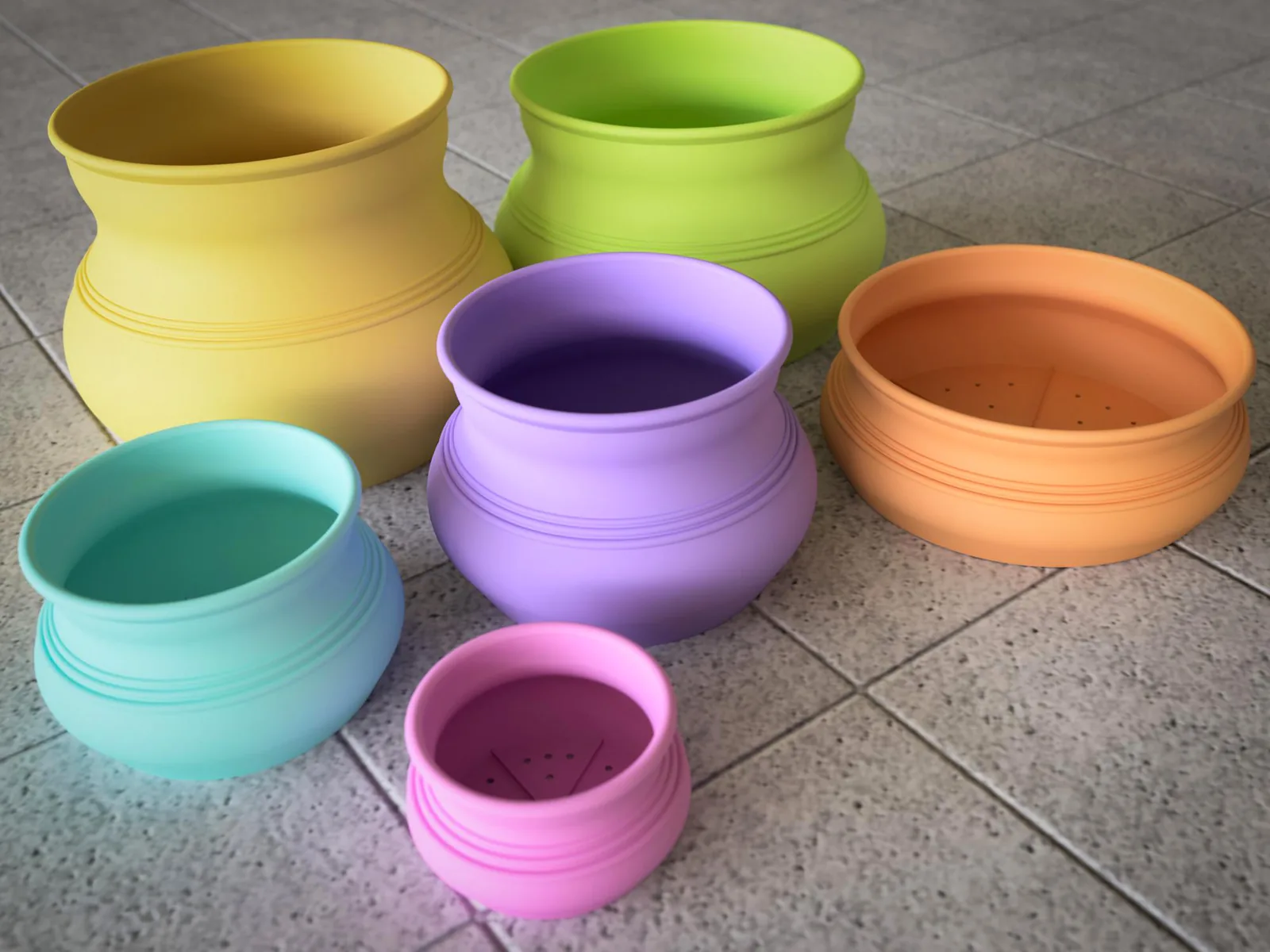
  • Six colourful flower pots of one design printed at different sizes on floor tiles
    Reference example

    A family of sizes from one file

    Pots, boxes and planters are often printed at several scales. Resizing one STL is faster than modelling each size.

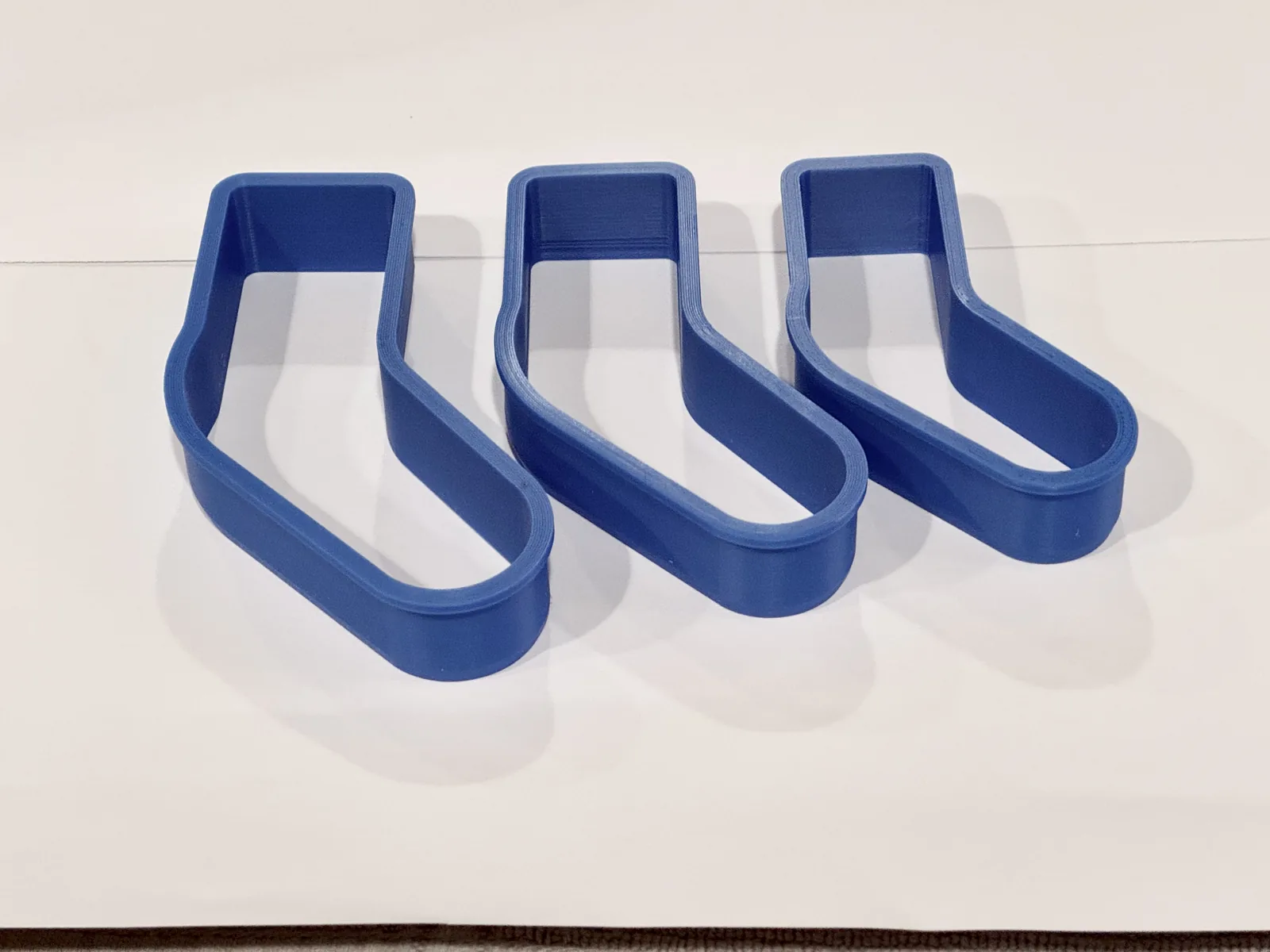
  • Three blue sock-shaped cookie cutters in small, medium and large sizes
    Reference example

    Small, medium and large

    Cookie cutters, stencils and tokens come in sets. Exact-size mode makes each one match the dimension you need.

Photo credits: calibration cube — Bambu Lab Wiki; boat at four sizes — Printables, CC BY 4.0; flower pots — Metikumi, Printables, CC BY-SA; sock cookie cutters — mscalora, Printables, CC BY; size totem — Osprey, Printables, CC BY.

Everything you need to scale an STL online

A focused resizer: units, percentages, exact dimensions and a bed check, with nothing to install.

  • Resize STL tool in exact-size mode with width, depth and height fields in millimetres

    Percent presets

    Type any percentage or use 25%, 50%, 150%, 200% and 254% presets. The size table updates as you type.

  • A white 3D-printed lucky cat figure next to a blue-and-white 5 cm scale totem
    Reference example

    Exact millimetre size

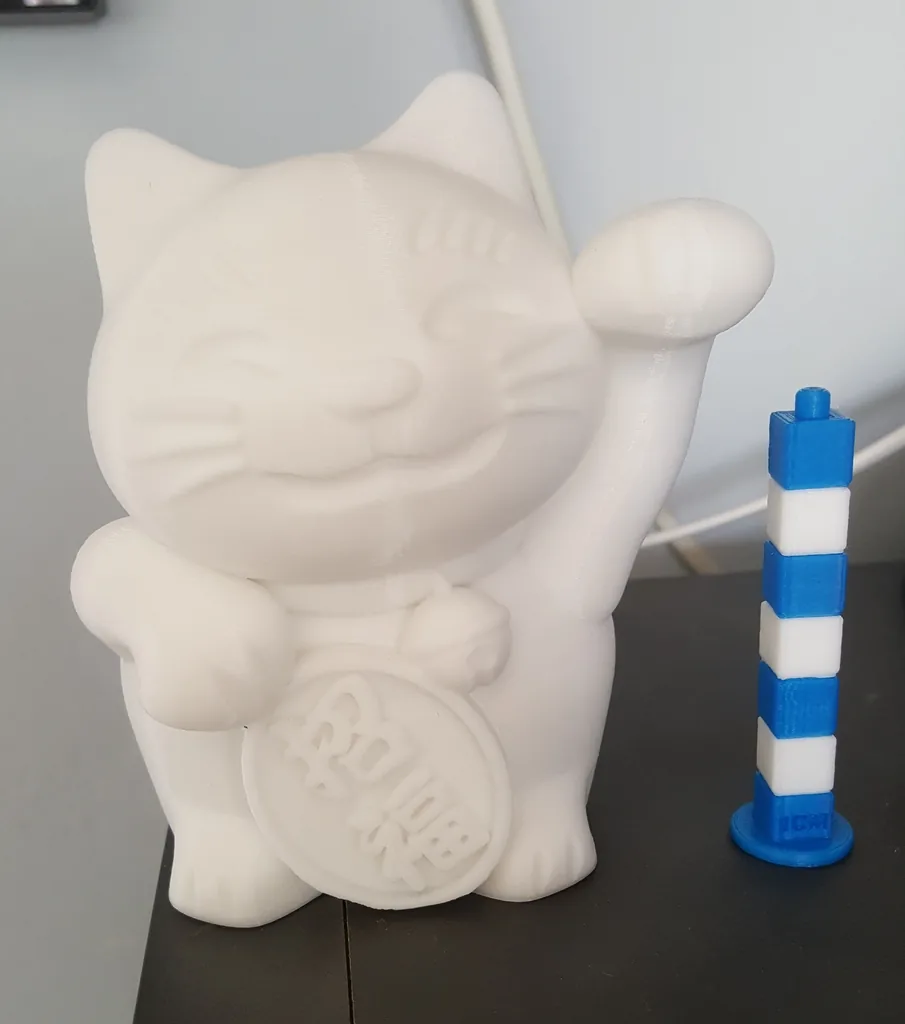
    Type the width, depth or height in mm. Locked proportions keep the shape; unlocked, each axis is set on its own.

  • Inches, cm and metres to mm

    Fix a model that comes in at the wrong size by telling the tool which unit the file was saved in.

  • Printer bed check

    See instantly whether the part fits seven common printers, from 180 mm to 300 mm beds, including turned 90°.

  • Printer list with the bed check and the Fit to bed button in the resize STL tool

    Fit to bed in one click

    Scale the part to the largest size that fits the chosen printer, with a small margin around it.

  • Volume before and after

    The size table shows volume in cm³ so you can see how much more filament a bigger print will need.

Guide

Getting STL scale right for 3D printing

Why so many downloaded models come in at the wrong size, and how to scale them without surprises.

Why an STL opens at the wrong size

STL has no field for units. The file holds three numbers per corner, and every slicer reads those numbers as millimetres. When a designer works in inches, a 2.4-inch vase is written as 2.4 and arrives in the slicer as a 2.4 mm speck. Files from architecture or game tools are often in metres, so a 30 cm statue shows up as 0.3 mm. The geometry is fine; only the unit is lost.

That is why the first control in the tool asks what unit the file is in. Switching from mm to inches multiplies everything by 25.4, centimetres by 10 and metres by 1,000. You can see whether the guess is right because the size table then shows a believable real-world size. If a part looks 25 times too small, try inches; if it looks a thousand times too small, try metres.

The reverse also happens: a file exported in millimetres opened by software that expects inches comes out huge. If you need an inch-based STL for such a program, keep the size in millimetres while you work and choose inches as the output unit when you download.
One inch is exactly 25.4 mm. Converting an STL from inches to mm multiplies every coordinate by 25.4.

Percent, exact millimetres and the printer bed

Percent scaling is the quickest way to resize an STL when you know the ratio: 50% for a half-size test print, 200% for a bigger display piece, or 254% to turn a part that should have been read as tenths of an inch into millimetres. Exact-size mode is better when a dimension has to match something real, like a 60 mm tall miniature, a box that must hold a 90 mm phone, or a replacement knob for a 6 mm shaft.

With proportions locked, typing one dimension rescales the other two so the shape stays the same. Unlock them only when you really want a stretched part, for example a slightly taller vase or a wider bracket. Non-uniform scaling distorts round holes into ovals and changes angles, so it is rarely right for mechanical parts.

The bed check compares the result with seven common printers, from the 180 mm Bambu Lab A1 mini and Prusa MINI+ to the 300 mm Creality K1 Max. Fit to bed picks the largest uniform scale that still fits the chosen printer, with a 2% margin, and also allows the part to be turned 90° on the plate. If even that is too small for you, the part has to be printed in pieces with a splitter.

Resize STL tool with the printer bed check and the Fit to bed button
The tool checks the resized part against the selected printer and lists every bed it fits.

What scaling does not fix

Scaling changes every feature by the same factor, including the ones that should not change. A 3 mm screw hole becomes 1.5 mm at 50%, a 0.2 mm clearance between moving parts closes up, and a 1.2 mm wall becomes 0.6 mm, which may be thinner than your nozzle can print. Before you shrink a functional part, check the smallest walls and holes against your nozzle size; before you enlarge one, check that screws and inserts still match standard sizes.

Material use grows much faster than size. Scaling a model to 150% uses about 3.4 times the filament, and 200% uses eight times as much, with print time rising in a similar way. The size table shows the volume before and after in cubic centimetres so you can see the effect before you slice.

For parts that need some features to stay fixed while others grow, a CAD program is still the right tool. For figurines, vases, decorations, cosplay props and models that simply came in at the wrong size, scaling the STL online is all you need.

Doubling every side gives eight times the volume, so material and print time grow far faster than height.
Reference

STL unit conversion and what scaling changes

Factors the tool applies when you choose a file unit, and how a uniform scale affects common features.

ItemFactor or effectChanged by scaling
Inches → mm× 25.4
Centimetres → mm× 10
Metres → mm× 1,000
Overall shape (locked proportions)Kept
Hole and thread diametersScale with the part
Wall thickness and clearancesScale with the part
Volume, weight, print timeScale³ (cube of the factor)
Triangle count and file sizeUnchanged

1 in = 25.4 mm exactly (international inch). The tool keeps the triangle count; to make the file smaller use the STL reducer.

Resize STL — frequently asked questions

Short answers about scaling STL files for printing.

Need a model to resize?

Turn a photo into a printable STL with Kairo3D, then scale it to the exact size you want here.

Make an STL from an image