Gcode Viewer & Gcode Simulator Online
Drop a .gcode file here
G-code from Cura, PrusaSlicer, OrcaSlicer, Bambu Studio and more · up to 300 MB
- Nothing uploaded
- No sign-in
- G2/G3 arcs
- Layer-by-layer simulator
- PNG screenshot
A gcode viewer that keeps up with real prints
Parsing runs in a background worker, so a long multi-hour print does not freeze the page while it loads.
- 300 MBLargest .gcode file it opens, read locally
- 3 modesColour by feature, speed or layer
- 0 uploadsThe file never leaves your computer
How to view G-code online in three steps
Slice as usual, then check the toolpath in the gcode viewer before you send the job to the printer.
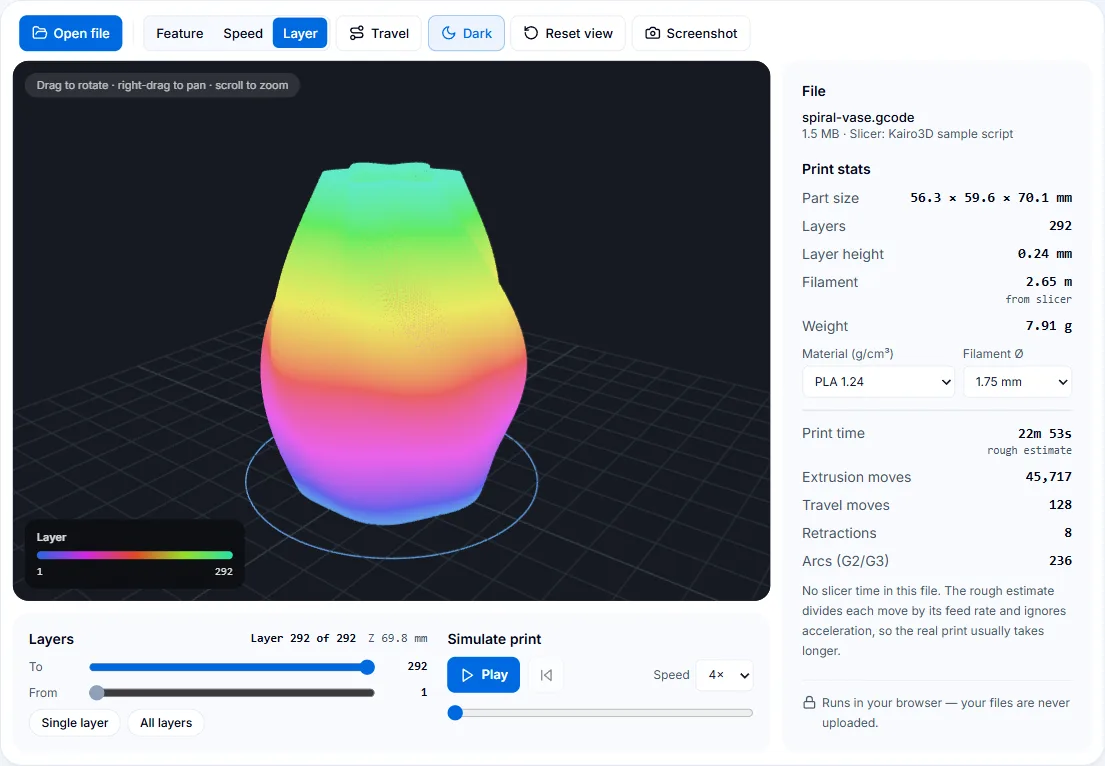
Open your .gcode
Drag the file onto the viewer or pick it from disk. No file yet? Load the calibration cube or the spiral vase sample.
Scrub the layers
Move the layer slider to look inside the part, switch on single-layer view, and colour lines by feature, speed or layer.
Simulate and check
Press Play to watch the nozzle lay down each line, read the time and filament estimate, and save a PNG screenshot.
Scrub layers and simulate a print in 18 seconds
A real screen recording of this gcode viewer on the calibration-cube sample, at normal speed.
- 1Drag the layer slider0:00The cube grows from the first layer to the top: walls in orange, infill in red, top skin in pink.
- 2Stop halfway to look inside0:06Layer 45 of 100 shows the infill pattern behind the walls, exactly as the printer will lay it.
- 3Colour by speed0:08Slow outer walls turn blue, fast infill turns warm. A first layer printed too fast stands out at once.
- 4Press Play0:11The simulator retraces the moves from layer 1, with a nozzle marker on the line being printed.
How G-code moves the nozzle
A .gcode file is a list of moves. The gcode viewer draws each one as a line on the bed, layer by layer.
G0 / G1: travel and print moves
G0 X10 Y10
G1 X80 Y10 E2.33 F1800
G0 moves without plastic; G1 moves while the extruder pushes filament. X and Y are millimetres on the bed.
E: how much filament goes in
E2.33 → 2.33 mm of filamentThe E value grows with every extruding move. Moves that change E are drawn as plastic; the rest are travel.
Z: the layer height
G1 Z0.4 F600A Z change starts a new layer. Layer height is the step between them: 0.2 mm in the sample files.
F and G2 / G3: speed and arcs
G2 X40 Y20 I5 J0 E0.8F sets the feed rate in mm/min, used for the speed colours. G2 and G3 arcs are split into short segments.
What the colours and G-code commands mean
Slicers tag each block of moves with a line type; the viewer colours by that tag. Below is what each colour stands for and how the common commands show up.
Line types (feature colours)
- Outer wallThe visible skin of the part. Printed slowest for a clean surface.
- Inner wallPerimeters inside the outer wall that give the part its strength.
- Sparse infillThe grid, gyroid or lines that fill the inside at a set percentage.
- Solid infillFully dense layers under top surfaces and above bottom ones.
- Top surfaceThe last solid layers you see on top of the print.
- Skirt / brimPriming loops around the part on the first layer.
- SupportTemporary structure under overhangs, removed after printing.
- Travel (toggle)Non-printing moves between lines, drawn as thin blue lines when switched on.
Common G-code commands
| Command | What it does | In this viewer |
|---|---|---|
| G0 / G1 | Linear move; with a positive E value the printer extrudes while moving. | Extruding moves become coloured lines, the rest are travel. |
| G2 / G3 | Clockwise / counter-clockwise arc, by I/J centre or R radius. | Expanded into short straight pieces so curves stay smooth. |
| G90 / G91 | Absolute or relative coordinates for X, Y and Z. | Followed move by move. |
| M82 / M83 | Absolute or relative extruder (E) values. | Used to work out how much filament each move pushes. |
| G92 | Sets the current position, most often E0 to reset the extruder. | Applied, so filament totals stay right. |
| G20 / G21 | Inch or millimetre units. | Inches are converted to mm. |
| G28 | Home the axes. | Moves the position to 0 on the homed axes. |
| M104 / M109, M140 / M190 | Set nozzle / bed temperature (M109 and M190 wait for it). | Not drawn — they do not move the head. |
| M106 / M107 | Part cooling fan on / off. | Not drawn. |
| ;LAYER, ;TYPE, ; FEATURE | Slicer comments marking layer changes and line types. | Used for layer numbers and feature colours. |
Without layer comments the viewer starts a new layer whenever extrusion resumes at a new height, so files from any slicer still split into layers.
Three ways to colour a toolpath
Real screenshots of this gcode viewer, using the sample files generated for this page.
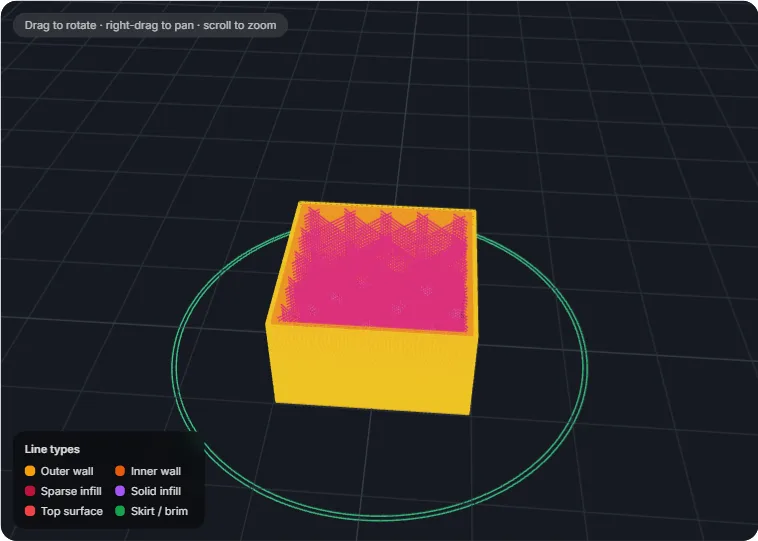
By feature
Walls, infill, top skin and skirt each get their own colour, read from the slicer comments.
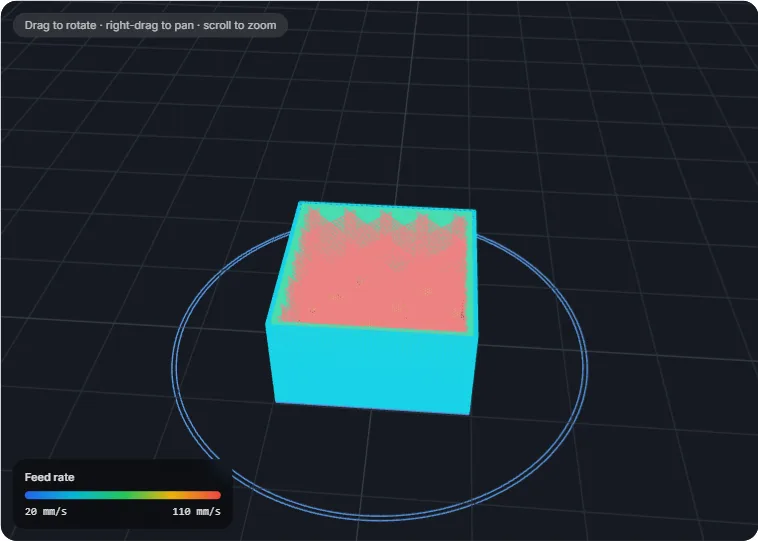
By speed
Blue is slow, red is fast. Handy for spotting a first layer or outer wall printed too quickly.
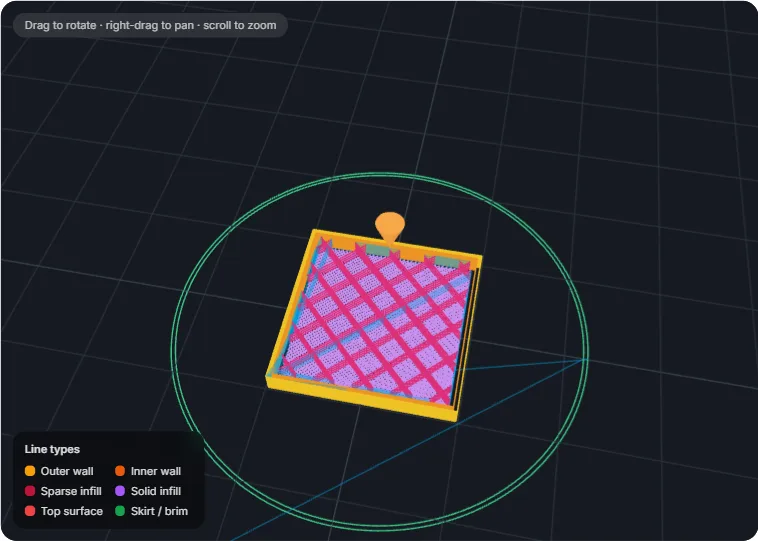
Simulator with travel
Play the print back to any point; travel moves show where the nozzle jumps between islands.
Toolpath preview next to the real print
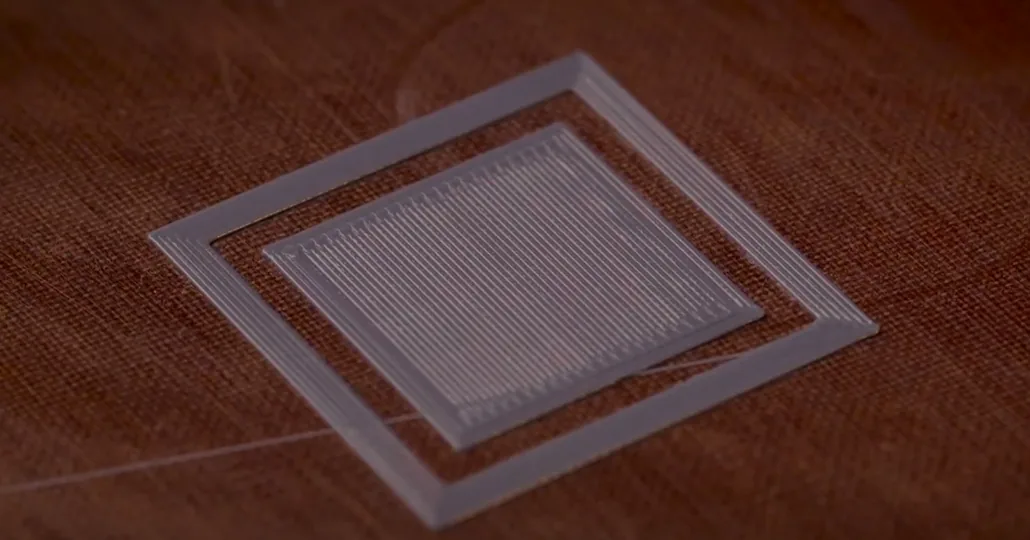
Reference photos of printed infill beside the matching toolpath preview: what the gcode viewer shows is what the nozzle lays down.
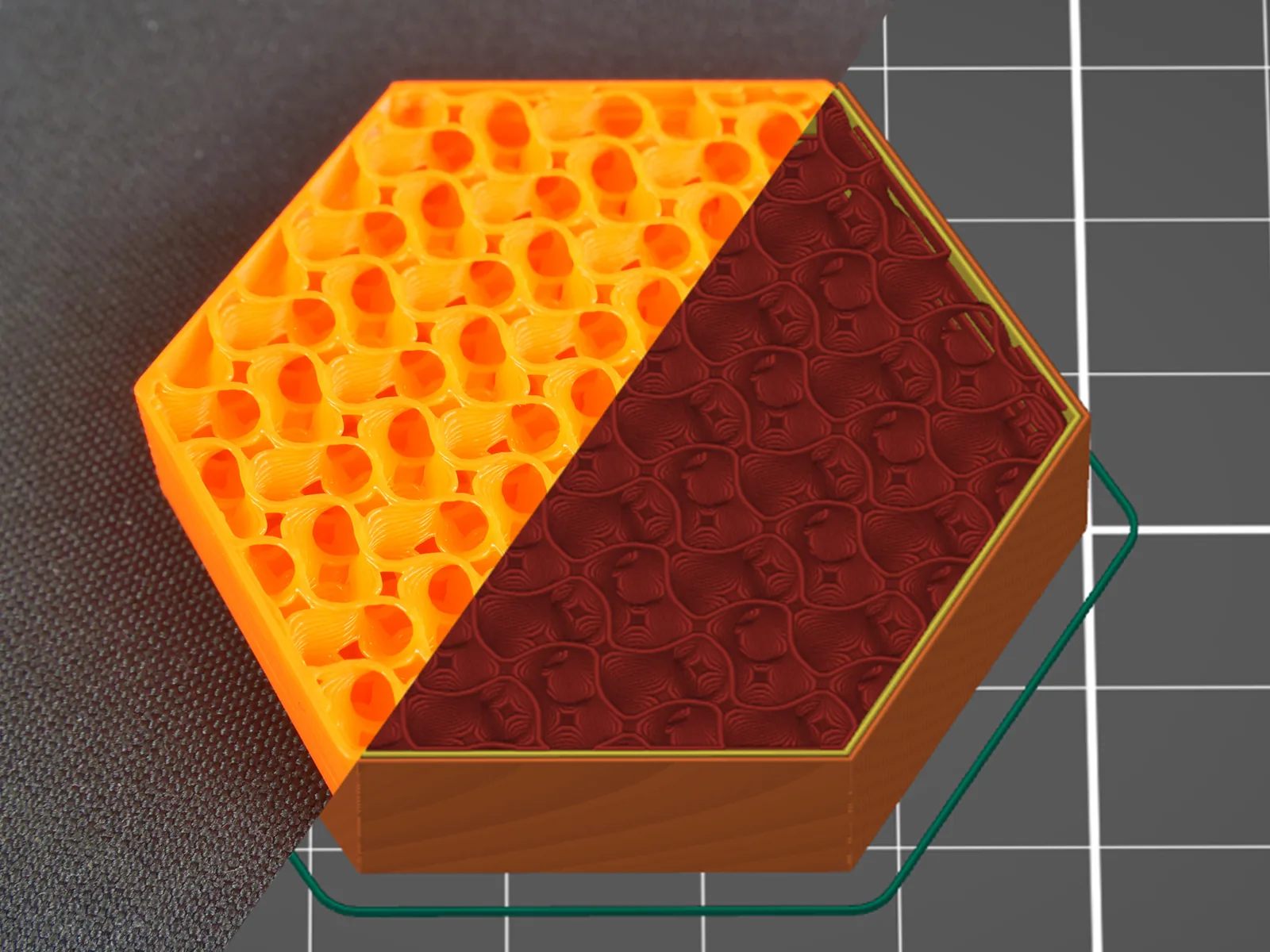
Reference example Gyroid infill
Wavy lines that change direction every layer, strong in all directions.
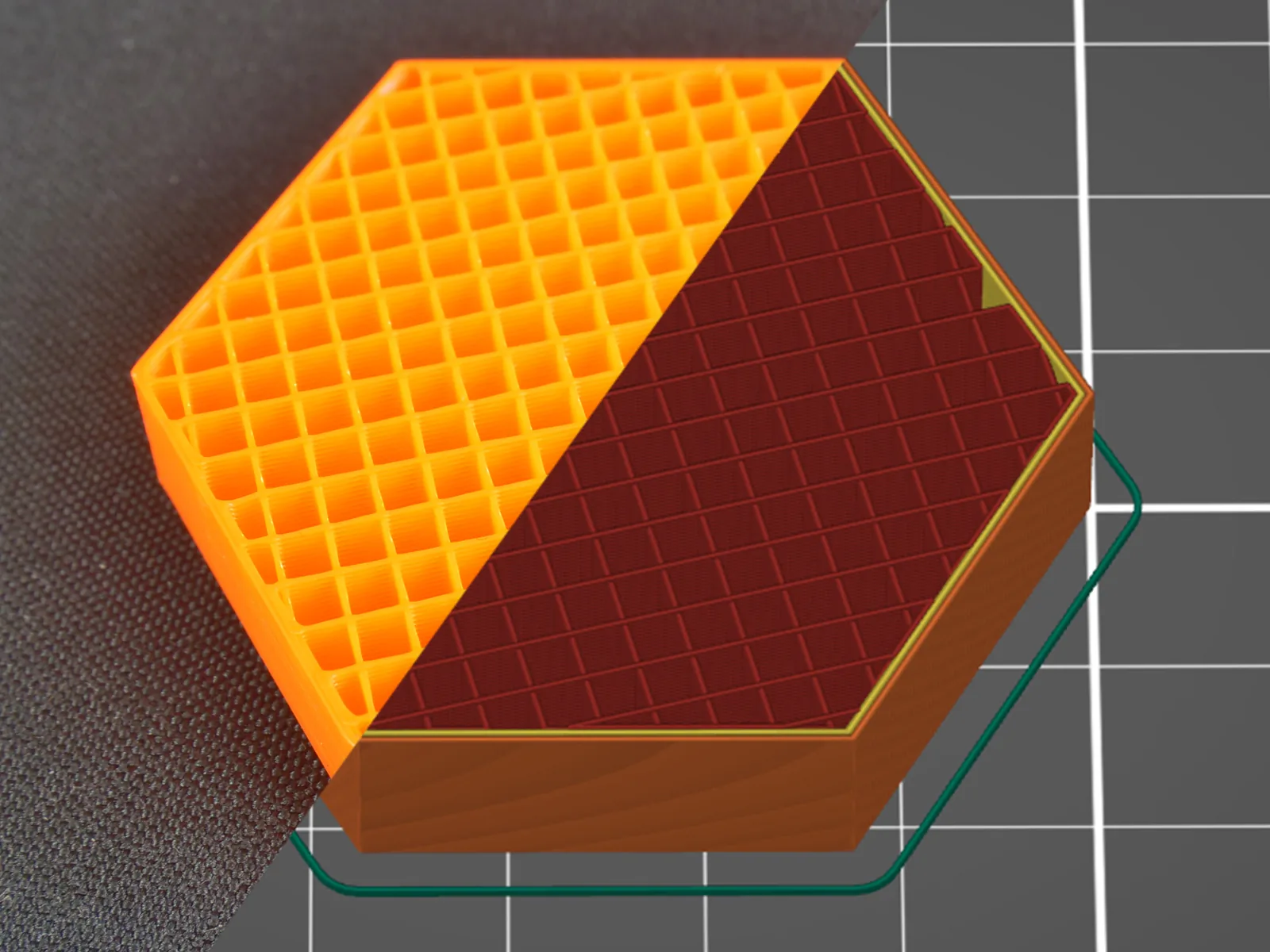
Reference example Rectilinear infill
Straight lines that turn 90° every layer; fast to print and easy to read in the preview.
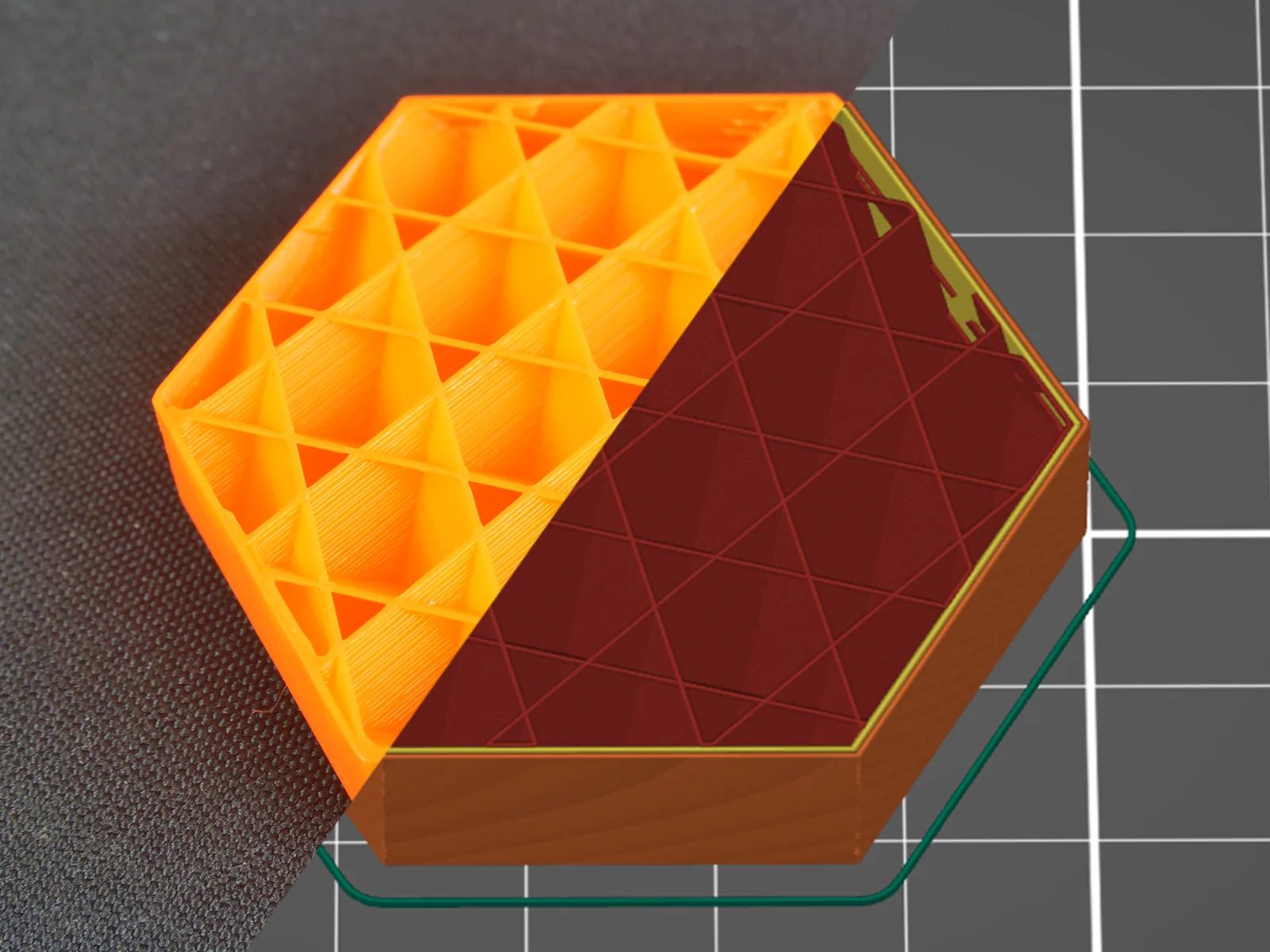
Reference example Cubic infill
Tilted cubes stacked through the part; in single-layer view the triangle grid shifts from layer to layer.
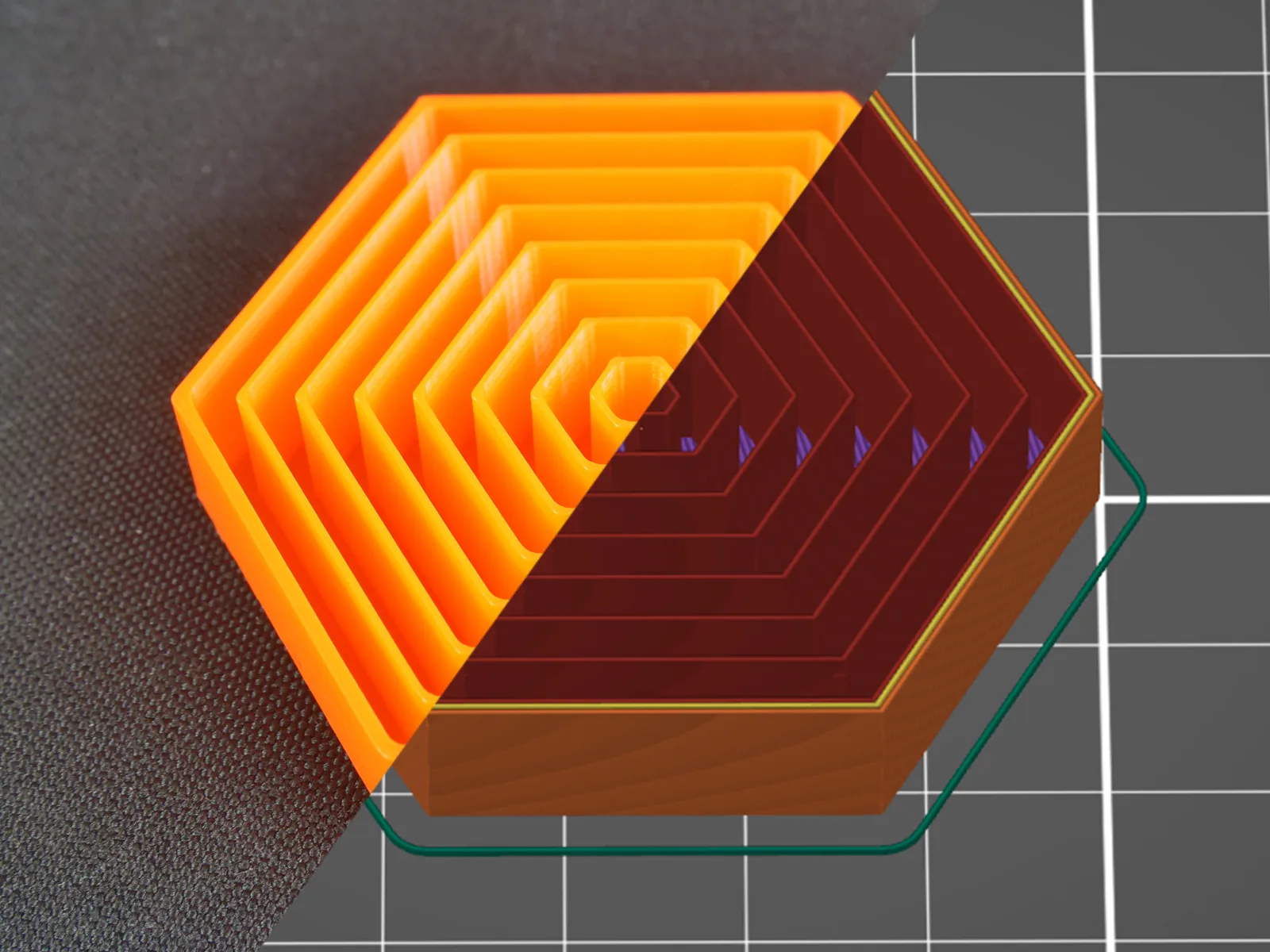
Reference example Concentric infill
Rings that follow the outline. In the viewer they look like nested walls.
Everything a gcode viewer should show
A G-code file viewer built for FDM 3D-printer files from the common slicers.
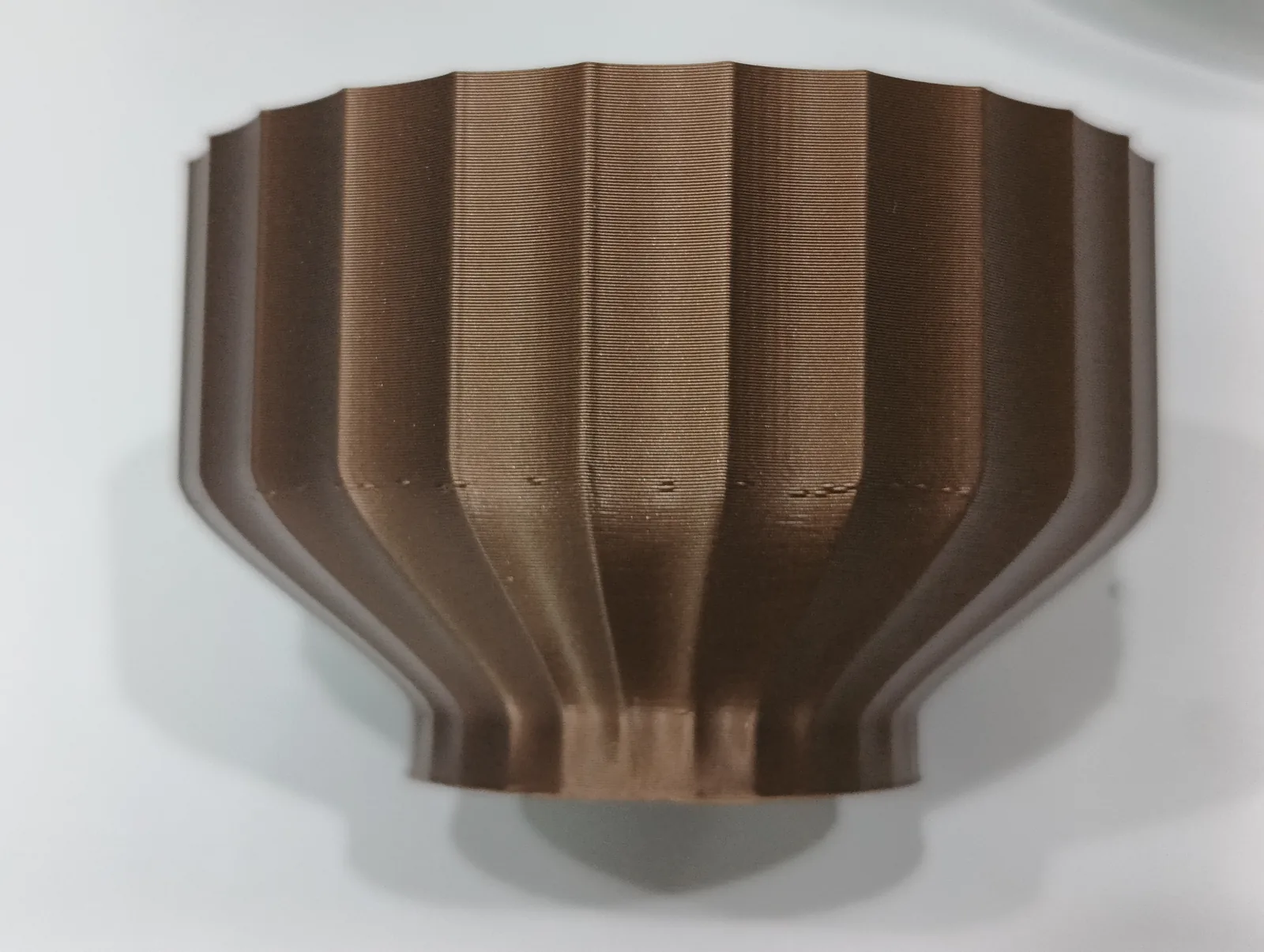
Reference example Handles big files
The file is streamed in 4 MB chunks inside a Web Worker and drawn as GPU line buffers, so files of 100 MB and more still load.
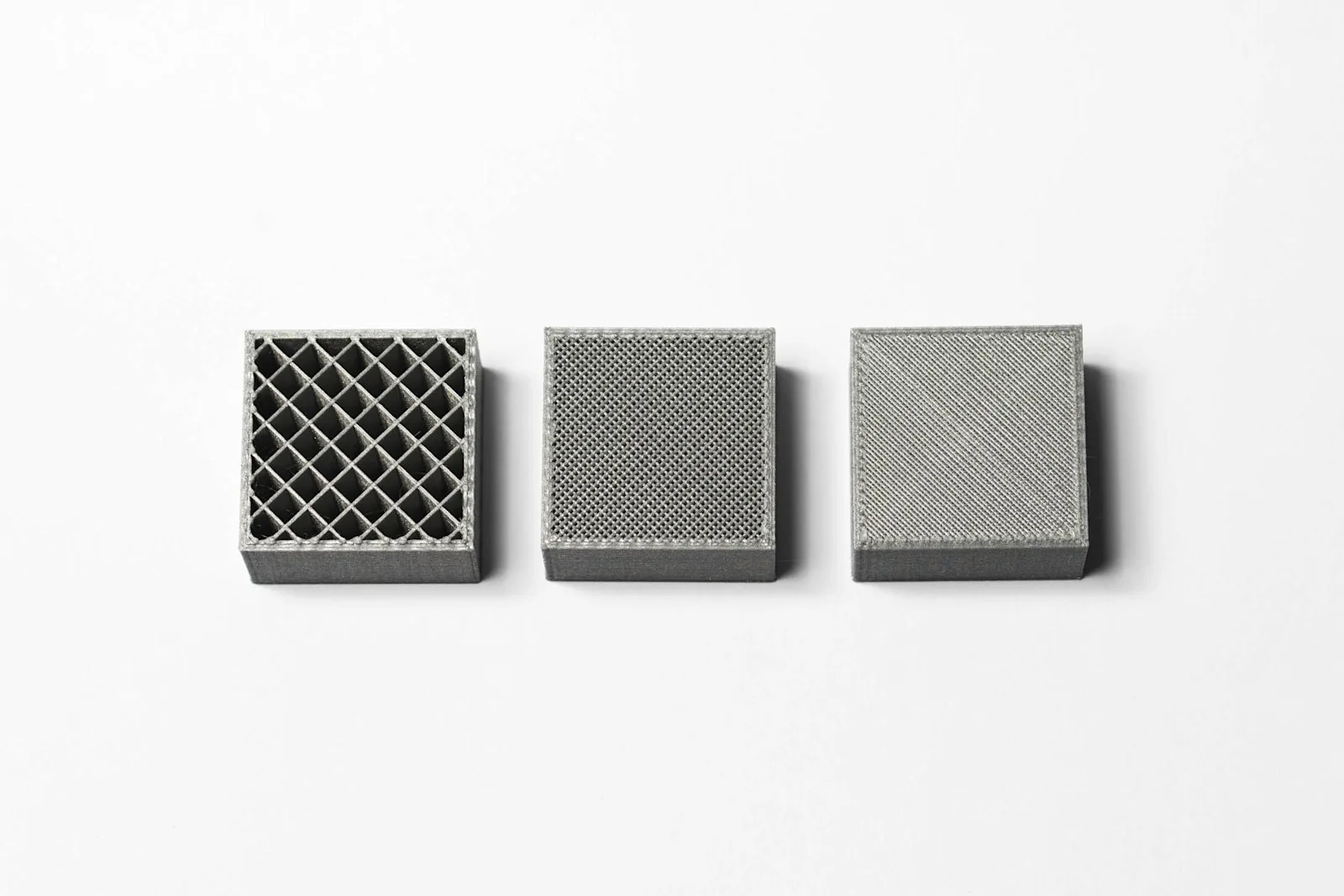
Reference example Feature, speed and layer colours
Reads Cura ;TYPE:, PrusaSlicer and OrcaSlicer ;TYPE: and Bambu Studio ; FEATURE: tags and maps them to one legend.
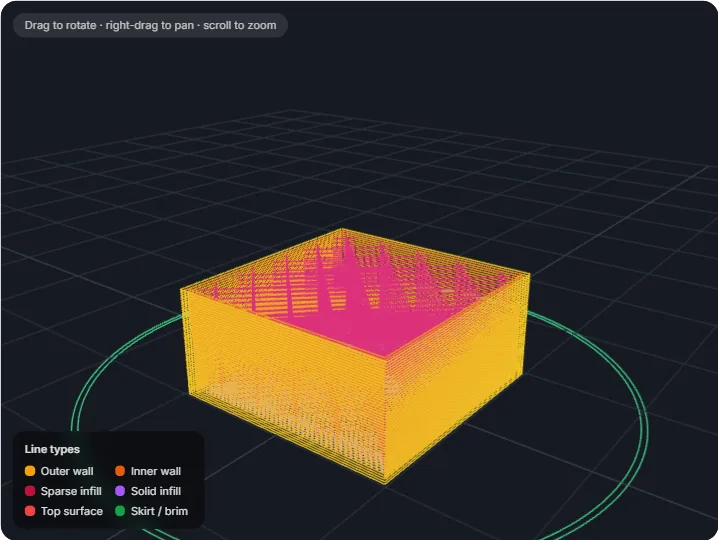
Layer range and single layer
Two sliders set the first and last layer shown; single-layer mode isolates one slice with its Z height.
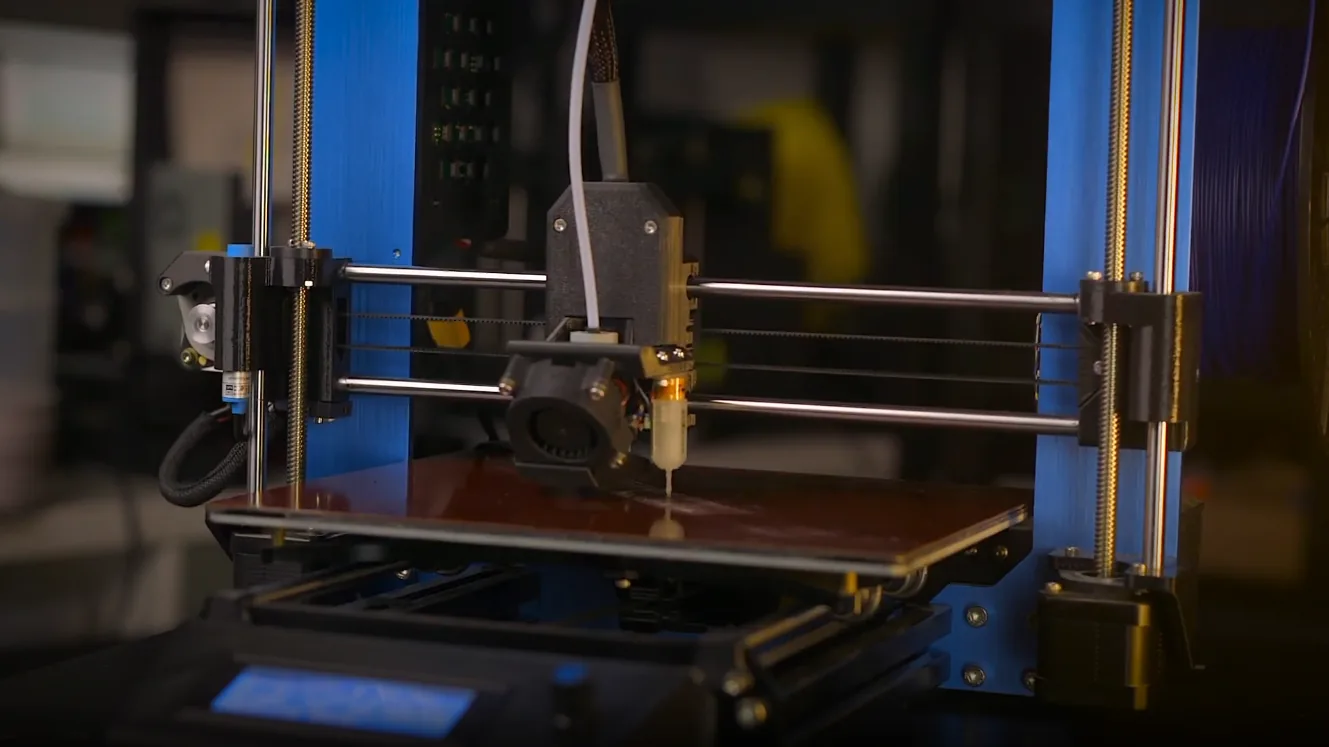
Reference example G-code simulator
Play, pause and scrub through the print at three speeds, with a nozzle marker on the line being printed.
Reference example Time, filament and weight
Uses the print time and filament the slicer wrote into the file; without them it shows a rough feed-rate estimate, clearly labelled.
Private by design
The gcode viewer reads the file in your browser only. Nothing is uploaded, and no account is needed to view G-code.
Gcode viewer FAQ
Questions people ask before they trust a print to a preview.
More ways to work with your 3D files
View, convert, or make a model from scratch.
Need a model to slice first?
Turn a photo or a text prompt into a printable 3D model with AI, then slice it and check the G-code here.