Turn a photo into a 3D model with AI in about a minute: how to shoot the right picture, pick an engine, check the textured GLB and export GLB, STL or OBJ.
Last updated:
You no longer need a 3D scanner or modelling skills to turn a photo into a 3D model. An AI image-to-3D engine reads one picture, works out the shape and the surface, and returns a textured mesh in about a minute. Here is how to turn a photo into a 3D model on Kairo3D, from choosing the picture to exporting the file.
Turn a photo into a 3D model: the short answer
Upload one sharp, evenly lit photo of a single object to the image to 3D generator, keep the default engine, TRELLIS 2, and download the textured GLB about a minute later. Choose STL instead when you want to 3D print it.
What you need to turn a photo into a 3D model
One photo: JPG, PNG or WebP, up to 10 MB. A phone picture is fine.
An account: sign in with Google or email. Each engine shows its credit cost before you generate; plans are on the pricing page.
A browser: nothing to install and no graphics card. Every engine runs on fal.ai's servers.
Step 1: Choose a photo the AI can read
When you turn a photo into a 3D model, the engine sees one view and guesses everything the camera missed, so the photo matters more than any setting.
✓ Sharp, whole, plain background
✗ Blurry or shaky
✗ Too dark, hard shadows
✗ Cut off at the edges
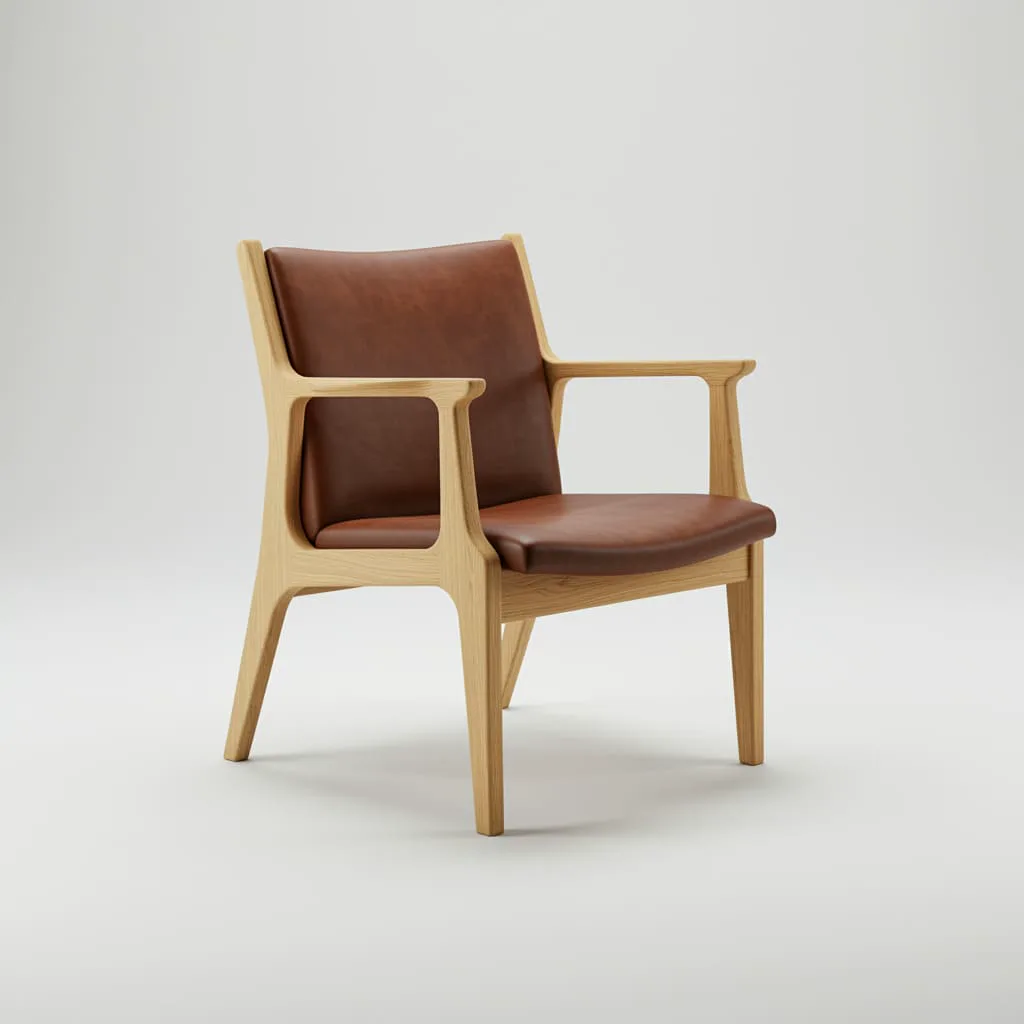
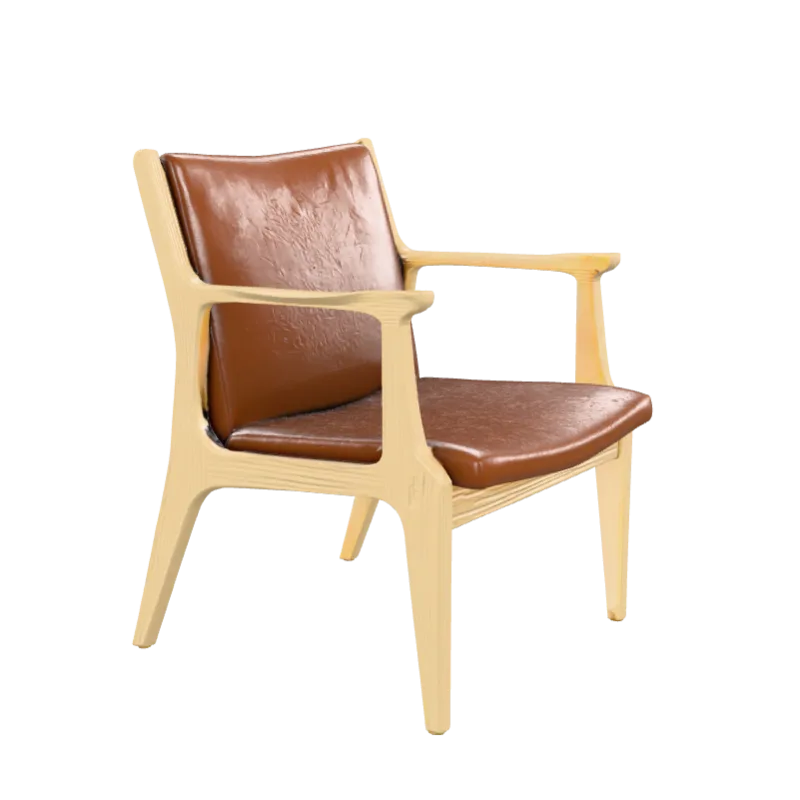
One chair, four photos: only the first gives the engine a clean outline and even light.
One object that fills most of the frame.
A three-quarter angle, so the front and one side show. Straight-on shots hide depth.
Hard for every engine today: glass, mirrors, chrome, wires, hair and busy scenes. Renders and AI-generated pictures work too.
Step 2: Pick an engine
Kairo3D runs several third-party models through fal.ai, and you choose one per generation. These three cover most photos:
Default
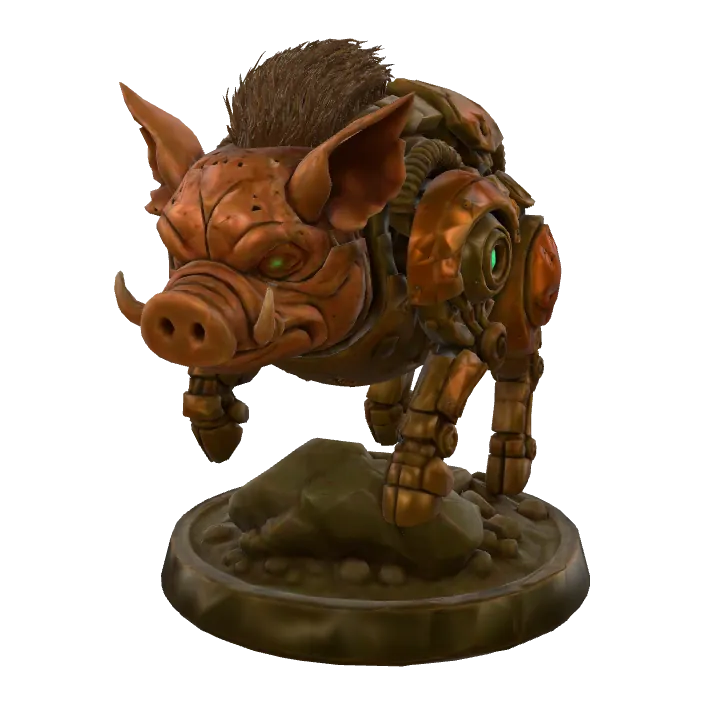
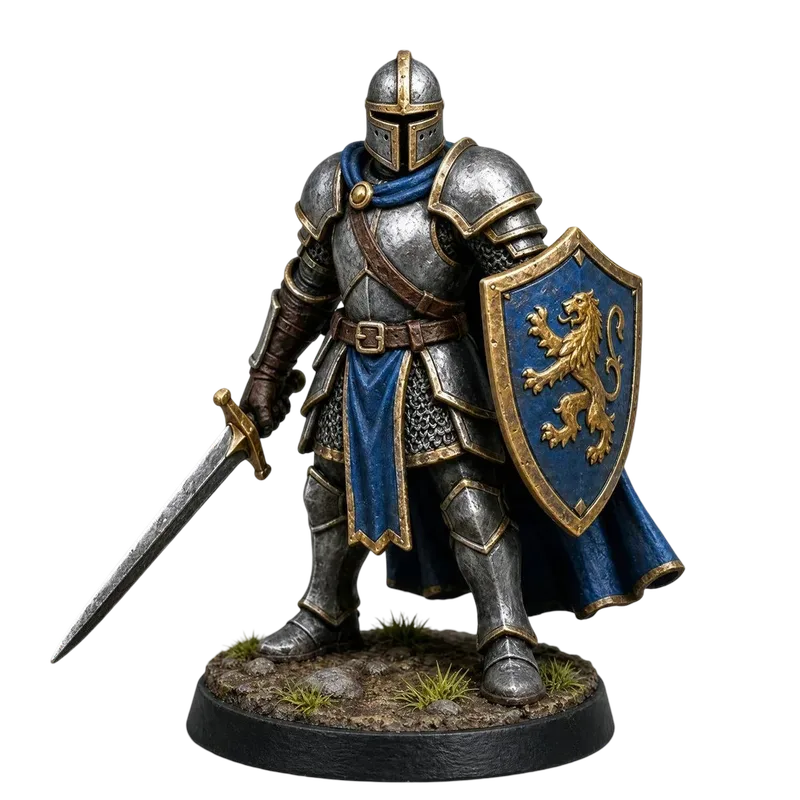
TRELLIS 2MicrosoftMITDetailed geometry with PBR materials. A safe first choice for products, toys and props.
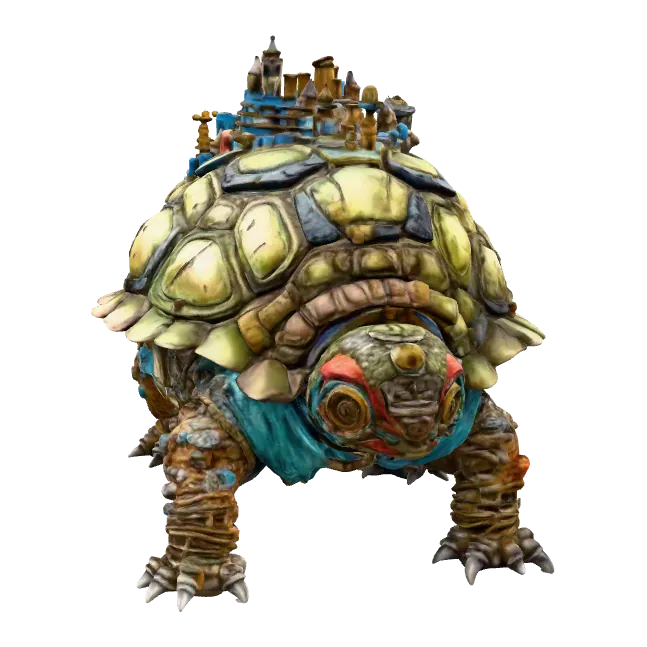
Pixal3DTencentARCMITPixel-aligned, so the visible side stays very close to your photo.
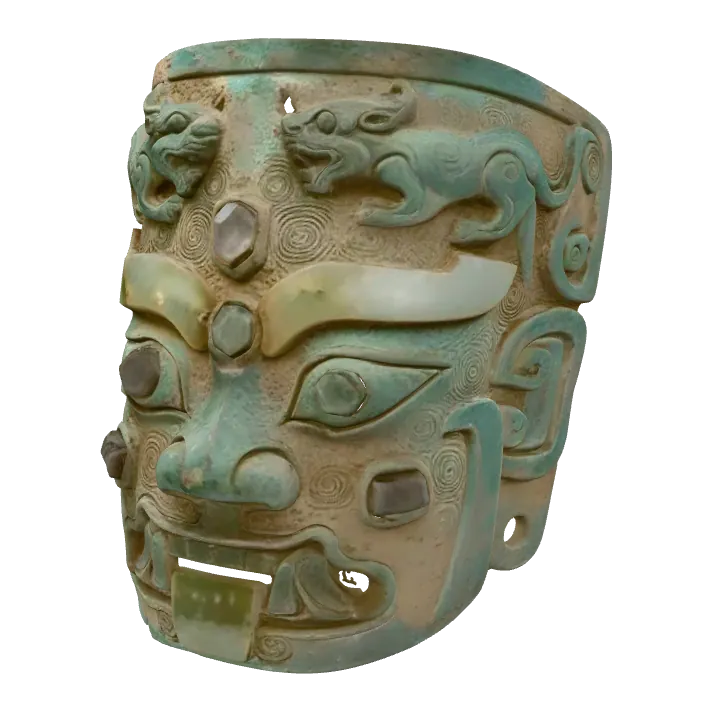
Hunyuan 3D 3.1 ProTencentTencent's termsFine surface detail for characters and busts. Slower, and the licence has territory terms.
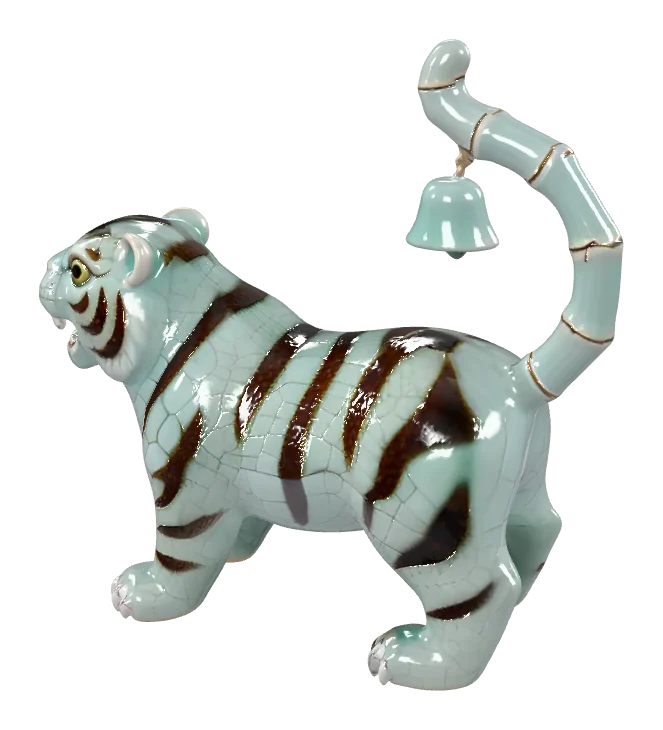
Sample outputs published for each engine.
Also on the list: Rodin Gen-2.5 Fast (Hyper3D) for quick tests, Tripo H3.1 and the original TRELLIS for cheap drafts. Not sure? Run the same photo on two engines and keep the better result; one credit balance covers them all. Our TRELLIS 2 vs Hunyuan 3D guide compares two of them.
Step 3: Generate and inspect the model
Open the image to 3D model generator, upload the photo, pick the engine and click Generate. A run takes about 30 seconds to two minutes, and the result is saved privately to My creations. If a generation fails, its credits are refunded automatically.
Input image
Example 3D model
Rotate it before you exportThe back and the underside were guessed, not seen, so expect simpler shapes there.Thin parts and edges: look for missing fingers, merged legs or holes.Texture seams: the colours on hidden sides are invented too.Badly off? A better photo or another engine beats repairing the mesh.
Step 4: Export for your project
Every result is a textured GLB file. Pick the format when you download:
GLBBlender, Unity, Unreal, web and ARKeeps textures and materials. Most 3D software imports it directly.
STL3D printingShape only, so the colours are dropped. Your browser converts the file.
OBJ · PLYOther 3D toolsConverted the same way, in your browser.
Printing? Our guide to making an STL from an image covers scaling, supports and slicer prep. Already have a GLB? The free GLB to STL converter and STL viewer run in your browser with no sign-in, and nothing is uploaded. 3MF, FBX and USDZ export aren't supported yet.
Honest limits of turning a photo into a 3D model
One view in, one guess out. Hidden sides won't match the real object exactly.
Meshes, not CAD. You get triangles, not editable features or precise dimensions.
Dense geometry. Simplify models before real-time use in games.
Printing may need repair. A generated mesh isn't guaranteed to be watertight.
Licences differ by engine. TRELLIS 2 and Pixal3D are MIT-licensed; Tripo, Rodin and Hunyuan 3D follow their providers' terms. Check before commercial use.
No photo? Start from text
Describe the object instead. Text to 3D uses Tripo H3.1, Hunyuan 3D or Rodin to build a model from a sentence such as "a weathered bronze dragon statue".
FAQ: turning a photo into a 3D model
New accounts may get free credits to start, so you can try it before choosing a plan. After that, each generation uses credits, and every engine shows its cost before you generate. Converting the result to STL, OBJ or PLY in your browser is free, and failed runs are refunded.
Usually about a minute. Depending on the engine, a run takes roughly 30 seconds to two minutes: Hunyuan 3D 3.1 Pro takes longer, Rodin Gen-2.5 Fast is the quickest. The finished model is saved privately to My creations and stays there until you delete it.
Start with TRELLIS 2, the default: detailed geometry with PBR materials for products, toys and props. Use Pixal3D when the visible side must match the photo closely, and Hunyuan 3D 3.1 Pro for characters and busts. Rodin Gen-2.5 Fast suits quick tests. One credit balance covers them all.
Yes. A phone picture works well if it is sharp and evenly lit, and shows one object that fills most of the frame against a plain background. Upload it as JPG, PNG or WebP, up to 10 MB. You upload and generate in the browser, with nothing to install.
Not yet. Each generation uses one image, so pick your best three-quarter view, where the front and one side both show. The engine infers the back from that single view. If the hidden side matters, run the same photo on a second engine and keep the better model.
Yes, as a figurine-style model. Characters and busts come out best with Hunyuan 3D 3.1 Pro, which is strong on fine surface detail. Hair, fur and thin parts are hard for every engine today, so expect a simplified result. Only upload photos you have the right to use.
A textured GLB, saved privately to My creations. GLB keeps textures and materials and opens in Blender, Unity, Unreal, web viewers and AR. When you download, your browser can convert it to STL for printing, or to OBJ or PLY. 3MF, FBX and USDZ export aren't supported.
Yes. Choose STL when you download and your browser converts the GLB, dropping the colours. Then scale the model in your slicer, give it a flat base and add supports. A generated mesh isn't guaranteed to be watertight, so use the slicer's repair option if it reports errors.
No. AI models suit figurines, props, game assets and visual prototypes, but they aren't measured or CAD-grade: you get a triangle mesh with approximate dimensions, not editable features. Use CAD for parts that have to fit, and treat the AI model as a visual reference.
You keep the rights to the photo you upload. What you can do with the result depends on the licence of the engine that made it: TRELLIS 2 and Pixal3D are MIT-licensed, while Tripo, Rodin and Hunyuan 3D follow their providers' terms. Check before commercial use.