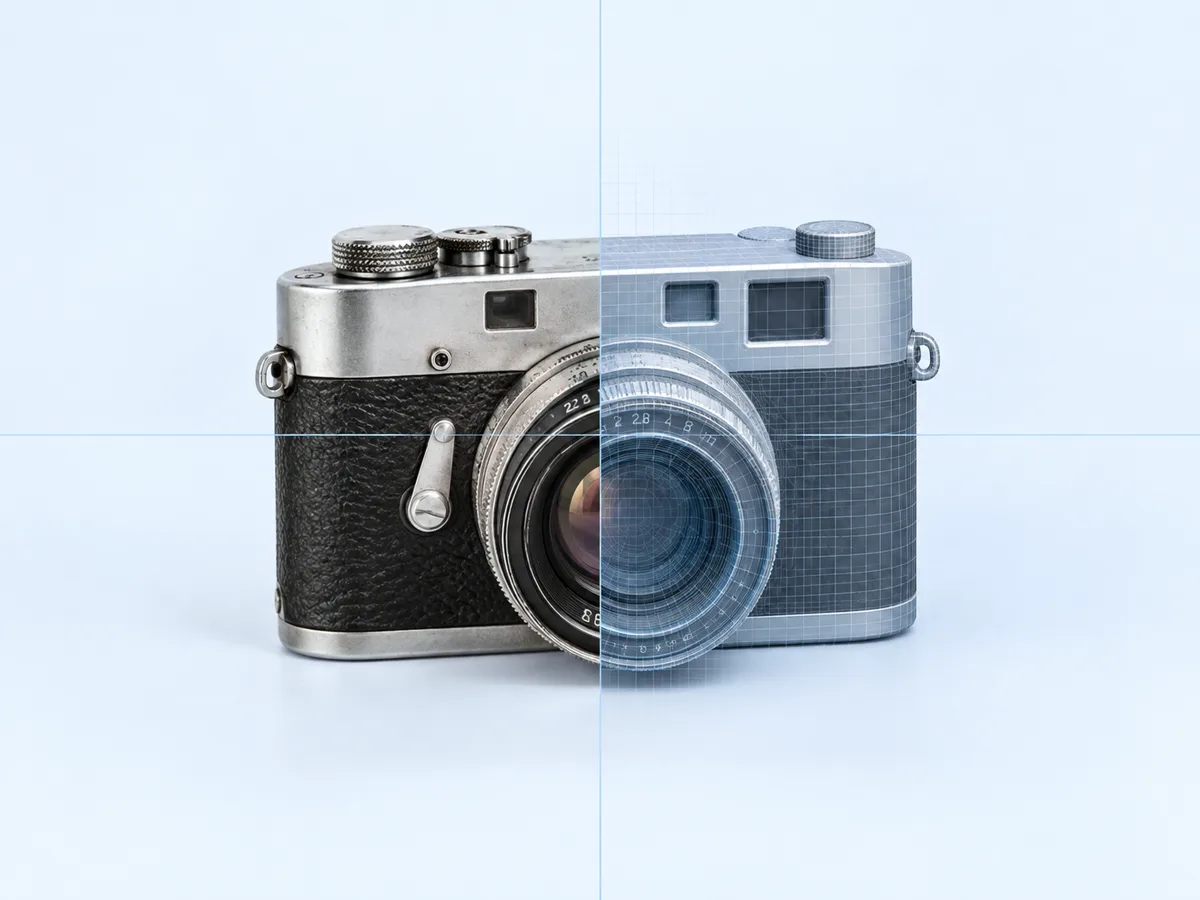
PLY to OBJ Converter
Drop PLY files to convert to OBJ
.ply (binary or ASCII) — up to 10 files at 200 MB each
STL has no units — most slicers read it as millimetres. Add a file to see its size.
Runs in your browser — your files are never uploaded.
- Nothing uploaded
- No sign-in
- Vertex colors kept in the OBJ
- Binary and ASCII PLY
PLY to OBJ at a glance
Measured on the colored scan sample built into the page.
bronze-mask-scan.ply (header)
plyformat binary_little_endian 1.0comment Bronze mask, vertex colours…element vertex 146211property float x / y / zproperty uchar redproperty uchar greenproperty uchar blueelement face 199978property list uchar int vertex_indicesend_header
bronze-mask-scan.obj (first lines)
o bronze-mask-scanv 36.87309 116.7747 36.18904 0.417 0.4062 0.3178v 36.48244 116.40358 36.15974 0.4845 0.4618 0.3893…vn 0.4454 -0.5261 0.7245…f 1//1 2//2 3//3
carried into the OBJ not stored in OBJ
199,978 faces
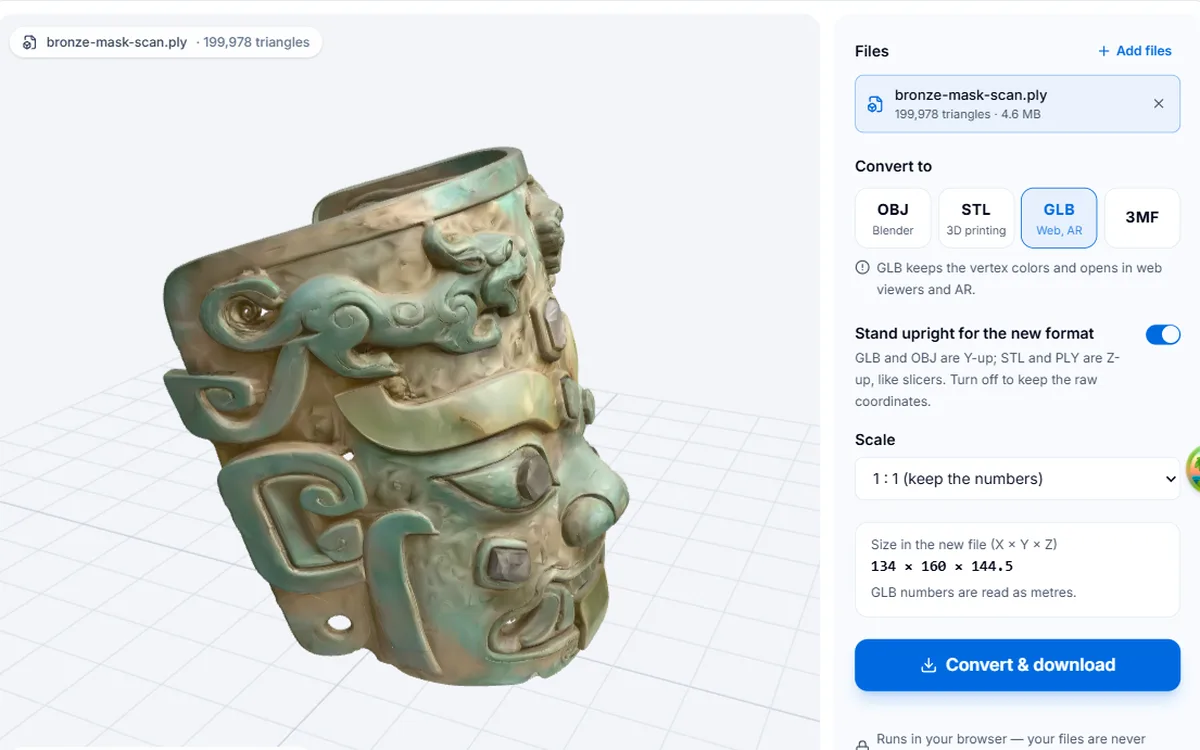
Our bronze mask sample (a Kairo3D model with its texture baked onto the vertices, the way scanners store color): 146,211 colored vertices in a 4.8 MB binary PLY. Every face and every vertex color reaches the OBJ.
r g b on every v
Colors are written on each vertex line as three 0–1 values — the OBJ extension MeshLab introduced and Blender, ZBrush and CloudCompare read.
Z-up → Y-up
Scanners write Z-up; OBJ software expects Y-up. Upright mode rotates the scan so it stands on the floor instead of lying on its back.
How to convert PLY to OBJ
Three steps. No MeshLab install, no account.
Open the PLY file
Drag the .ply onto the converter or click to browse. Binary little-endian, big-endian and ASCII PLY all load. The scan appears in 3D with its colors and its face count.
Choose OBJ and check the orientation
Keep OBJ selected. “Upright” is on by default and turns the Z-up scan to Y-up; switch it off to keep the raw coordinates. Use the scale box when the scan is in metres and you want millimetres.
Download the OBJ
Click “Convert & download”. The OBJ holds positions, vertex colors and normals in plain text. Several PLY files convert in one batch.
What carries over from PLY to OBJ
PLY is the scanner’s format: flexible, with any per-vertex property. OBJ is the modeller’s format: plain text that nearly every 3D app reads.
PLY: scan with vertex colors
OBJ: text mesh with colors
| What carries over from PLY to OBJ | PLY | OBJ |
|---|---|---|
| Triangles and polygons | Yes | Yes |
| Vertex colors | Yes | v x y z r g b |
| Normals | Optional | Always written |
| Texture coordinates (u, v) | Yes | Yes |
| Per-face colors | Yes | No |
| Confidence, intensity, custom props | Yes | No |
| Point clouds without faces | Yes | No |
Have a point cloud only? Mesh it first (Poisson reconstruction in MeshLab or CloudCompare), then convert the mesh.
How scans store color — and how OBJ keeps it
Vertex colors versus texture maps, and what that means for your converted file.
Why scanners use vertex colors
A structured-light or photogrammetry scan already has a vertex every fraction of a millimetre, so giving each vertex the color the camera saw is enough to reproduce the surface. No UV unwrapping is needed, which is why most scanner software exports PLY with red, green and blue on each vertex.
The OBJ color lines
The original OBJ specification has no vertex colors. MeshLab added three extra numbers after x, y, z, and the convention stuck: Blender imports them as a color attribute, ZBrush as polypaint, CloudCompare and Meshmixer as vertex colors. Programs that do not know it simply ignore the extra numbers.
When you need a texture after all
Game engines and web viewers prefer textures. Keep the vertex-colored OBJ for editing, and when you need a texture, bake the vertex colors to an image in Blender (Cycles, Bake › Diffuse color) after unwrapping. Or convert the PLY to GLB, which displays vertex colors in every web viewer.
| Target | Colors kept? | Notes |
|---|---|---|
| OBJ | Yes | r g b after each vertex position |
| GLB | Yes | COLOR_0 attribute, shown by web viewers |
| PLY | No | Our PLY writer stores geometry only |
| STL / 3MF | No | Geometry for slicers |
Where PLY files come from
Structured-light scanners, photogrammetry and LiDAR all write PLY. These public examples show the kind of data you will be converting.
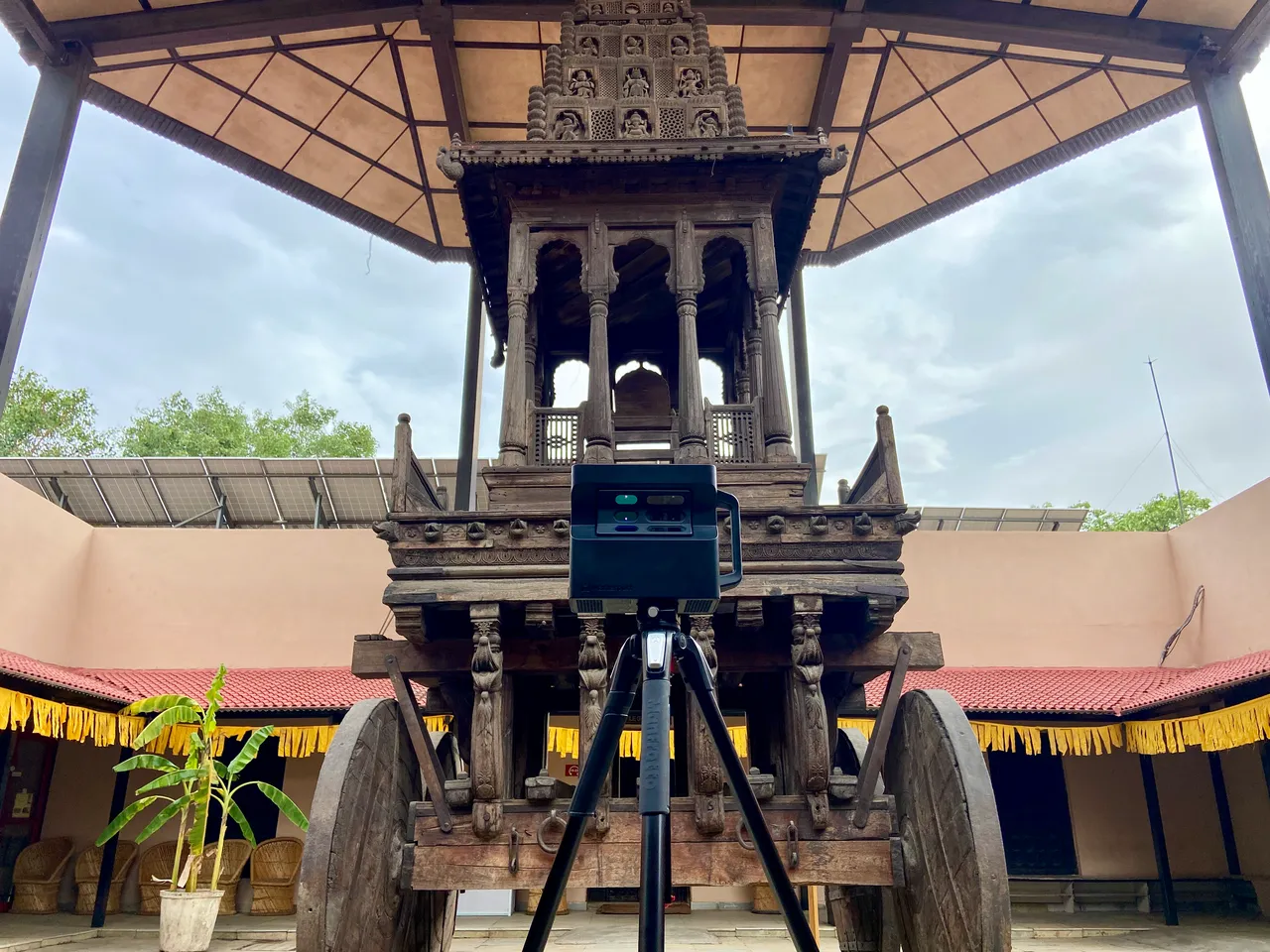 Reference example
Scanning a museum pieceA tripod scanner capturing a carved temple chariot — the result is a dense colored PLY. 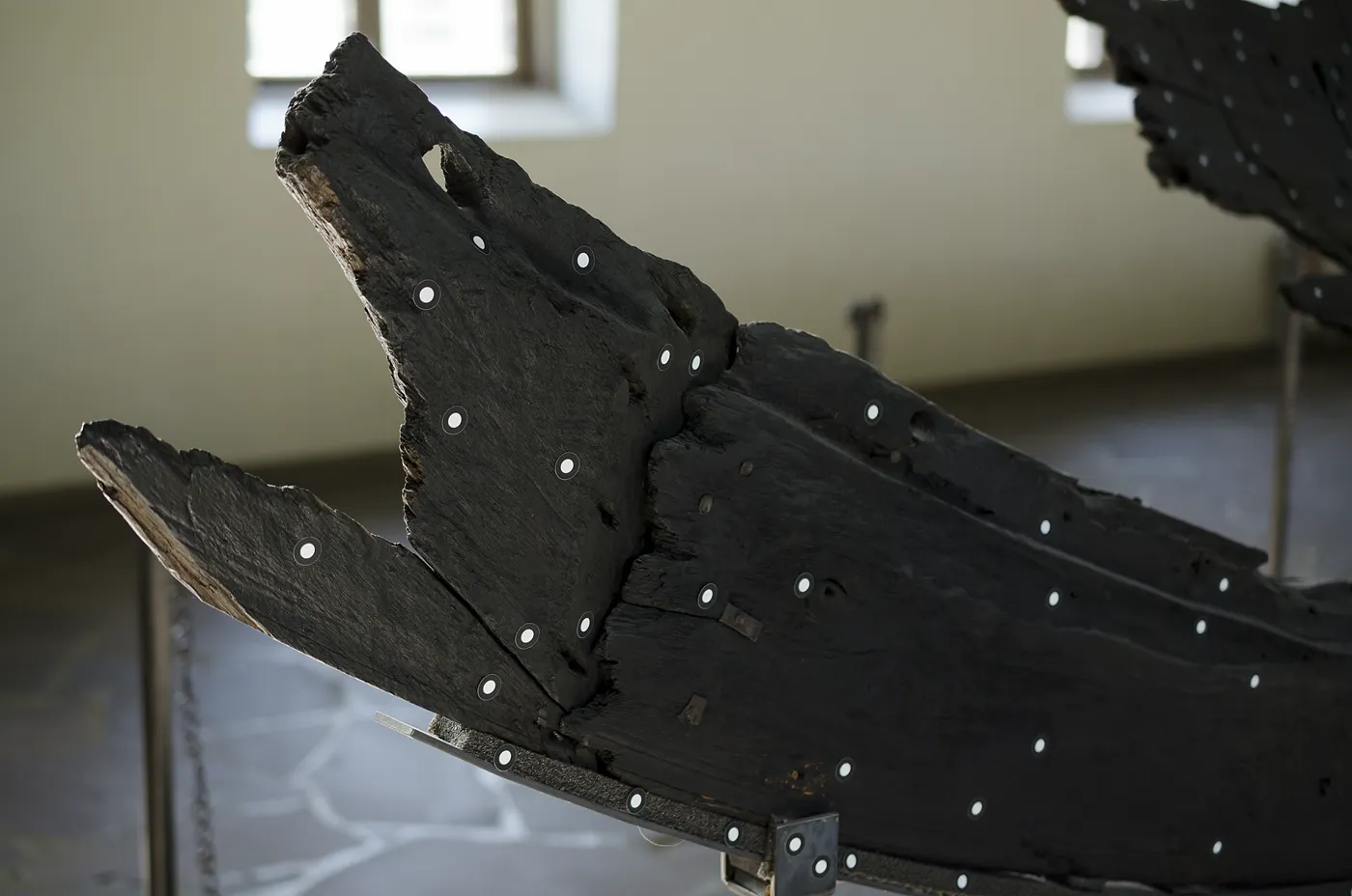 Reference example
Targets for alignmentWhite dots on a ship timber help the scanner stitch many passes into one mesh. 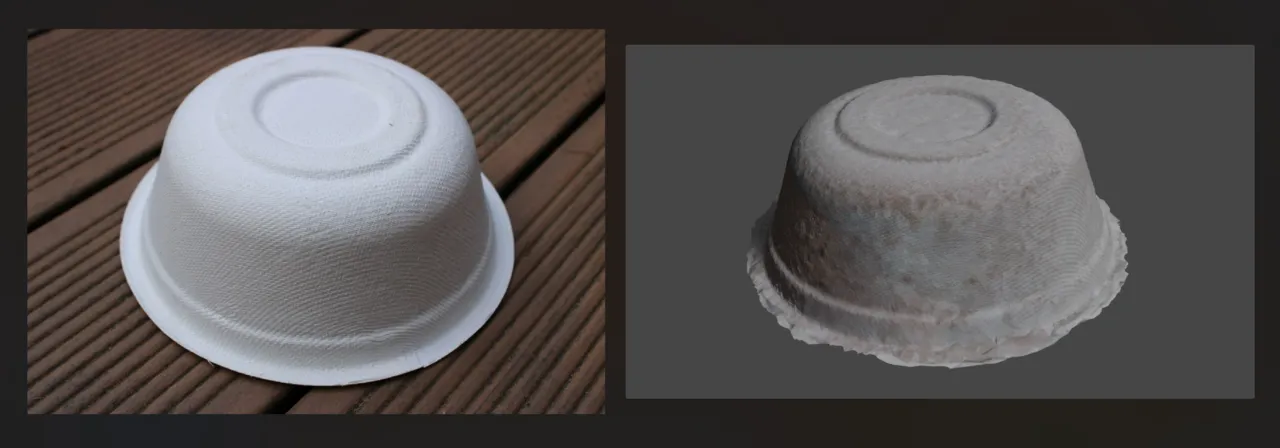 Reference example
Photo next to its meshA shell photographed and reconstructed with Meshroom: the kind of mesh that arrives as PLY.
Photos and renders from Wikimedia Commons (CC BY-SA 4.0 / CC0). Not made with Kairo3D.
Models made with Kairo3D
Our image-to-3D models download as GLB, STL or OBJ — no scanner needed.
A PLY to OBJ converter made for scans
Scans are big, colored and lying on their back. The converter handles all three.
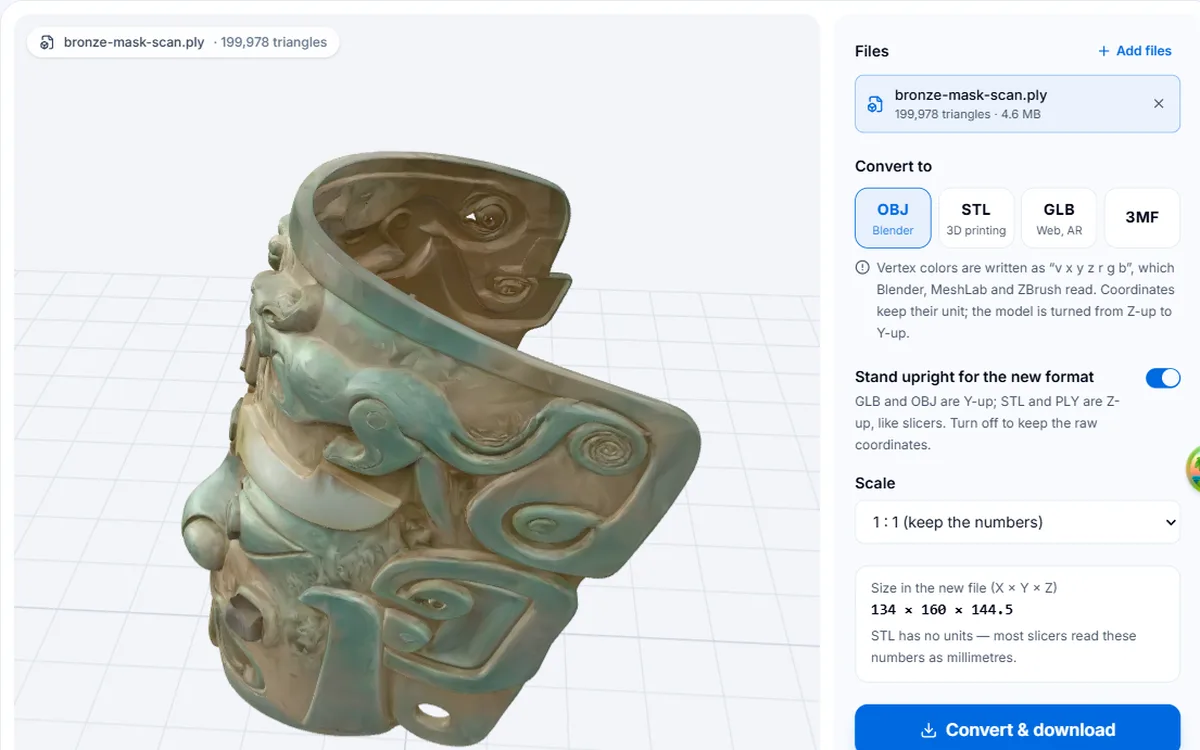
Vertex colors kept
The colors captured by the scanner are written into the OBJ vertex lines, so a scan without a texture still looks like the real object in Blender or ZBrush.
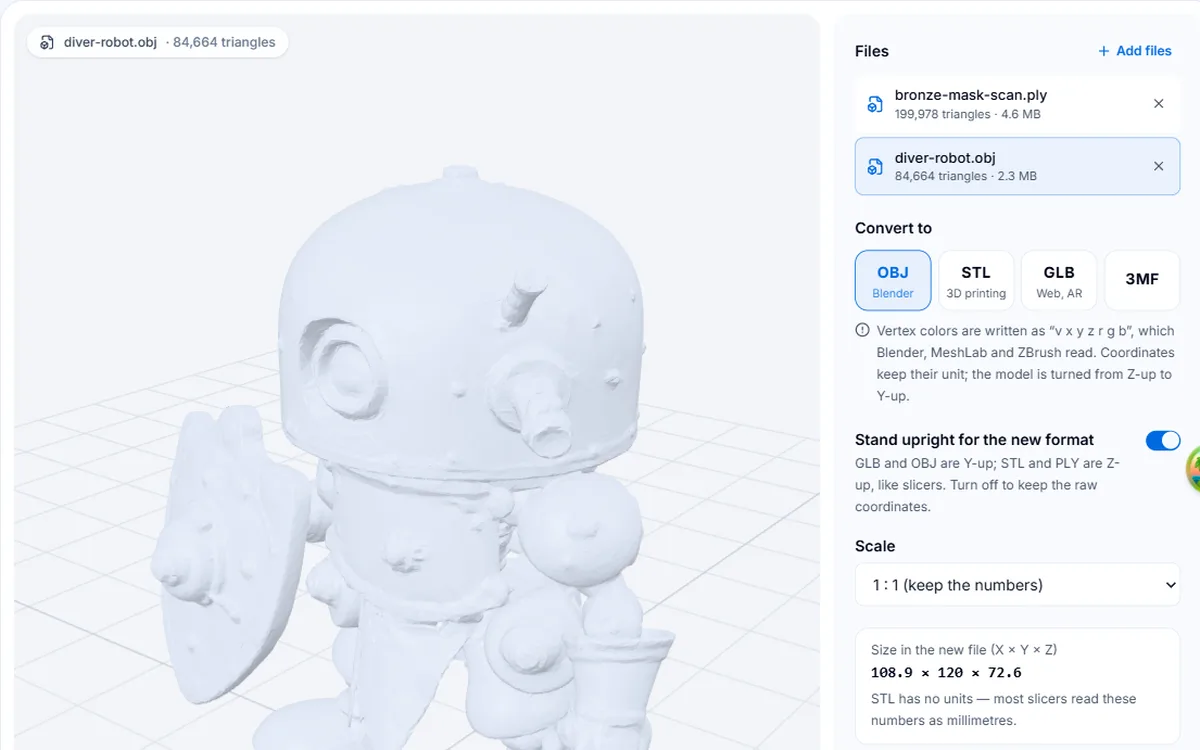
Big scans, in the browser
Files up to 200 MB load in the tab. Our 200,000-face sample becomes an 18.6 MB OBJ in about ten seconds on a laptop; nothing waits in an upload queue.
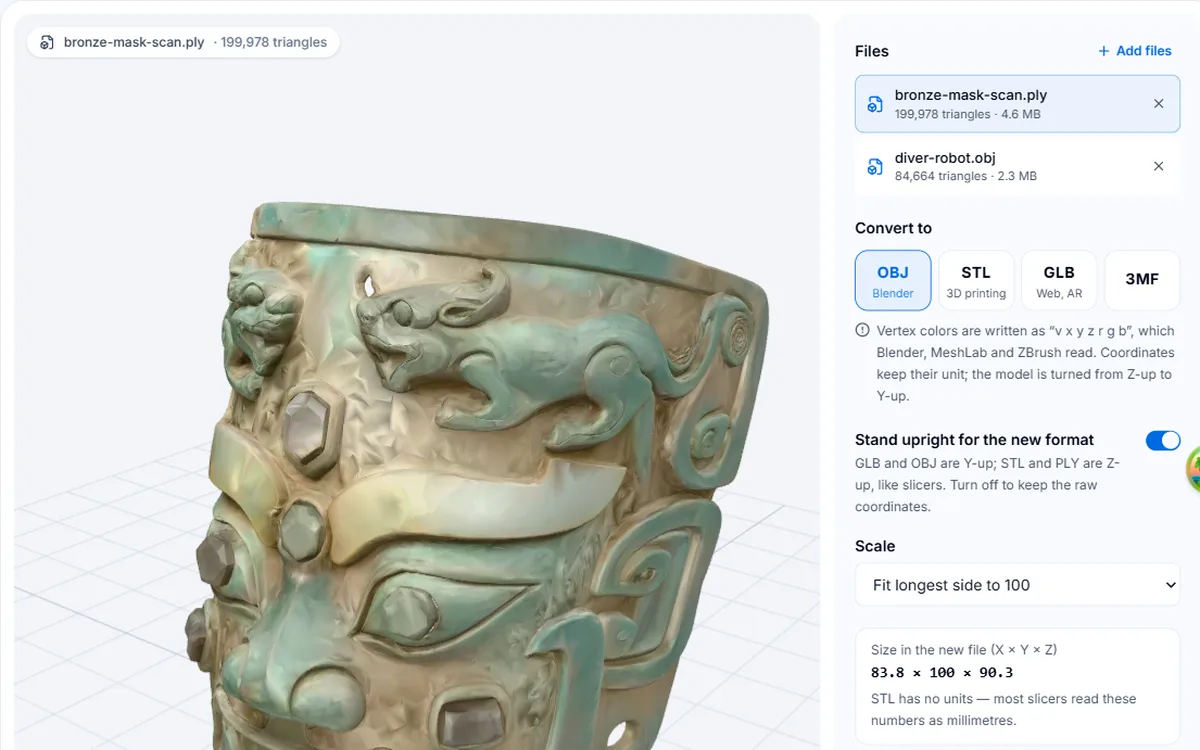
Upright and scaled
Rotate Z-up scans to Y-up in one click and rescale metres to millimetres or centimetres, with the resulting size shown before you download.
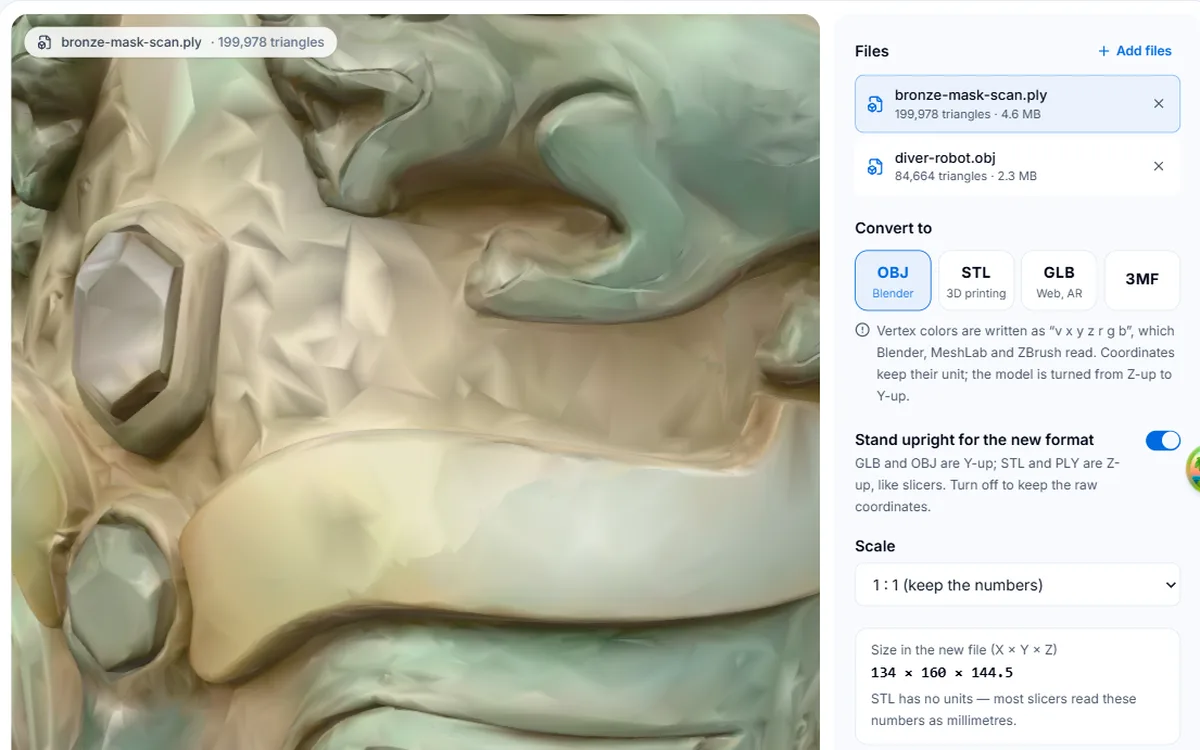
Look before you export
Orbit and zoom into the scan in the preview to spot holes, spikes and stray fragments before you export — and to decide whether it needs decimating first.
Other targets too
The same scan can go to STL for printing, GLB for the web or 3MF for slicers. Only OBJ and GLB keep the colors.
No upload, no account
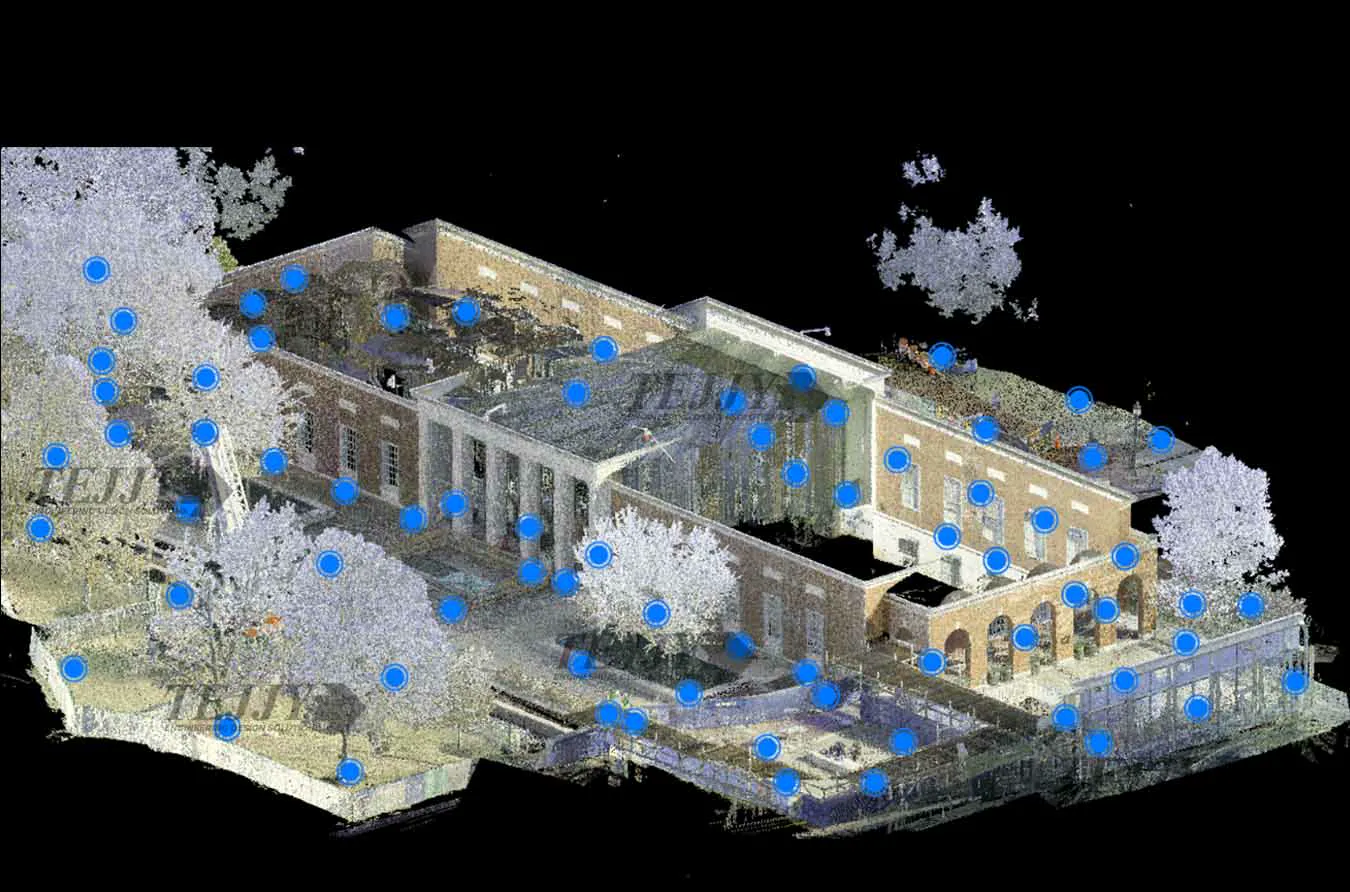
Museum pieces, dental scans and client products stay on your computer: the PLY is parsed by three.js inside the page.
PLY to OBJ FAQ
Colors, point clouds, orientation and file size.
More ways to work with your 3D files
View, convert, or make a model from scratch.
PLY viewer
View PLY meshes from scanners and photogrammetry right in the browser.
PLY to STL converter
Turn a scanned or exported PLY mesh into a printable STL.
OBJ to 3MF
Convert OBJ models to 3MF for Bambu Studio and PrusaSlicer.
OBJ viewer
Preview an OBJ file online, spin it and measure it, no install.
STL Reducer
Cut STL polygon count and file size while keeping the shape.
Online 3D Viewer
Open STL, OBJ, GLB, 3MF, STEP, FBX and more in one viewer.
No scanner? Make a model from a photo
Kairo3D turns one picture into a 3D model you can download as OBJ, STL or GLB.