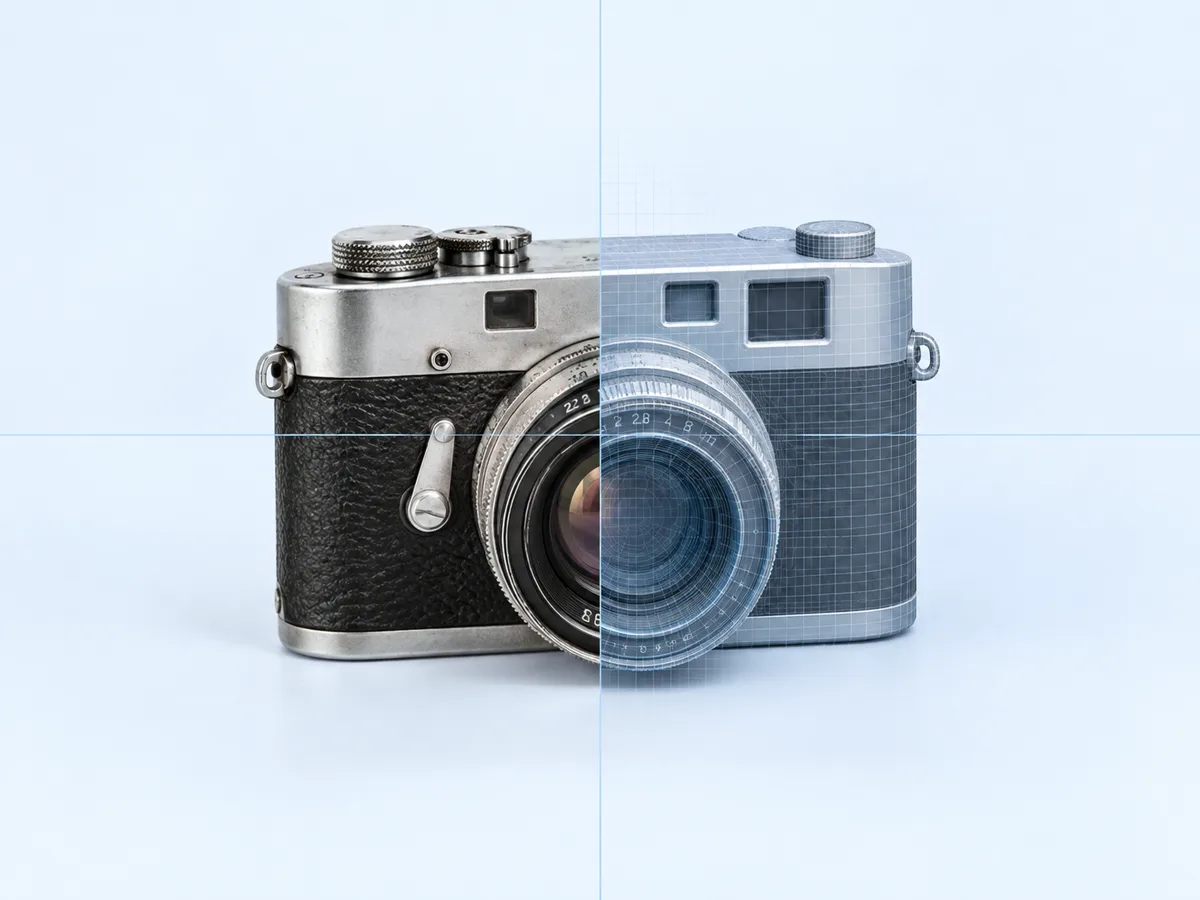
STEP to OBJ Converter
Drop STEP / STP files to convert to OBJ
.step, .stp (also .iges, .igs) — up to 10 files at 200 MB each
STL has no units — most slicers read it as millimetres. Add a file to see its size.
Runs in your browser — your files are never uploaded.
- Nothing uploaded
- No sign-in
- Part names kept as OBJ objects
- 4 mesh densities
STEP to OBJ at a glance
What our 10-part gear pump sample turns into, measured in this converter.
STEP product tree
▾ Gear_Pump_Assembly
- Housing
- Drive_Gear
- Idler_Gear
- Drive_Shaft
- Idler_Shaft
- Cover_Plate
- Bolt_M4_1 … 4
gear-pump-assembly.obj
- o Housing1,410 tris
- o Drive_Gear296 tris
- o Idler_Gear296 tris
- o Drive_Shaft100 tris
- o Idler_Shaft100 tris
- o Cover_Plate684 tris
- o Bolt_M4_1 … 44 × 308 tris
10 → 10
Parts in the STEP product tree and named objects in the OBJ: housing, two gears, two shafts, cover plate and four bolts.
2,640 → 14,708
Triangles in the whole assembly from Draft to Ultra. Standard gives 4,118 triangles and a 582 KB OBJ.
~1 s
To read the 265 KB STEP sample once the 7.6 MB OpenCascade reader is cached. Nothing leaves your device.
How to convert STEP to OBJ
Three steps, no CAD licence and no account.
Open the STEP or STP file
Drop the .step or .stp file on the converter, or load the gear pump sample. The first CAD file downloads the STEP reader once; the assembly then shows in 3D with its triangle count and size in millimetres.
Pick OBJ and a mesh density
OBJ is selected by default. Standard suits most scenes; choose Fine or Ultra if the model will be seen close up in a render, Draft if it is a background prop or a game blockout.
Download and import
Click “Convert & download”. In Blender use File → Import → Wavefront (.obj); each STEP part arrives as a separate object you can move, hide or give its own material.
What a STEP to OBJ conversion keeps and loses
STEP stores exact solids: a bore is a true cylinder and a gear face a true plane. OBJ stores vertices and faces. The shape and the part structure survive; the engineering data does not.
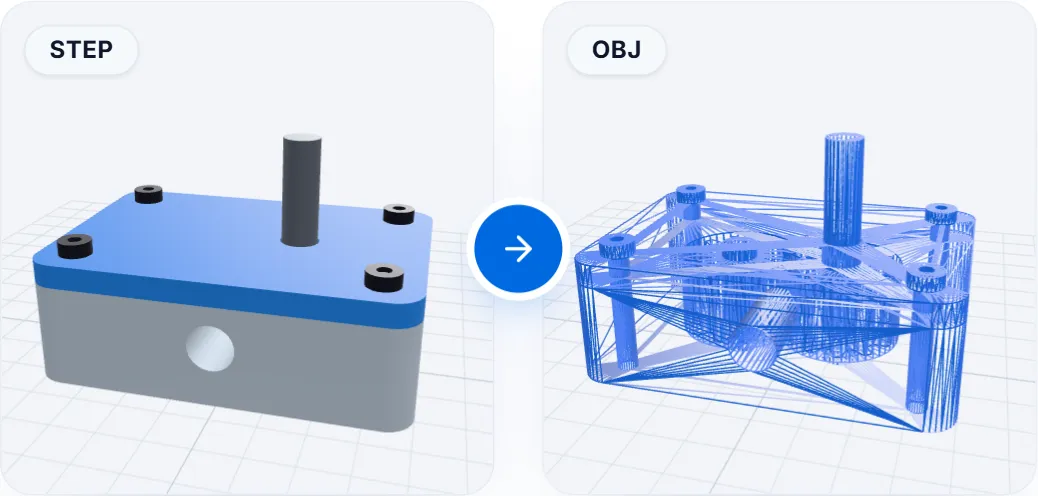
STEP: exact solids in a product tree
OBJ: named triangle groups
| What a STEP to OBJ conversion keeps and loses | STEP | OBJ |
|---|---|---|
| Shape and size (mm) | Yes | Yes |
| Curved faces | Exact | Facets |
| Separate parts | Yes | Yes |
| Part names | Yes | Yes |
| Vertex normals (smooth shading) | No | Yes |
| Face colours | Yes | No |
| Units, tolerances, PMI | Yes | No |
| Feature history, sketches | No | No |
Need the colours too? Convert the same STEP file to GLB, which keeps one material per part. Need it for a slicer? Pick STL or 3MF.
One STEP assembly, four OBJ densities
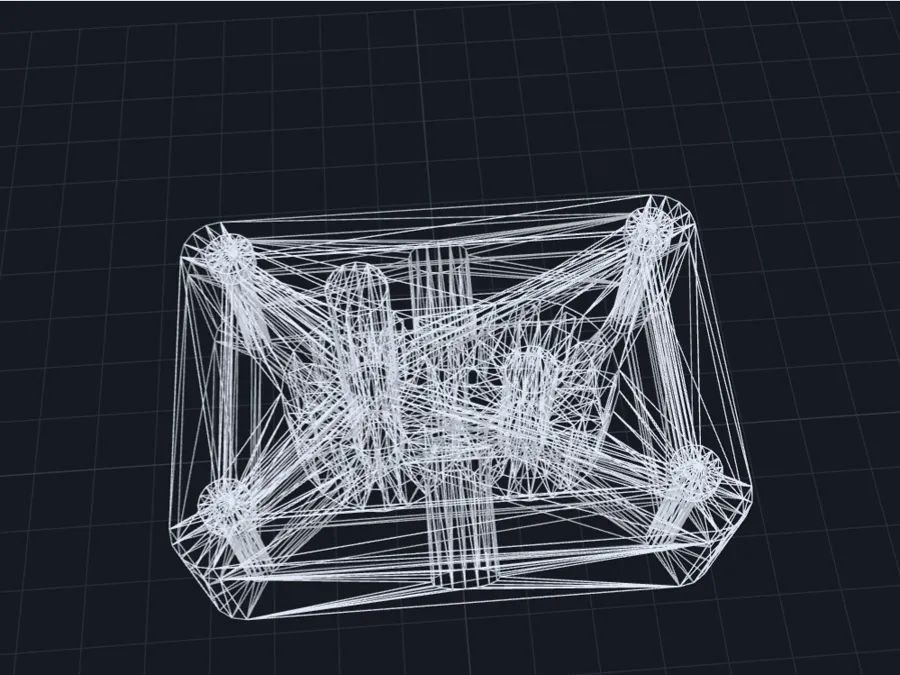
Screenshots of the gear pump sample in our preview. Pick the lightest density that still looks round at your camera distance.
 Real output
Draft · 2,640 trianglesBores and bolt heads turn into visible polygons. Fine for a blockout or a far-away prop. 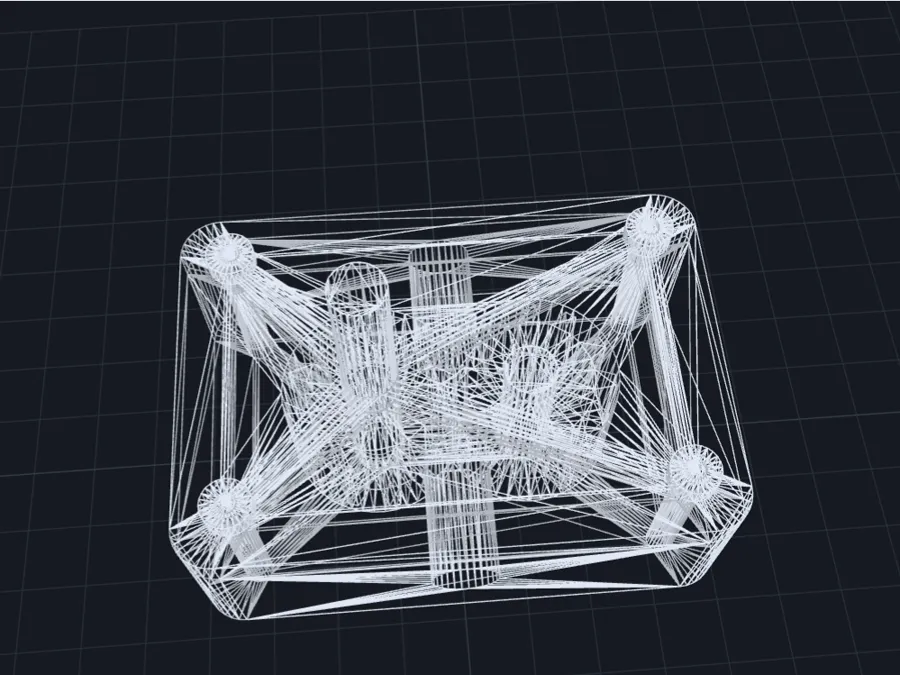 Real output
Standard · 4,118 trianglesThe default. Round parts read as round at normal viewing distance and the OBJ stays under 600 KB. 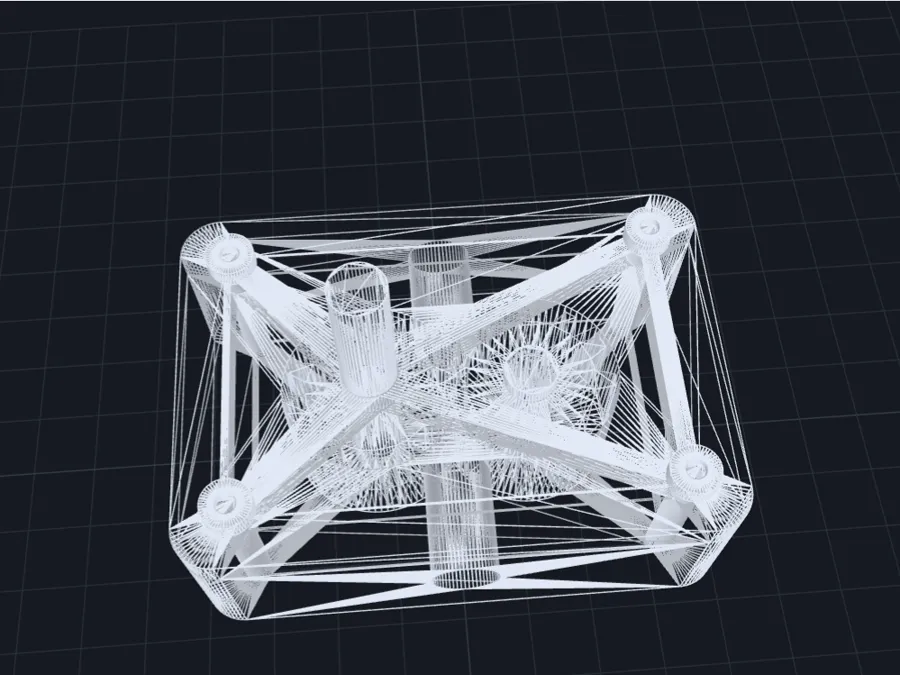 Real output
Fine · 7,574 trianglesShafts and the housing fillets get noticeably smoother; a good choice for product renders. 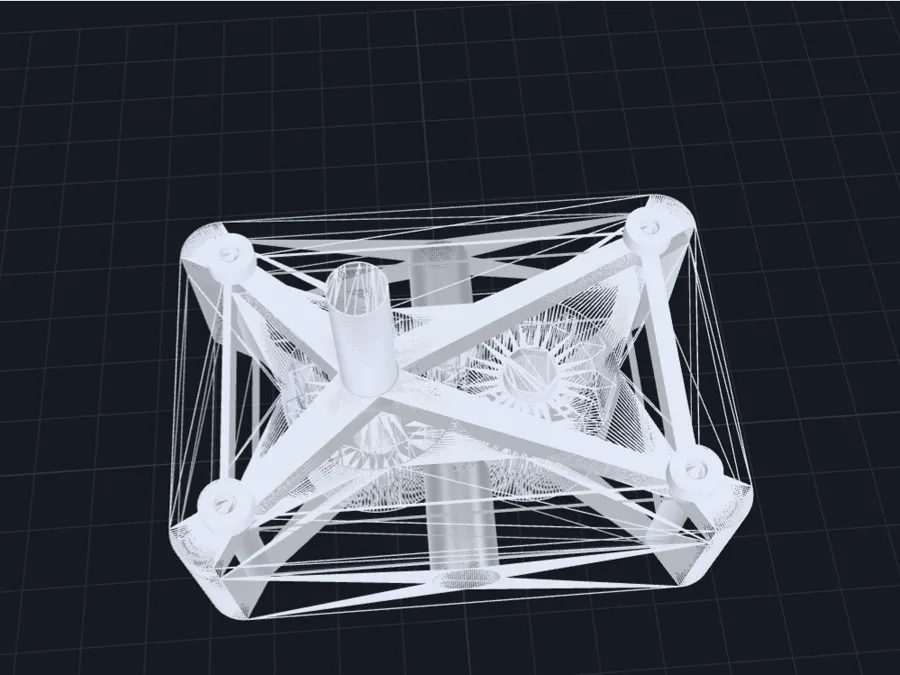 Real output
Ultra · 14,708 trianglesFor close-ups. Over five times the Draft triangle count for the same ten parts.
What the STEP to OBJ converter can and cannot do
Tested on our own STEP files. Where a job needs CAD software, we say so.
It can
- Read .step and .stp files (AP203 / AP214 / AP242) and .iges / .igs files
- Write one OBJ with every assembly part as a separate named object
- Tessellate at four densities and show the triangle count before you download
- Keep the assembled position of every part, in millimetres
- Convert up to 10 STEP files in one batch, all on your device
It cannot
- Write a .mtl file or keep STEP face colours (use STEP to GLB for colour)
- Bring back feature history, sketches or parametric dimensions
- Produce an editable CAD solid again — OBJ is a mesh, not a B-rep
- Generate UV maps for texturing; unwrap in Blender after import
- Open native files such as .sldprt, .ipt or .f3d — export STEP first
| Preset | Triangles | Good for |
|---|---|---|
| Draft | 2,640 | Blockouts, background props, quick checks |
| Standard | 4,118 | Most renders and product scenes |
| Fine | 7,574 | Close-ups, smooth fillets and bores |
| Ultra | 14,708 | Hero shots and large prints of small parts |
Measured 2026-11-24 on public/samples/step/gear-pump-assembly.step (80 × 56 × 52 mm). Your own parts will give different counts.
No CAD model yet? Generate one
Reference models from AI 3D generators, shown live. Kairo3D turns a photo or a prompt into a mesh you can export as OBJ.
Why convert STEP to OBJ here
The export dialog of a desktop CAD package, without the install.
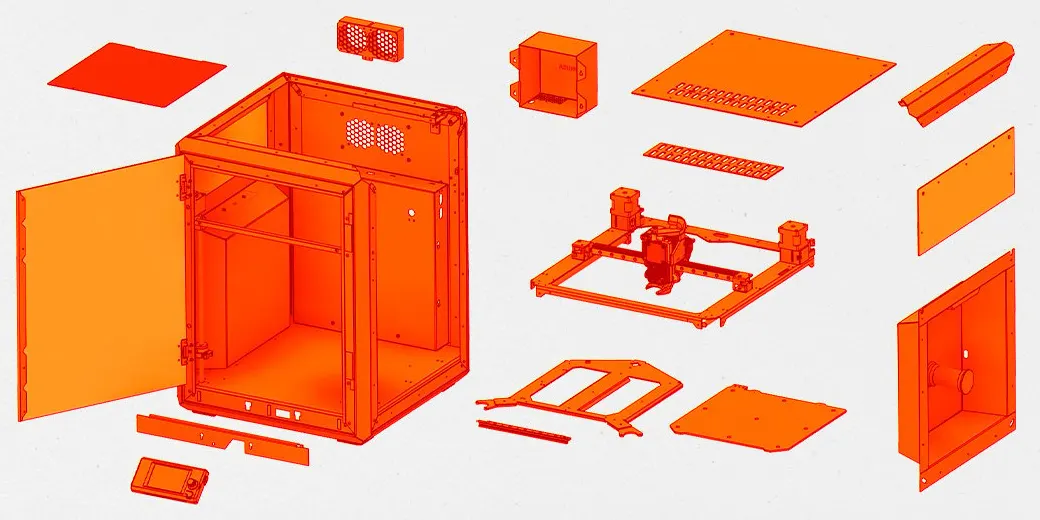
One OBJ object per CAD part
The STEP product tree is walked part by part and each solid is written as its own “o” group with its CAD name, so assemblies stay editable in Blender, Maya or Cinema 4D.
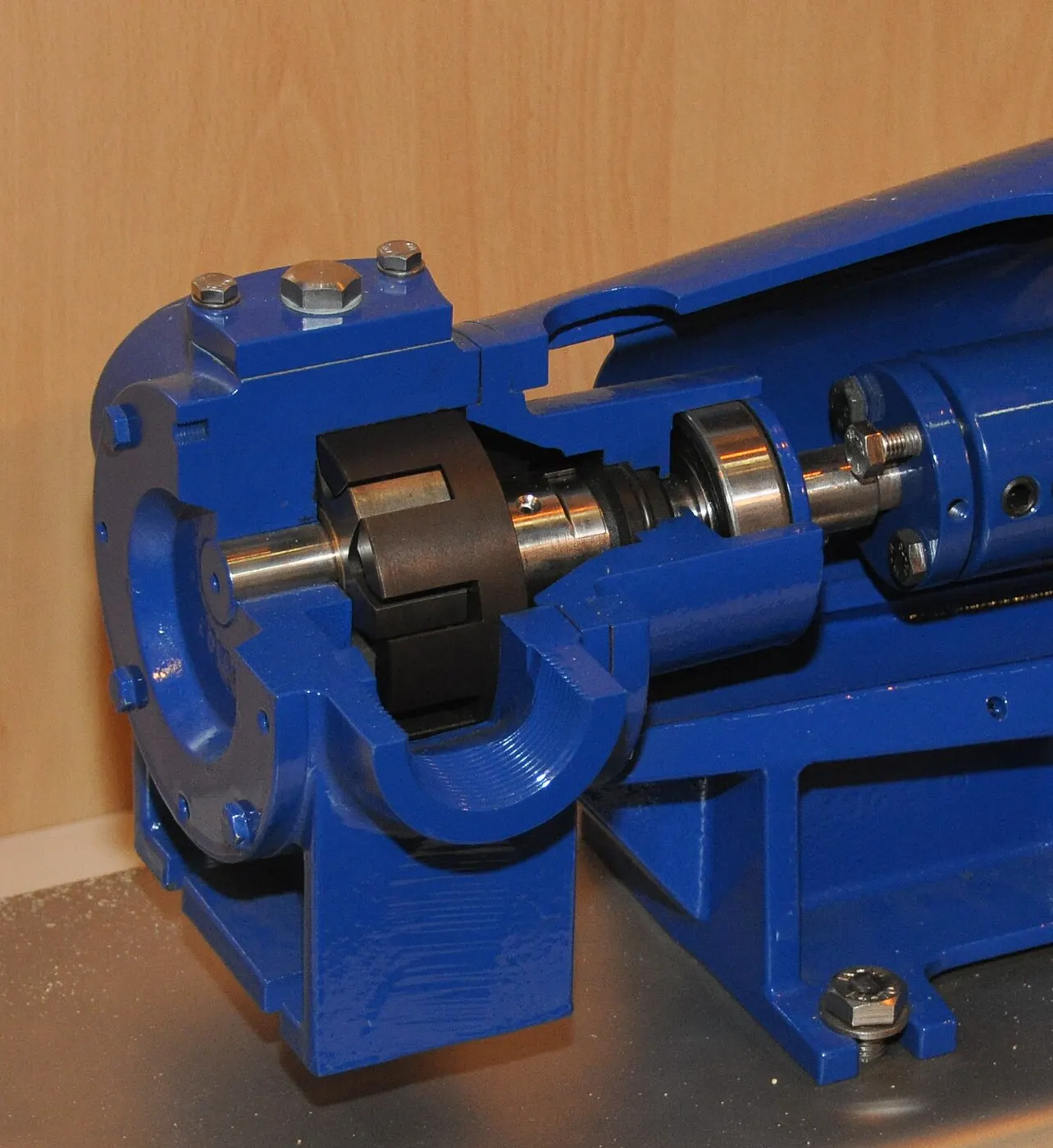
OpenCascade, not a guess
Files are read by OpenCascade, the open-source CAD kernel behind FreeCAD, compiled to WebAssembly. AP203, AP214 and AP242 STEP files open the same way, and IGES too.
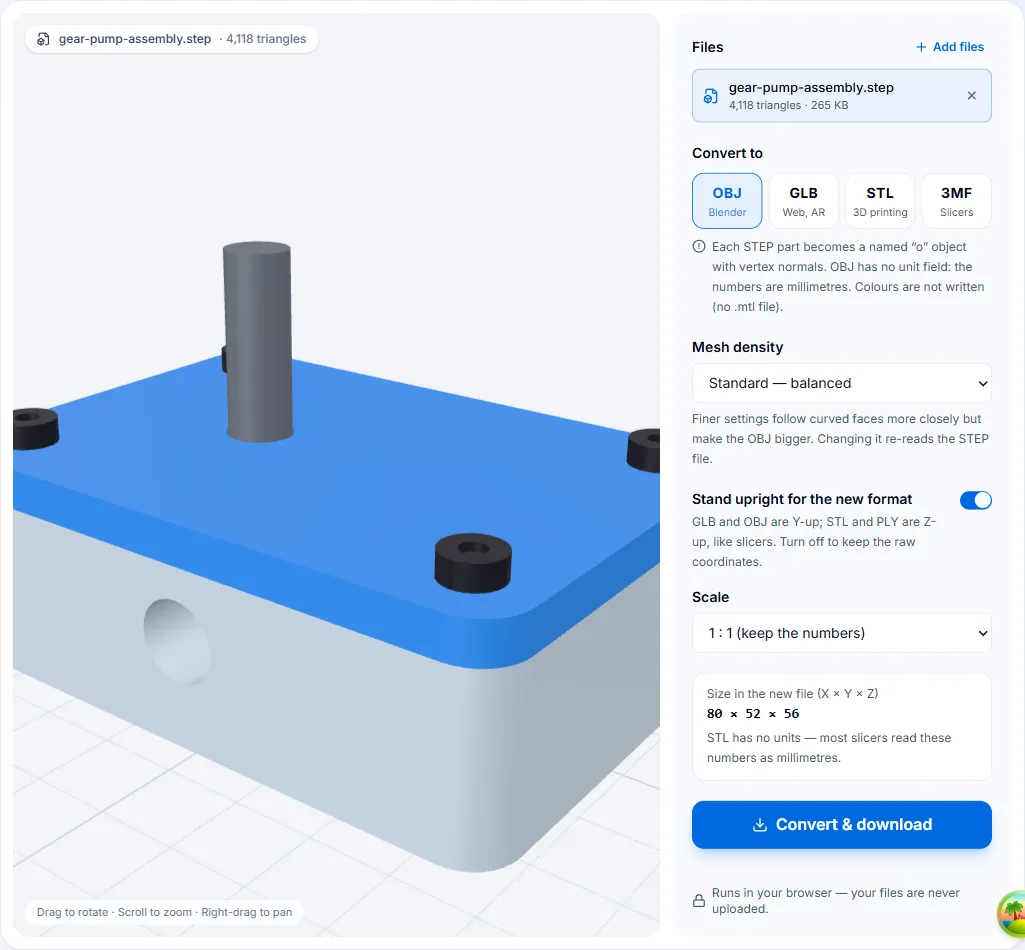
Mesh density you choose
Four presets set how far a facet may stray from the true surface. Our gear pump goes from 2,640 to 14,708 triangles, so you can trade detail against file size.
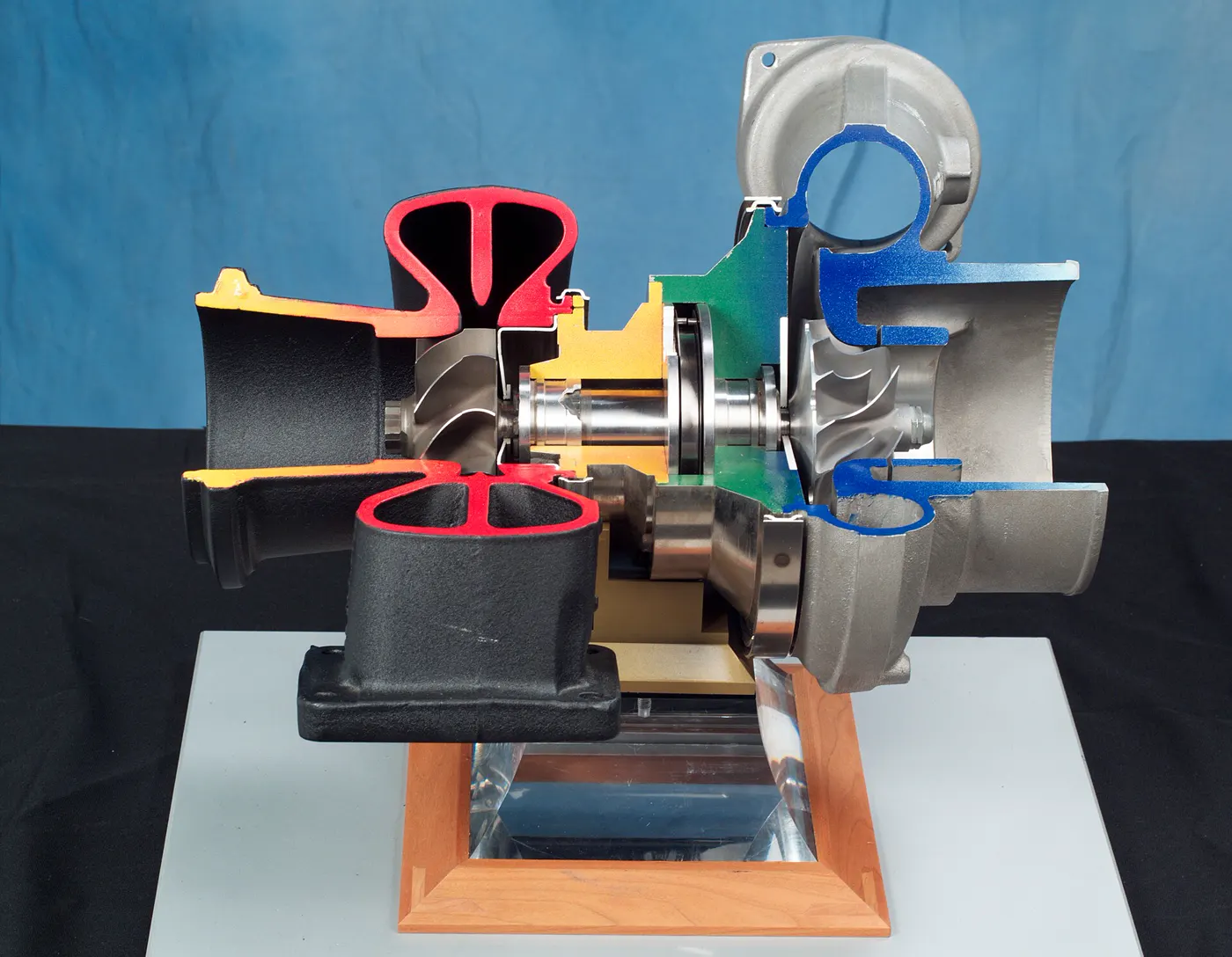
Smooth shading out of the box
Vertex normals are written for every face, so curved housings and shafts shade smoothly in renderers instead of showing a faceted look.
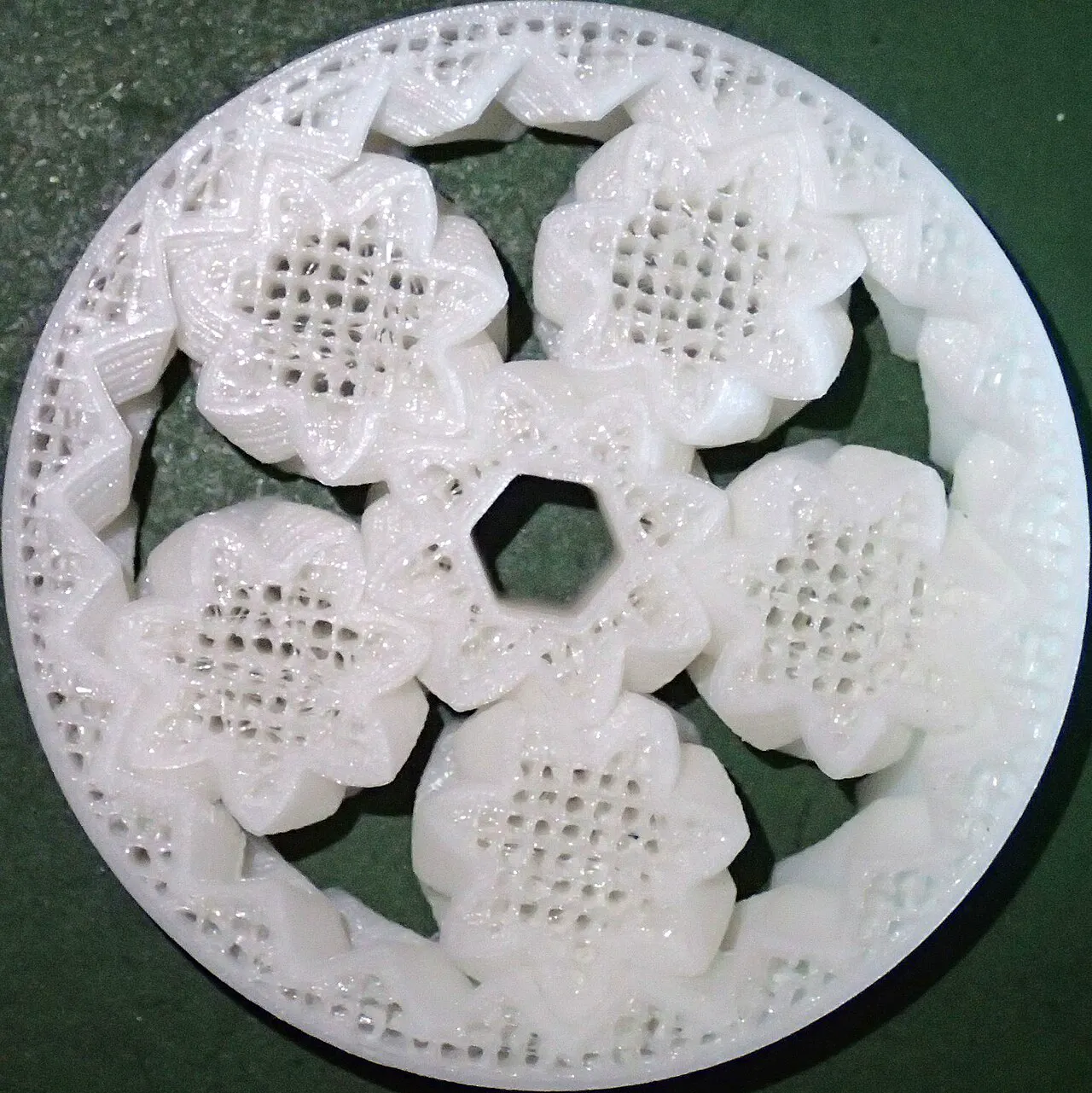
Upright for 3D software
CAD is Z-up; OBJ tools usually expect Y-up. The converter turns the model upright by default, or keeps raw CAD coordinates when you untick the option.
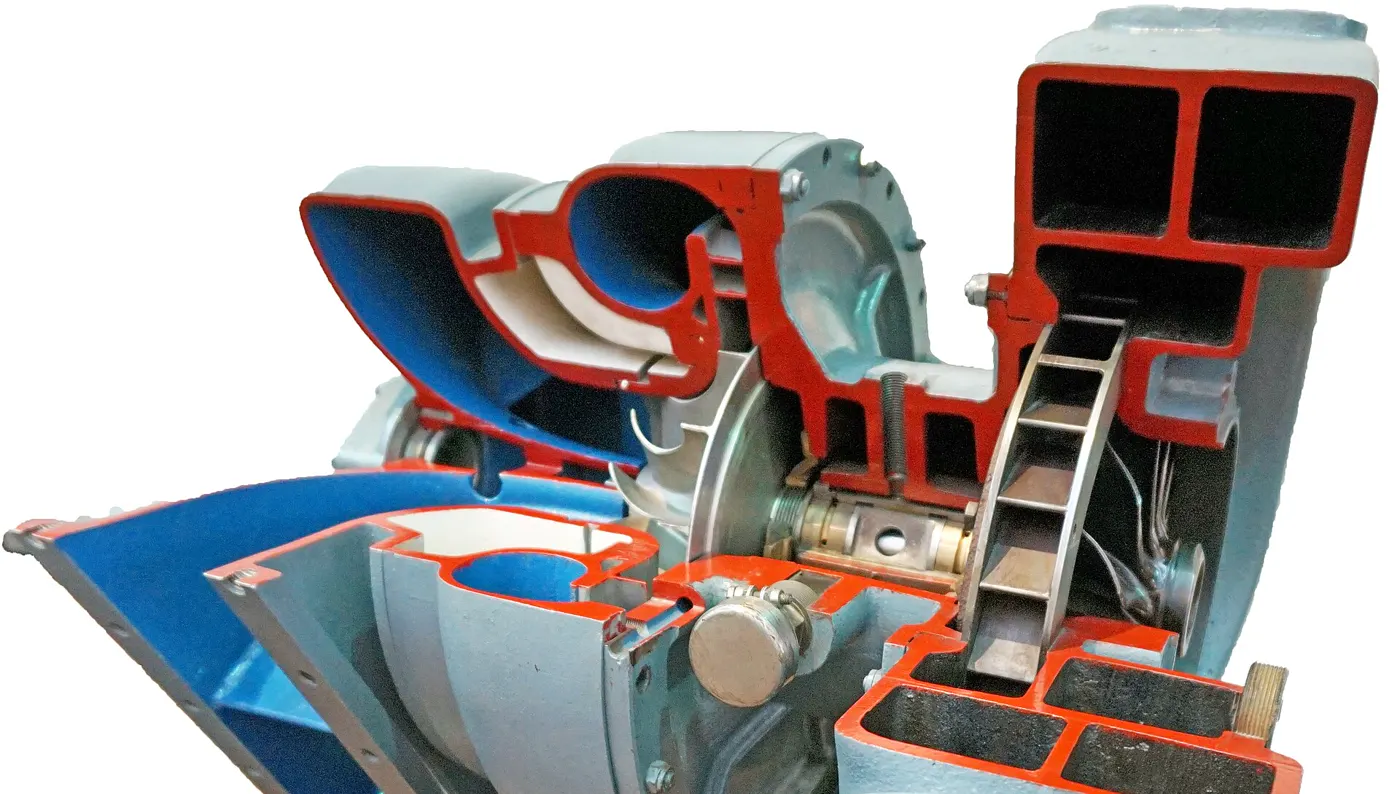
Private CAD stays private
Supplier parts and product designs are often under NDA. The STEP file is read and converted in this tab; it is never uploaded or stored by Kairo3D.
Photo credits: S.J. de Waard (CC BY 2.5), Robbie Sproule (CC BY 2.0), Tiia Monto (CC BY-SA 3.0), via Wikimedia Commons; NASA (public domain). Other pictures are reference examples.
STEP to OBJ — frequently asked questions
Part names, materials, scale, Blender import and the limits of a mesh.
More ways to work with your 3D files
View, convert, or make a model from scratch.
STEP to GLB
Turn STEP CAD files into lightweight GLB for web and AR.
IGES to STL
Convert IGES / IGS surfaces to a printable STL mesh.
IGES Viewer
Open IGES / IGS CAD files online, no CAD software needed.
STEP to STL
Convert STEP / STP CAD files to STL for printing.
OBJ to 3MF
Convert OBJ models to 3MF for Bambu Studio and PrusaSlicer.
What Is a STEP File?
STEP vs STL, and how to open one.
Need a model you do not have in CAD?
Kairo3D turns a photo into a textured 3D model you can download as OBJ, GLB or STL.